> For the complete documentation index, see [llms.txt](https://docs.poweromni.ai/llms.txt). Markdown versions of documentation pages are available by appending `.md` to page URLs; this page is available as [Markdown](https://docs.poweromni.ai/en/administration-and-configuration/artifacts/connectors/logic-apps.md).
# Logic Apps
This documentation details how to create a flow in Azure Logic Apps and use it as a connector in Power Omni, allowing AI Agents to execute actions in external systems (e.g., APIs, databases, ERPs).
### 1. Enable Permission in Azure
Before creating the Logic App, it is mandatory to assign the correct permission to Power Omni at the Azure Subscription level.
1. Access the [**Azure Portal**](https://portal.azure.com/) and log in.
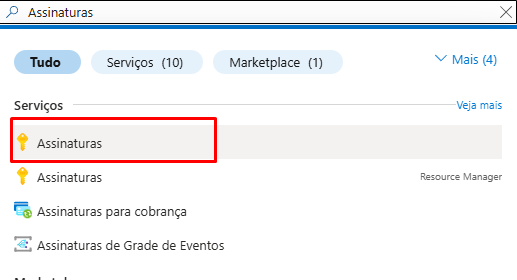
2. In the search field, search for **"Subscriptions"**.
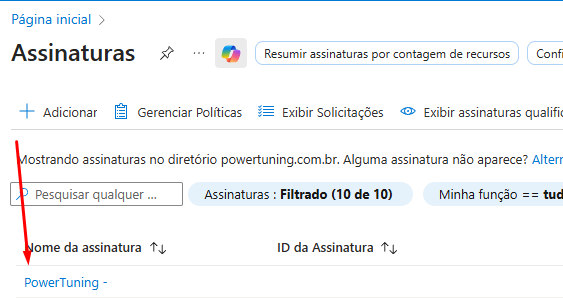
3. Select the subscription where Power Omni is installed.
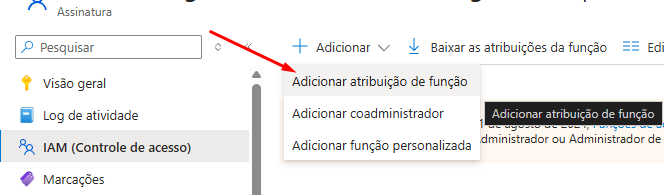
4. Click **IAM (Access Control)**, then click **Add > Add role assignment**.
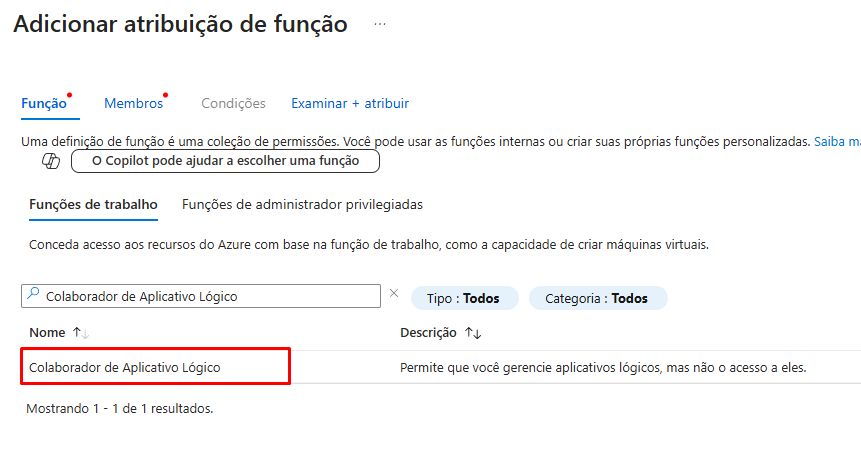
5. Search for **Logic App** and select **Logic App Contributor**, then click **Next**.
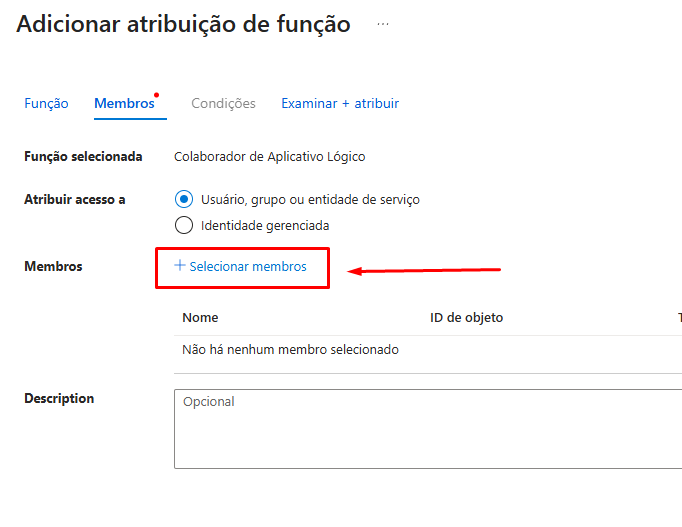
6. On the next screen (**Members**), click **"+ Select members"**.
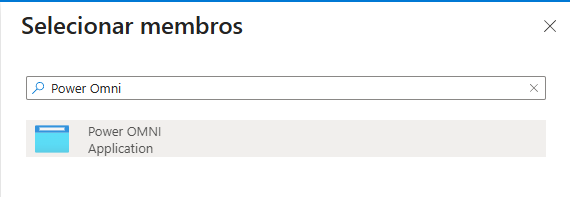
7. Search for **Power Omni**, select it, and proceed.
* Click **"Review + Assign"** to complete the role assignment.
Done! After assigning the role, you can proceed to create the Logic App.
### 2. Logic App Configuration in Azure
The Logic App will act as the bridge that receives the request from Power Omni and executes the desired business logic.
#### 2.1 Creating the Logic App Resource
1. Access the [**Azure Portal**](https://portal.azure.com/) .
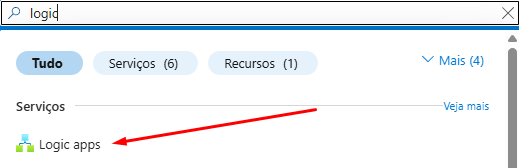
2. Search for **"Logic Apps"** and click **Create**.
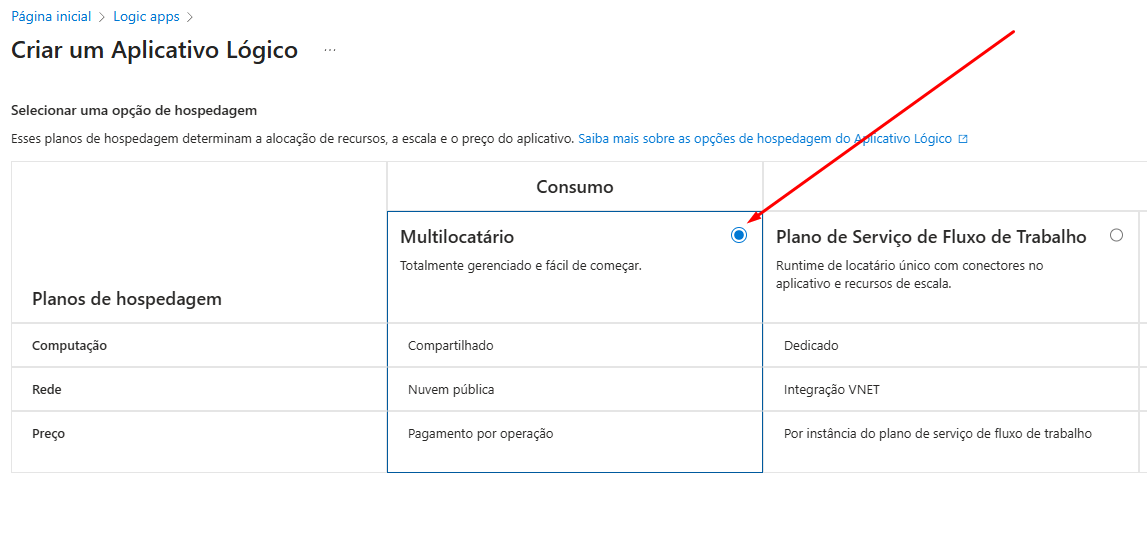
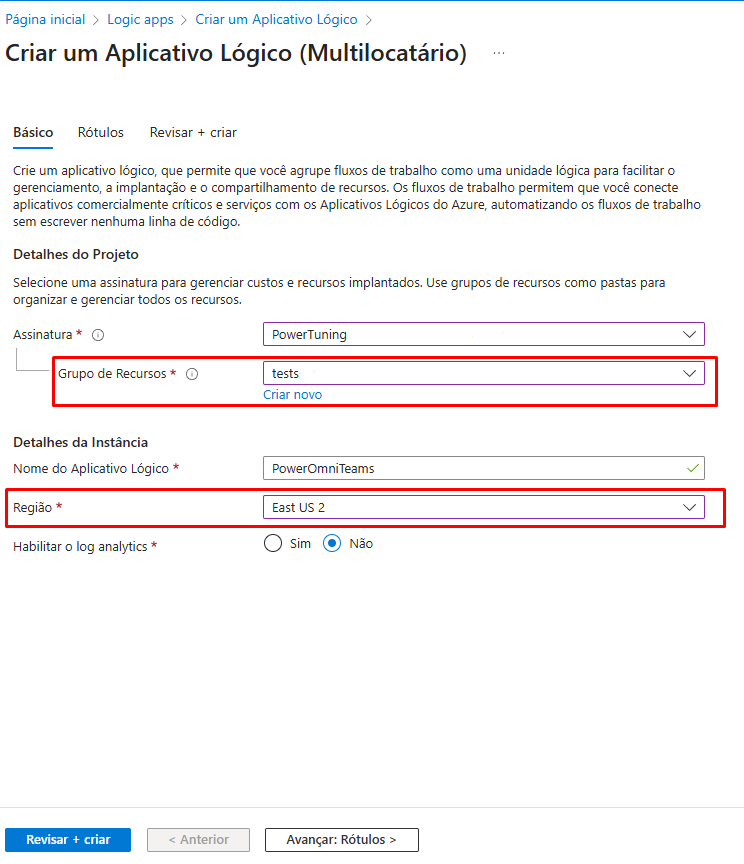
3. On the creation screen, use the following settings:
* **Plan Type:** Select **Consumption (Multitenant)**.
* It is important that the Logic App is created in the SAME Resource Group where the Azure AI Foundry resources (and Power Omni itself) were installed, and in the same region.
* After filling in the information, click **Review + Create**, then click **Create**.
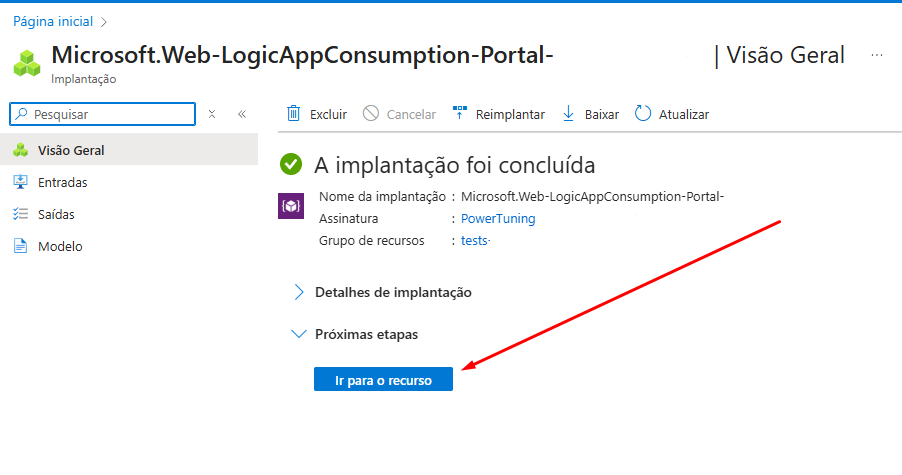
* Wait for the deployment to complete.
* After deployment, click **Go to resource**.
#### 2.2 Designing the Workflow
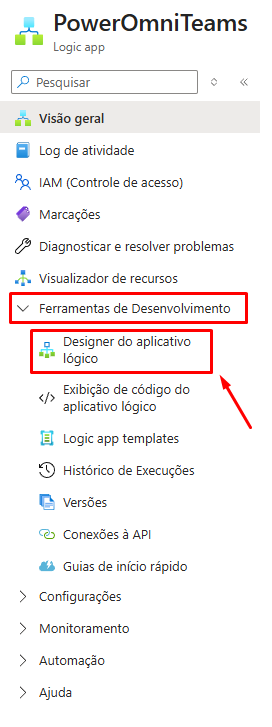
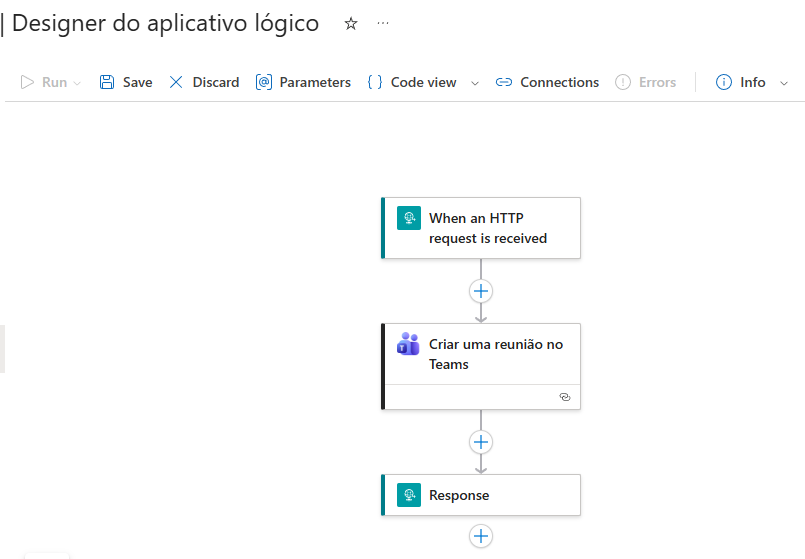
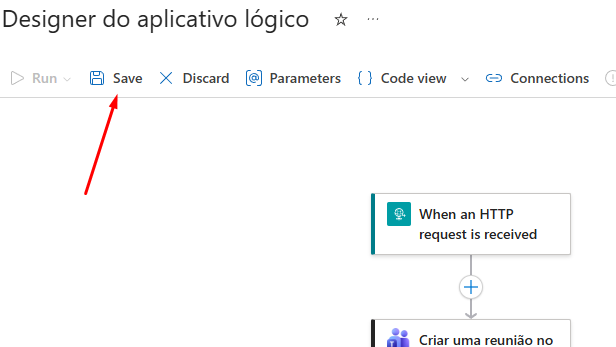
After creating the Logic App, you must design the workflow in the Logic App Designer.\
Click **Development Tools > Logic App Designer**.
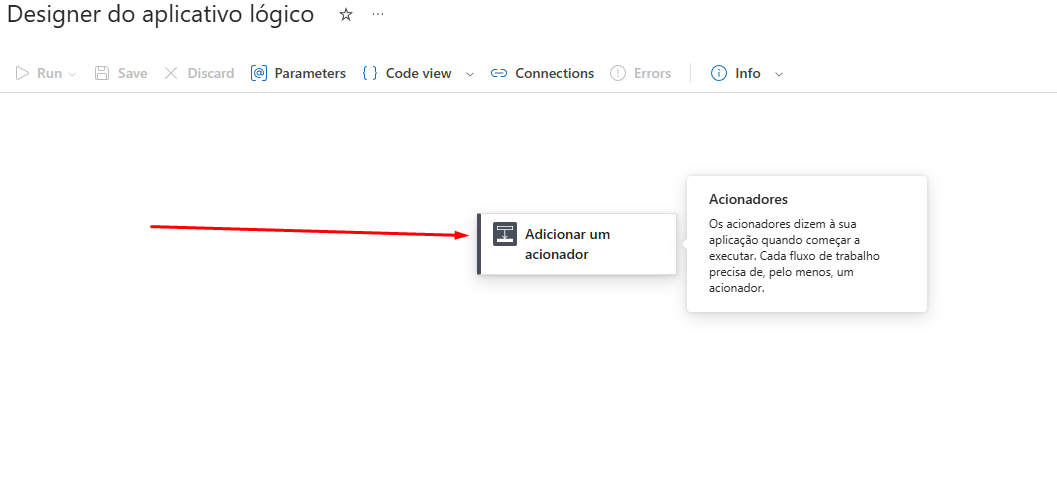
1. Trigger
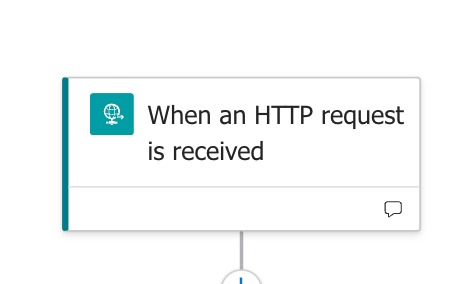
The flow must mandatorily start with the trigger:\
**"When an HTTP request is received"**.
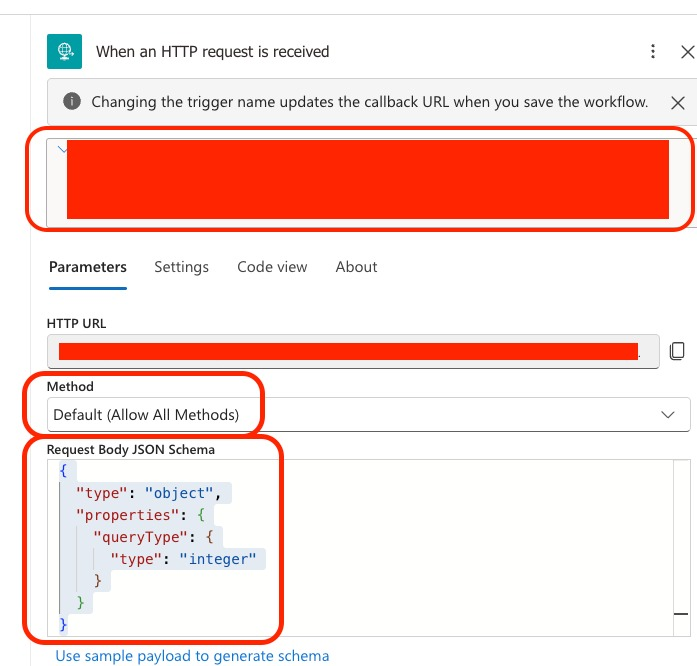
2. **Method:** In the HTTP trigger settings, set the Method to **"Allow all methods"**.
3. **Schema:** To ensure that Power Omni can send structured data to the Logic App, you must define the JSON schema. This schema defines which parameters the AI Agent can send to the Logic App.
4. Actions
Add the necessary actions (e.g., connect to a system via API, send email, retrieve data, etc.).
5. Response
The flow must mandatorily end with the **"Response"** action, which will send the execution result back to Power Omni.
6. After creating the flow, click **Save**.
### 3. Configuring the Connector in Power Omni
After the Logic App is created, Power Omni will automatically identify it in the connector listing.
#### 3.1 Creating the Connector
1. Access the **Power Omni Administration Area**.
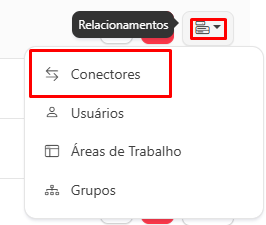
2. Navigate to **Artifacts > Connectors**.
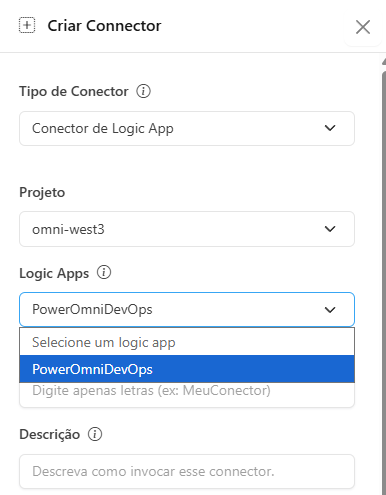
3. Power Omni will list the Logic Apps that are in the same Resource Group. Locate and select the desired Logic App.
4. Fill in the Connector information:
* **Connector Name:** Provide a descriptive name (e.g., "ERP Inventory Query").
* **Description:** Define the text that the AI Agent will use to recognize and trigger this connector (e.g., "check\_inventory", "verify\_API").
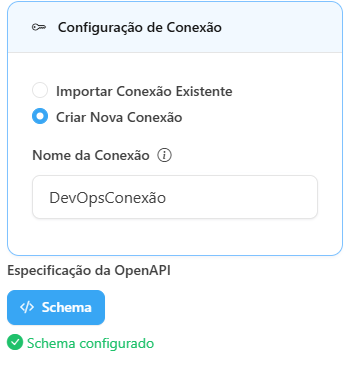
5. Connection Configuration
* **Create New Connection:** If this is your first time using this Logic App, provide a name to create the connection.
* If the connection was previously created, click **"Import Existing Connection"** and enter the connection name.
6. Verify that the Schema was configured automatically.
7. Click **Save**.
### 4. Linking the Connector to the Agent
For an AI Agent to use the new Logic App, it must be linked:
1. Go to the **Agents** section (in the Administration Portal).
2. Edit (or create) the AI Agent that should have access to the connector.
3. In the Agent configuration, link the newly created connector.
4. Save the changes.
{% hint style="success" %}
After that, your Agent is ready to use the created Logic App. Always remember to adjust the Agent’s instructions so that it operates according to the created Logic App.
{% endhint %}