> For the complete documentation index, see [llms.txt](https://docs.poweromni.ai/llms.txt). Markdown versions of documentation pages are available by appending `.md` to page URLs; this page is available as [Markdown](https://docs.poweromni.ai/en/administration-and-configuration/artifacts/connectors/microsoft-fabric.md).
# Microsoft Fabric
The Microsoft Fabric Connector allows your AI Agents to query and analyze structured data in real time (Lakehouses, Warehouses, and Power BI Semantic Models).
### Prerequisites
* A paid **Fabric F2 capacity or higher**, or a **Power BI Premium capacity (P1 or higher)** with Microsoft Fabric enabled.
* Fabric Data Agent tenant settings enabled.
* Cross-geo AI processing enabled.
* Cross-geo AI storage enabled.
* At least one of the following with data: a warehouse, a lakehouse, one or more Power BI semantic models, a KQL database, or an ontology.
* Power BI semantic models with XMLA endpoint tenant setting enabled for Power BI semantic model data sources.
### Part 1: Permission Prerequisites in Microsoft Fabric
For the Fabric Data Agent feature to function and be consumed by Power Omni, an administrator must enable the following Microsoft Fabric settings.
> 1. Log in to Microsoft Fabric with an administrator account.
> 2. Open the **Admin Portal**:
> * Select the gear icon in the upper-right corner.
> * Select **Admin Portal**.
> 3. Navigate to **Tenant Settings**:
> * In the Admin Portal, select **Tenant Settings** from the left navigation panel.
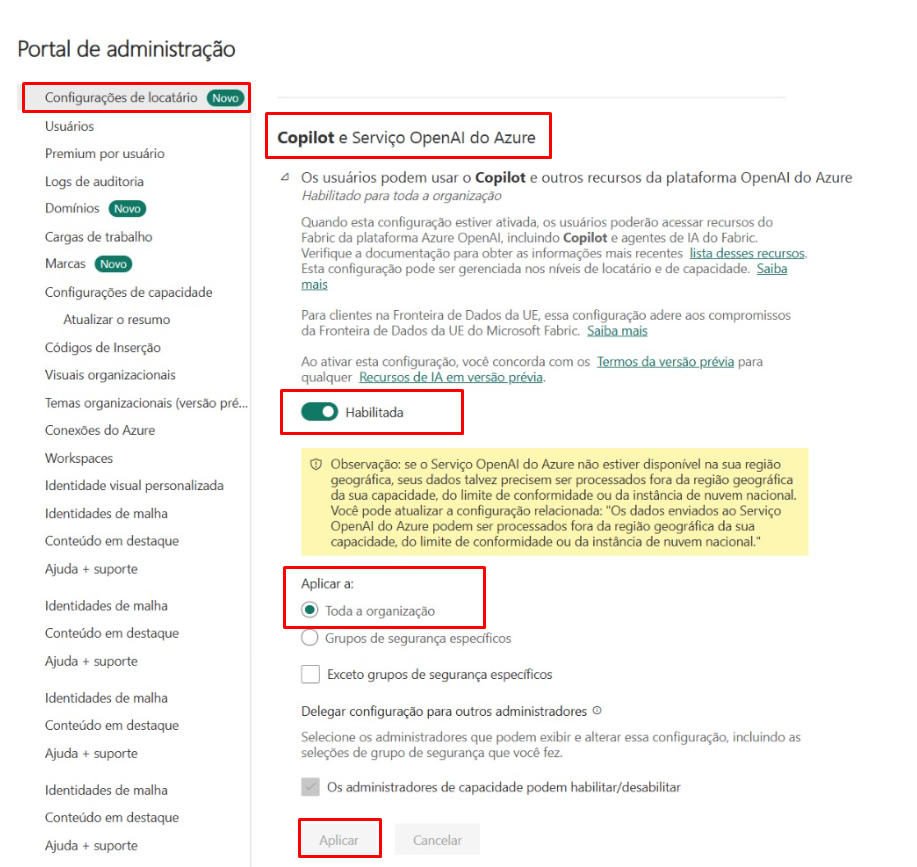
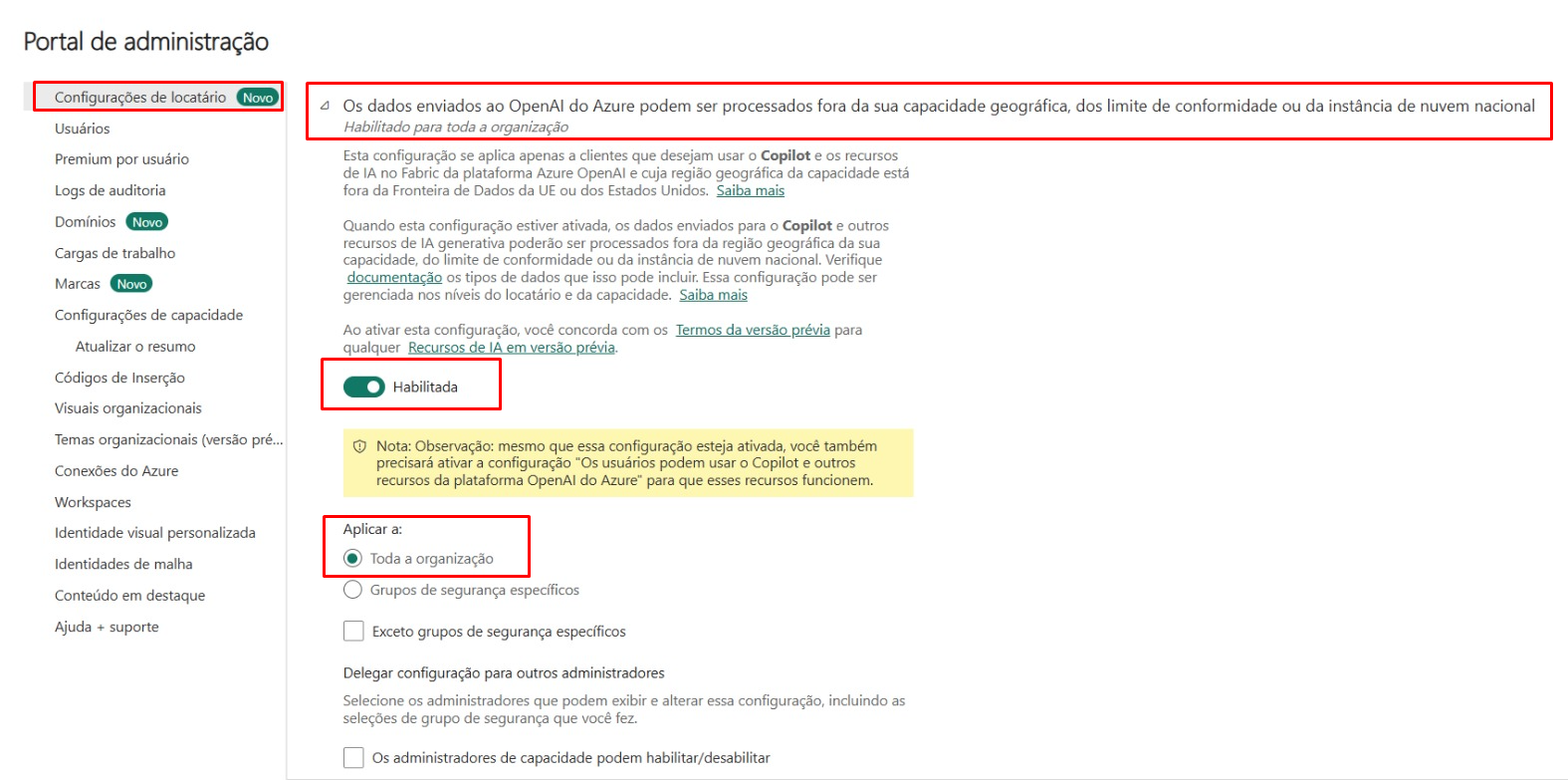
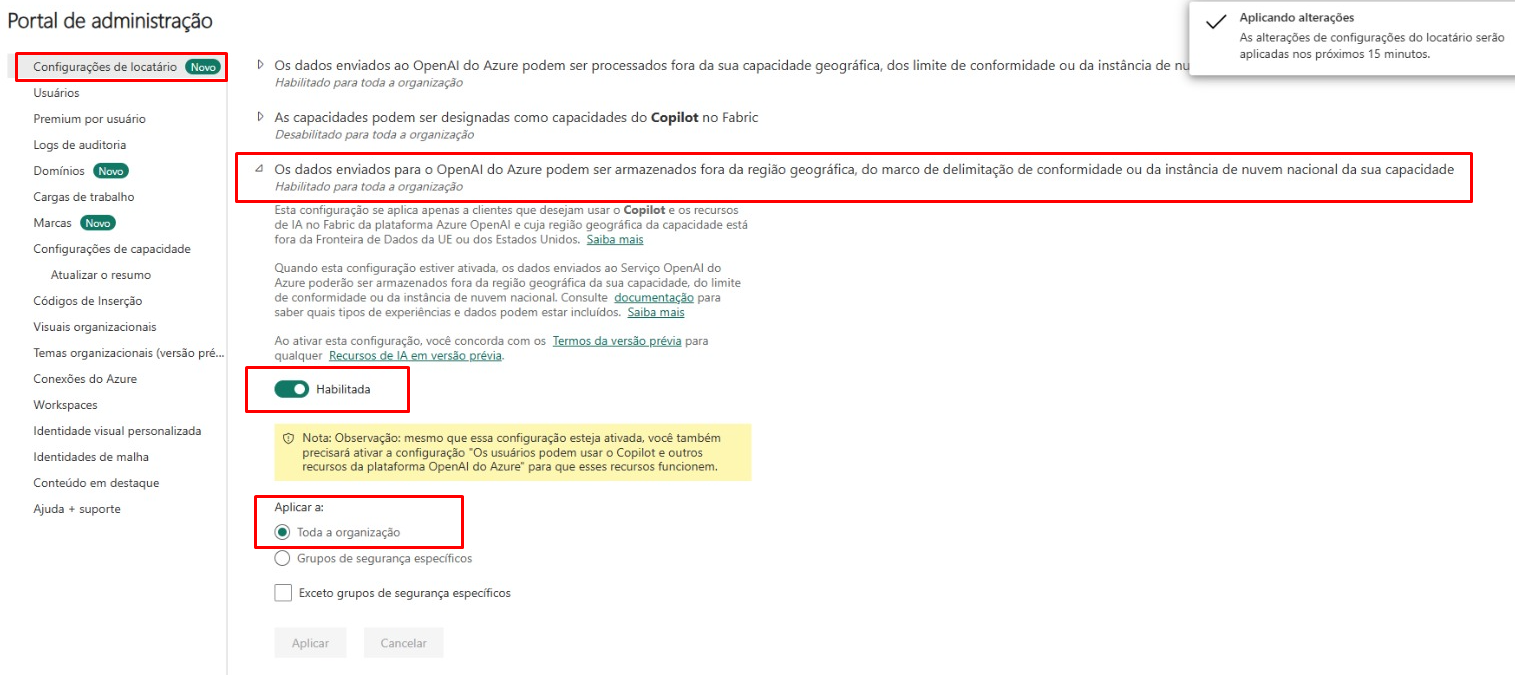
* #### Enable AI Service Settings (Copilot and Azure OpenAI)
This setting is essential for AI features, including the Data Agent, to function properly.
1. Users can use Copilot and other Azure OpenAI features.
2. Data sent to Azure OpenAI may be processed outside your geographic region, compliance boundary, or national cloud instance.
3. Data sent to Azure OpenAI may be stored outside your geographic region, compliance boundary, or national cloud instance.
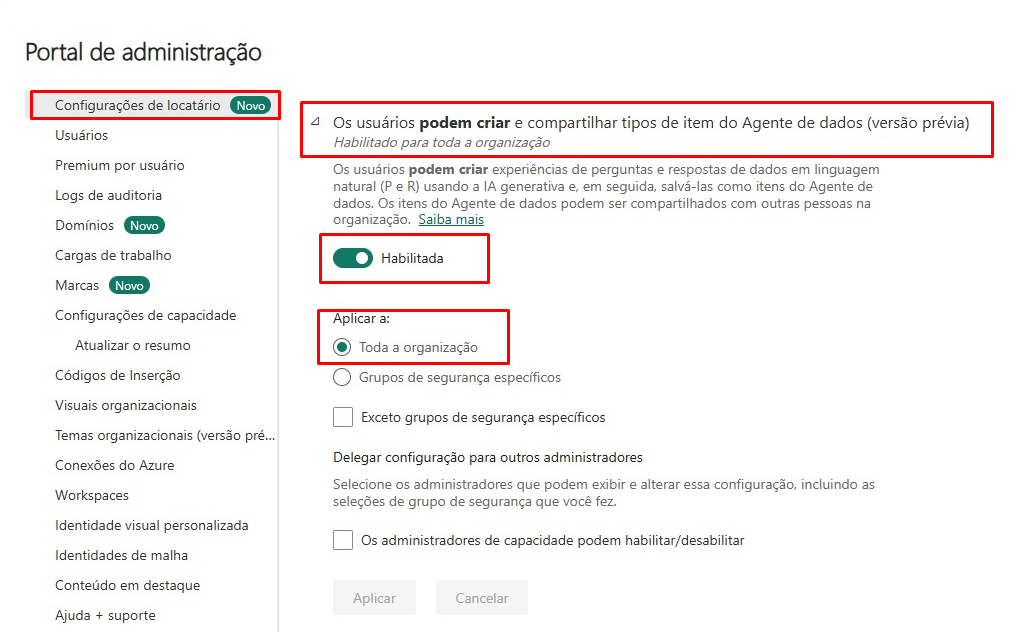
* #### Enable Fabric Data Agent Tenant Settings
By default, this feature is disabled at the tenant level and must be enabled to allow users to create and share Fabric Data Agent items.
1. Users can create and share Data Agent item types.
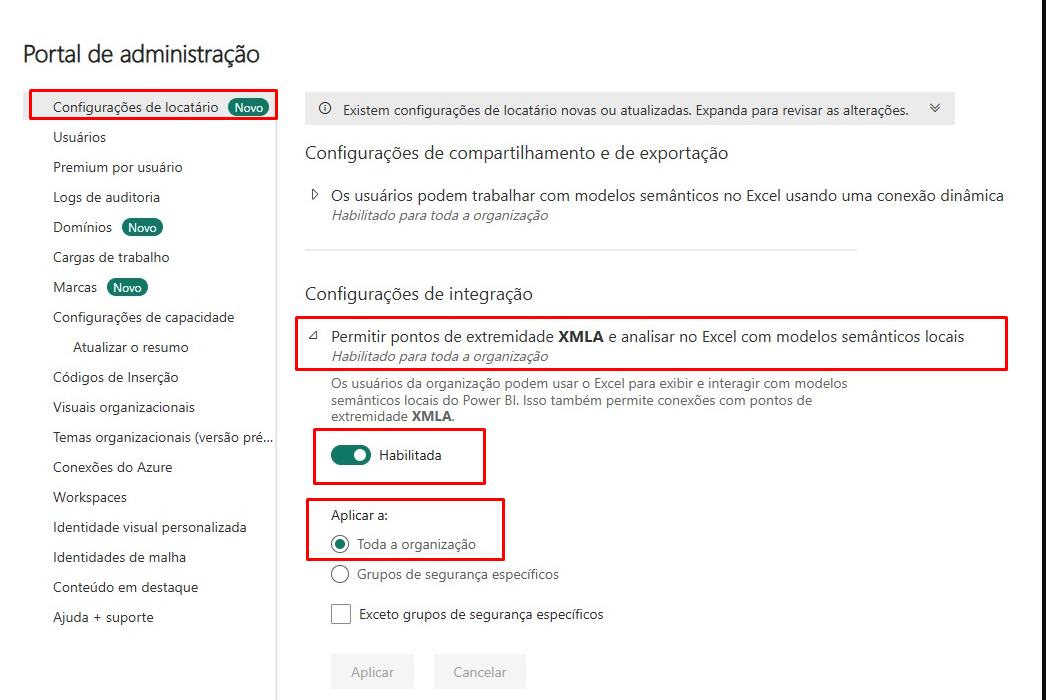
* #### Enable Power BI Semantic Model Integration via XMLA Endpoints
If your organization stores data in different geographic regions, cross-geo AI processing and storage settings must be enabled to ensure data access.
1. Allow XMLA endpoints and Analyze in Excel with on-premises semantic models.
{% hint style="danger" %}
**Important:** It may take up to one hour for the changes to take effect.
{% endhint %}
### Part 2: Creating the Data Agent in Microsoft Fabric
The Fabric Data Agent is the item that acts as a conversational Q\&A system for your data.
#### 2.1 Creating the Item
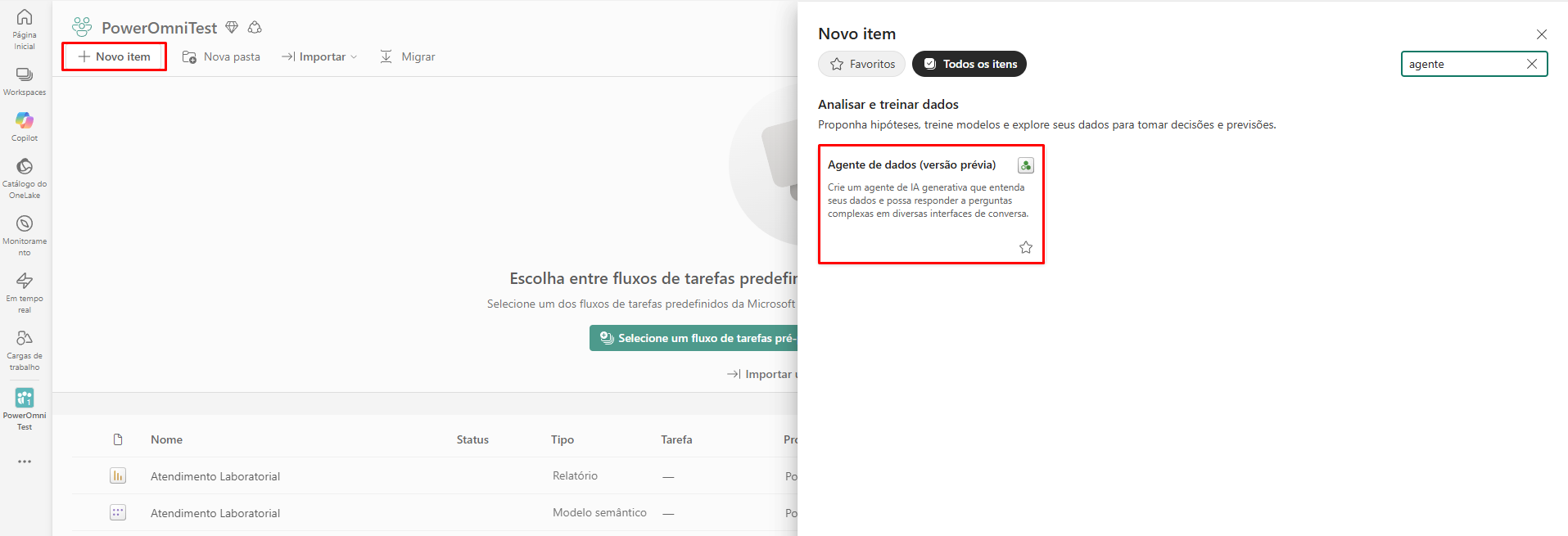
1. In your Fabric Workspace, click **"+ New item"** and search for **"Data Agent"**.
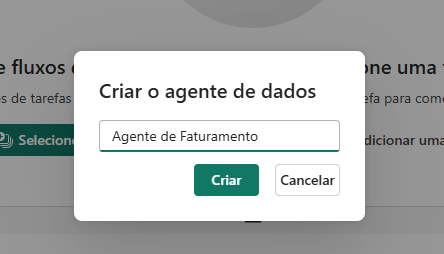
2. Give your agent a name (Ex: "Sales and Billing Agent").
### 2.2 Configuring Data Sources
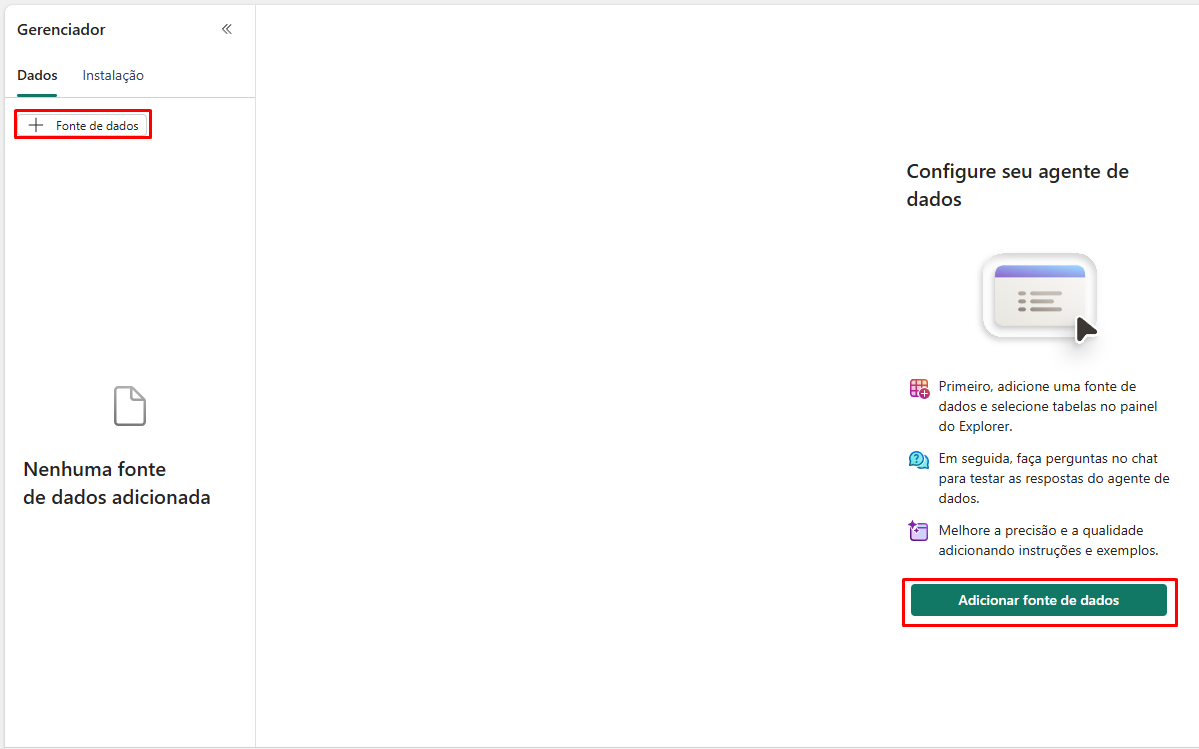
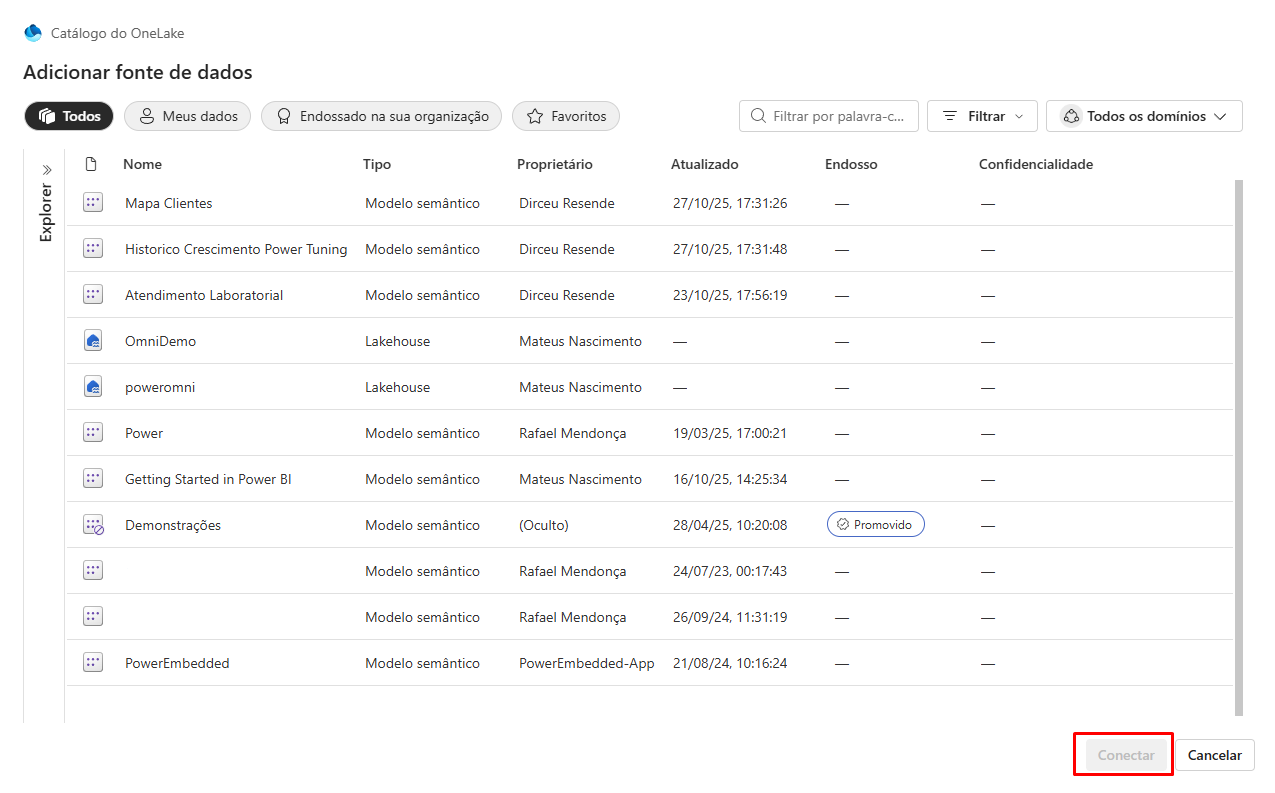
1. **Add Sources:** In the Data Agent, select the option to add data sources. You can add up to five data sources in total, in any combination of supported types.
2. **Choose:** Select one or more sources, such as a Lakehouse or a Power BI Semantic Model.
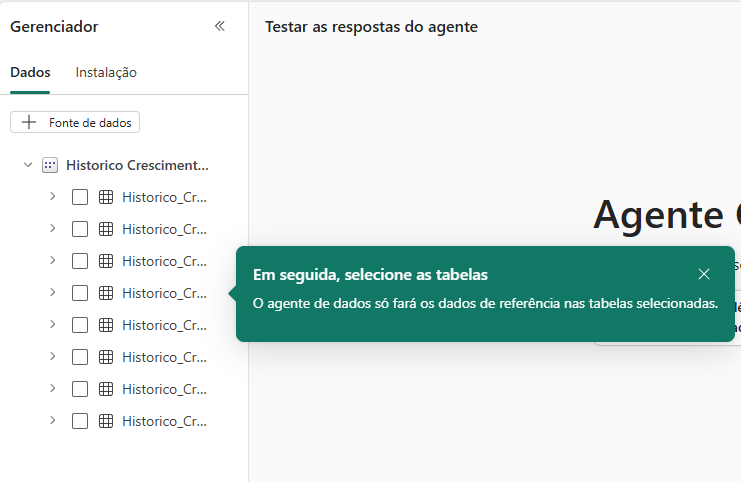
3. After adding sources, the Explorer panel on the left will be populated with available tables.
* Use the checkboxes to make tables available to the AI.
* **Essential Tip:** Use descriptive names for tables and columns (Ex: SalesData is better than TableA). This helps the AI generate more accurate queries.
{% hint style="info" %}
### **Note:**
You only need **Read permission** to add a Power BI semantic model as a data source. Write permission is not required because the Fabric Data Agent issues read-only queries.
{% endhint %}
### 2.3 Behavioral Refinement of the Agent
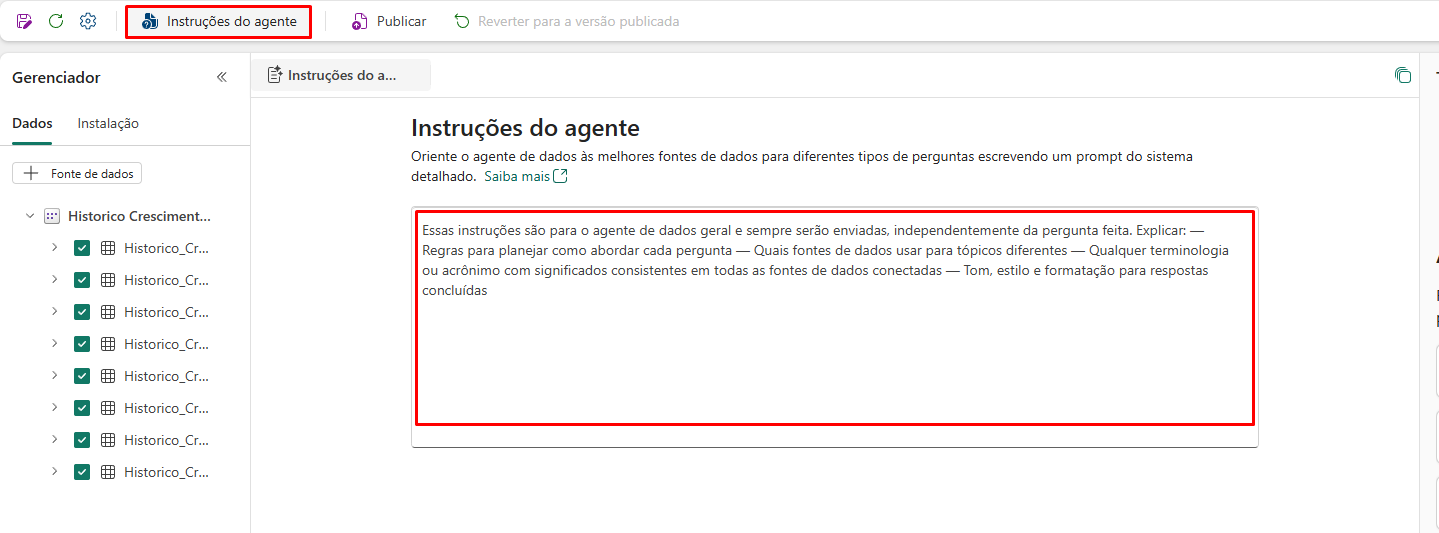
1. **Provide Instructions:**
* Select **Data Agent Instructions** to open the configuration panel.
* You can write up to **15,000 characters in English** to guide the AI’s behavior.
* **Usage Examples:** You can specify the exact data source to be used for certain types of questions. Examples may include guiding the AI to use:
* Power BI semantic models for financial queries
* A lakehouse for sales data
* A KQL database for operational metrics
These instructions ensure that the AI generates appropriate queries (SQL, DAX, or KQL) based on your guidelines and the context of the questions.
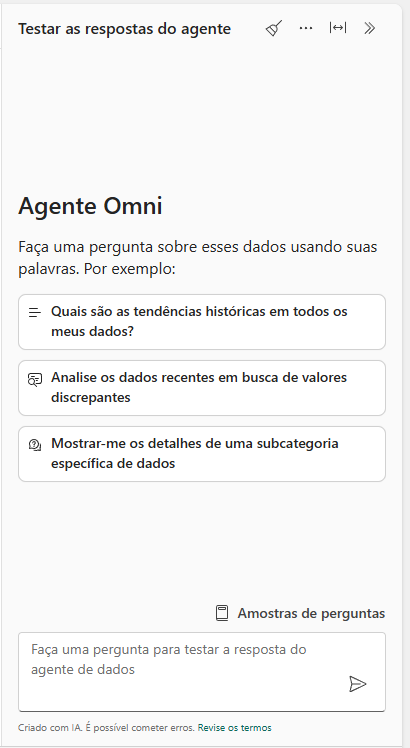
* Test the agent’s performance.
2. Publishing:
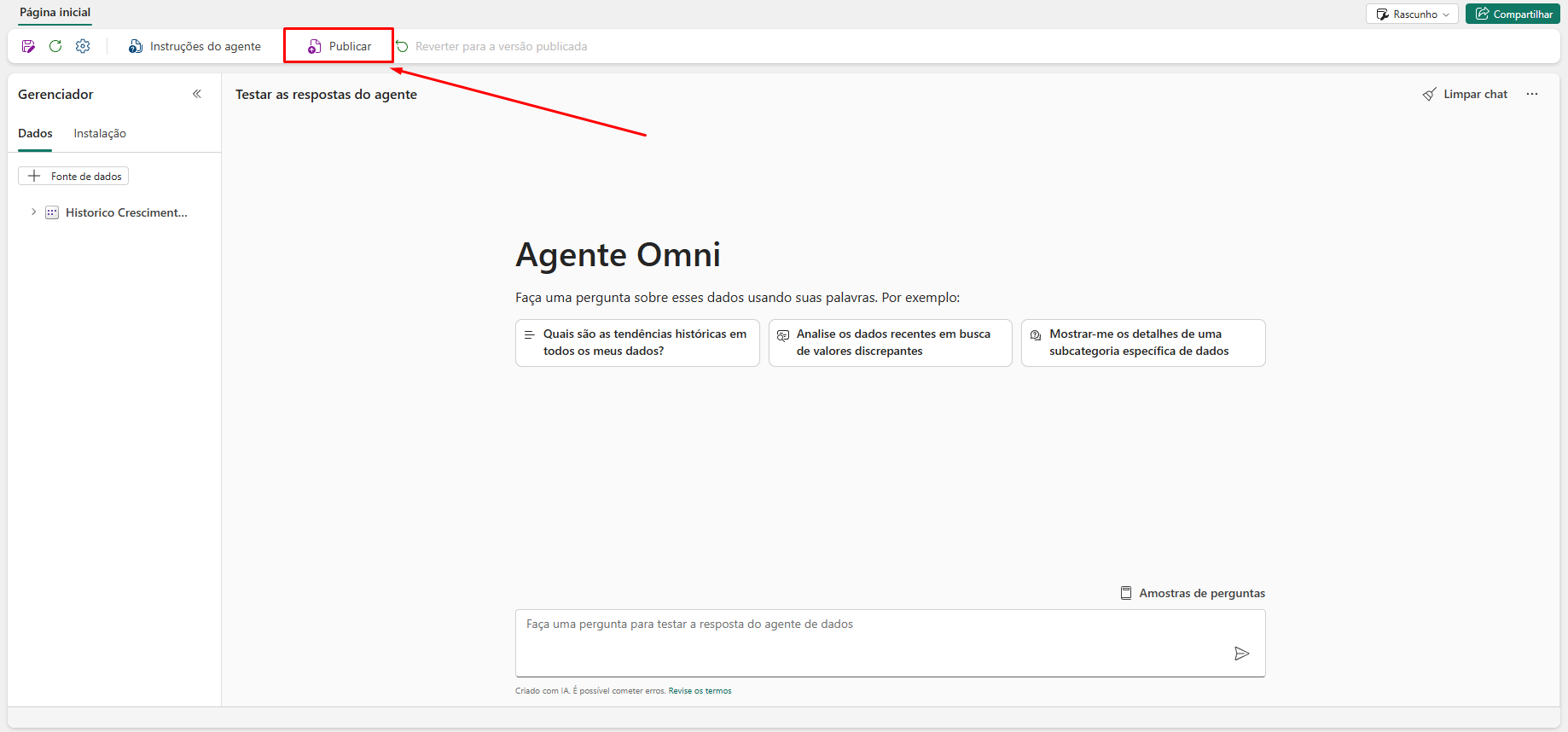
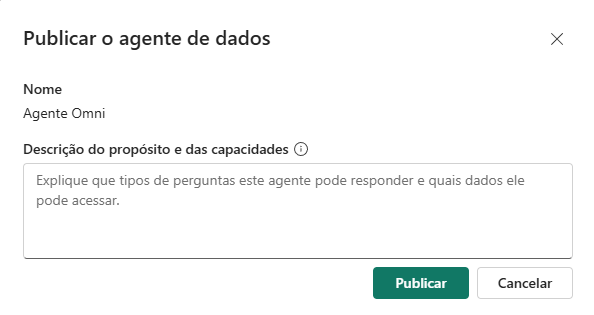
* After testing and validating performance, select **Publish**.
* Publishing creates a published version (for sharing and consumption) and maintains a draft version (for refinement).
* **Description:** Provides context when the agent appears in other experiences. The description is used by other AI orchestration systems (such as Power Omni) to properly invoke the agent.
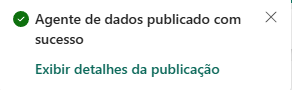
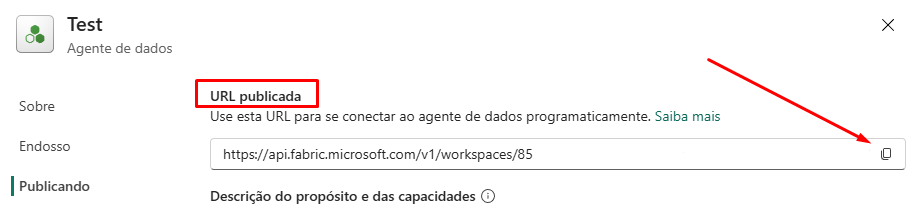
* After publishing the Data Agent, click **View publication details**.
* The published URL will appear. Copy the URL — it will be used to configure the connection in Power Omni.
### Part 3: Configuring the Connector in Power Omni
Power Omni will consume the Fabric Data Agent you just created.
#### 3.1 Creating the Fabric Connector
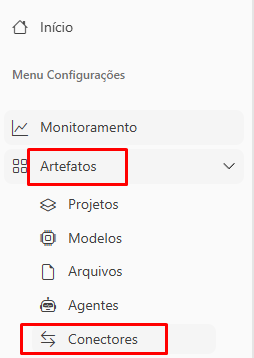
1. Access the Power Omni Administration Portal and navigate to **Connectors**.
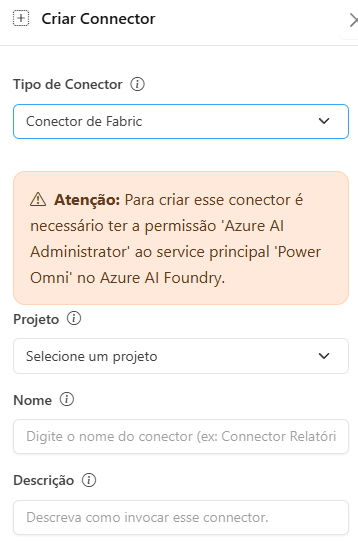
2. Click **"Add Connector"** and select **"Microsoft Fabric Connector"**.
3. Fill in the information:
* Select the project.
* **Connector Name:** Internal name for identification (Ex: "Sales Analysis").
* **Tool Description:** Describe the connector’s function for the AI Agent (Ex: "Use this tool to query real-time sales, billing, and inventory metrics.").
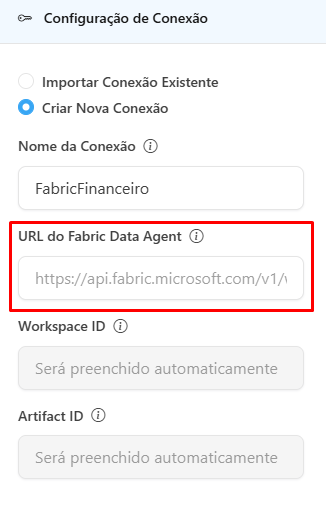
* Under connection configuration: select **Create New Connection**.
* Provide a name for the Connection. If you want to reuse the same connection later in another connector, simply choose **Import Existing Connection** using its name.
* Paste the URL copied from Fabric into the **Fabric Data Agent URL** field. The system will automatically identify the Workspace ID and Artifact ID.
* Click **"Save"**.
### 3.2 Linking the Connector to the Agent
The final step is granting permission for your AI Agent to use the new connector.
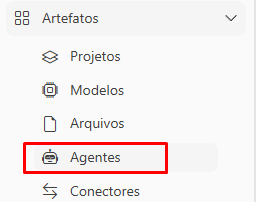
1. Go to **Artifacts > Agents** in the Administration Portal.
2. Select the AI Agent that will query Fabric.
3. Navigate to **Relationships > Connectors**.
4. Locate and add the newly created **Microsoft Fabric Connector**.
5. Click **"Save"**.
6. Also remember to grant permission to a user, group, or workspace to view that Agent.
#### ✅ Final Result
The AI Agent is now connected to your data environment.
When a user asks, for example, “What was the total revenue last quarter?”, the Agent will:
* Recognize the intent (based on the “Tool Description”).
* Call the Fabric Data Agent.
* The Fabric Agent will translate the question into SQL/DAX/KQL.
* The Agent will receive the data from Fabric and format it into a natural language response for the user.
{% hint style="info" %}
If you have any questions regarding the Microsoft Fabric integration process, please contact Support.
{% endhint %}