> For the complete documentation index, see [llms.txt](https://docs.poweromni.ai/llms.txt). Markdown versions of documentation pages are available by appending `.md` to page URLs; this page is available as [Markdown](https://docs.poweromni.ai/en/administration-and-configuration/artifacts/connectors/n8n.md).
# N8N
{% hint style="danger" %}
### **Pre-configured N8N Template Link**
[Click Here](https://stpowergptprodeastus.blob.core.windows.net/public/TemplateOmniOpenApi.json)
{% endhint %}
The **N8N Connector** allows Power Omni to use workflows created in the N8N platform to execute complex automations, connect to external systems, and process data, acting as a powerful automation orchestrator.
### Part 1: Preparing and Importing the N8N Flow
For N8N to communicate correctly with Power Omni, you must import a predefined flow template with the correct Trigger and Response structure.
#### 1.1 Obtaining and Importing the Template
1. **Get the Template:** Access the pre-configured OpenAPI template link:\
[Click Here](https://stpowergptprodeastus.blob.core.windows.net/public/TemplateOmniOpenApi.json)
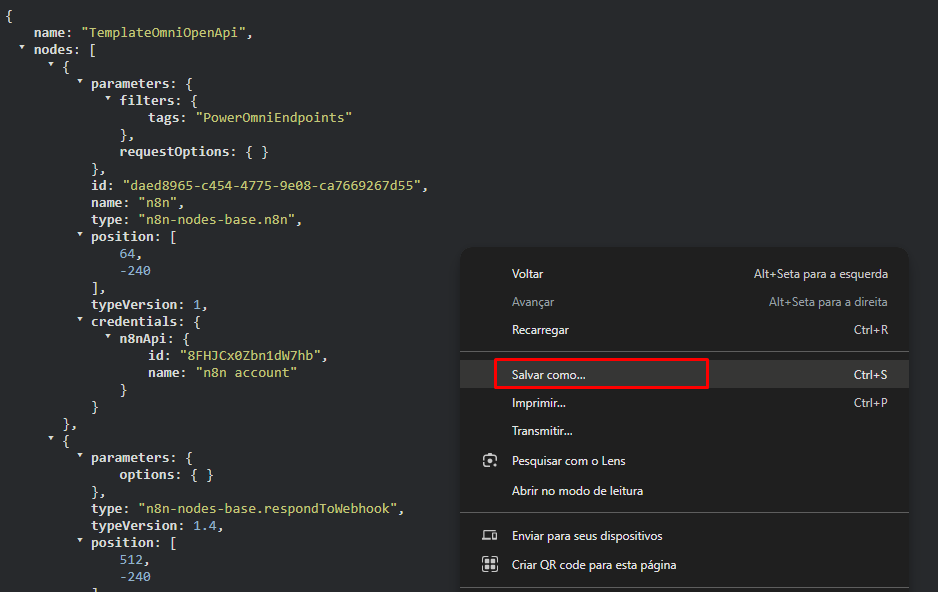
2. Save the file (**TemplateOmniOpenApi.json**) to your computer by right-clicking and selecting **Save as**.
3. **Import into N8N:** Access your N8N instance and click **Create Workflow**.
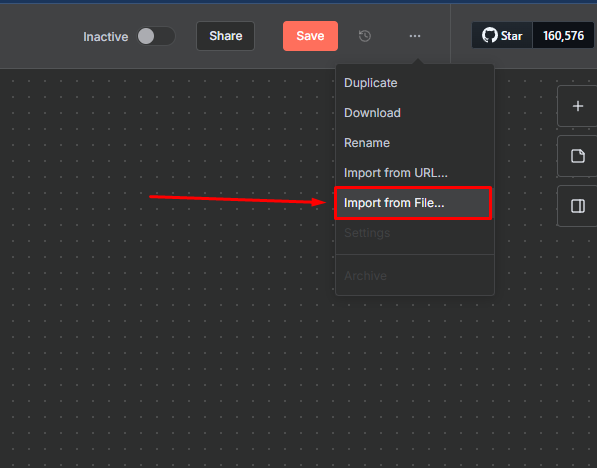
4. Click the three dots icon (**...**) and select **Import from File**.
#### 1.2 Configuring Authentication in the Flow
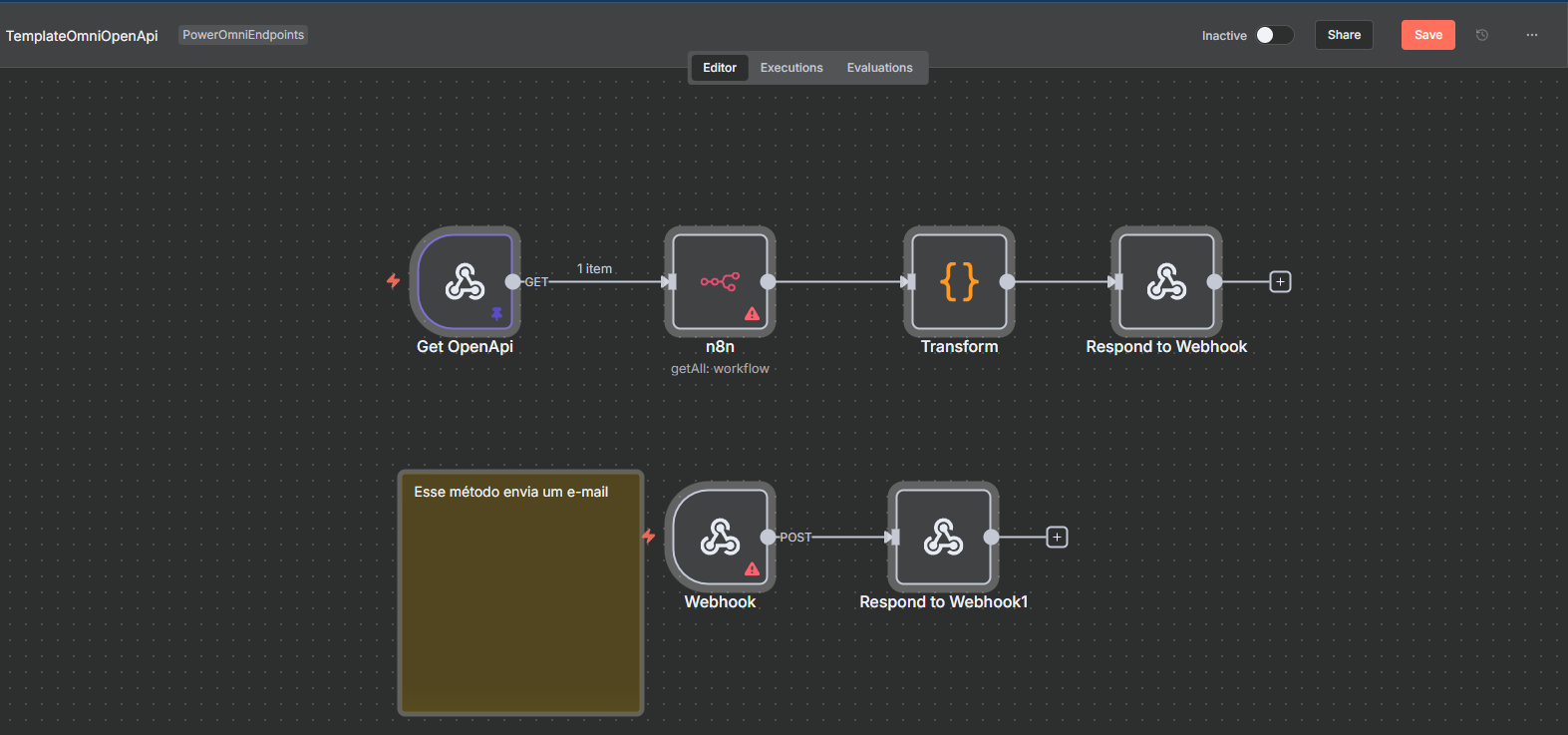
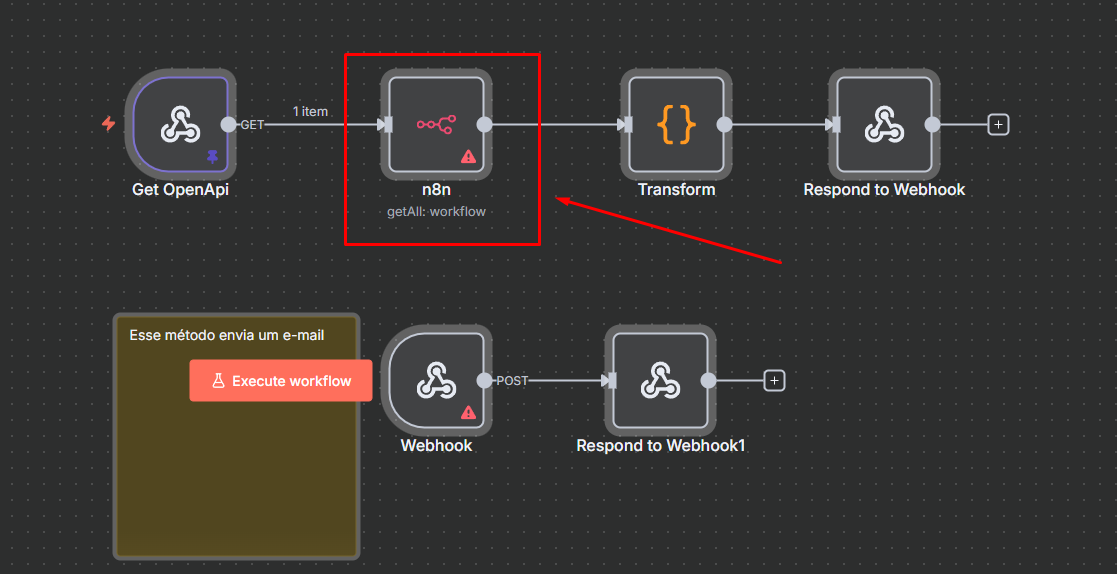
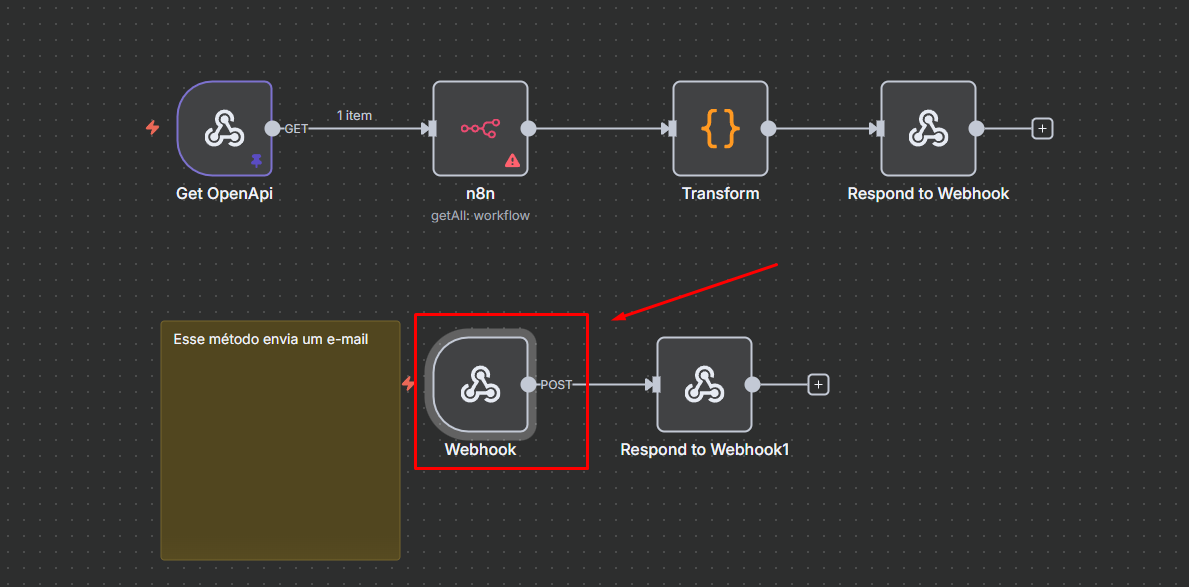
The imported template requires configuring two credential nodes for authentication in Power Omni.
1. **Adjust the Flow:** Inside the imported flow, you must customize it to add your business logic (e.g., HTTP Request node, CRM integration node, etc.).
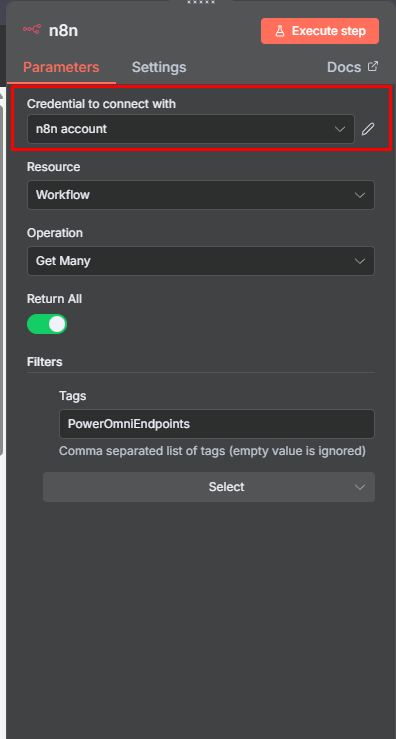
2. **Configure the Credentials Node:** Locate the node responsible for N8N authentication credentials.
* Fill in the field with your N8N credential, or create a new one.
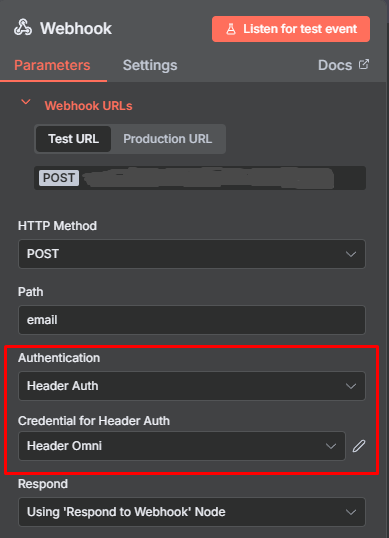
3. Configure the Webhook with credentials so that Omni can access the flow.
* The *Webhook* must be configured with **Header Auth** so that Omni has secure access to the flow.
4. Save the flow after making your customizations.
### Part 2: Activating the Flow and Collecting the URL
N8N exposes an endpoint so that Power Omni can send requests.
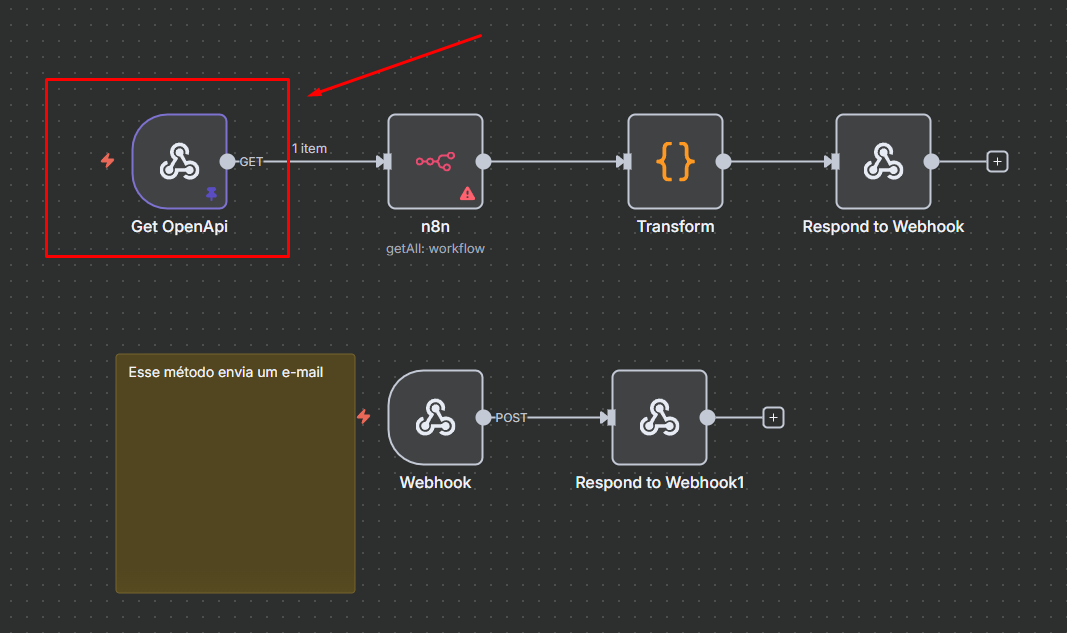
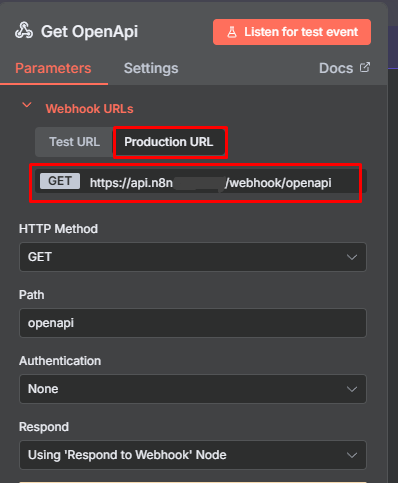
1. Locate the **Get OpenApi** node inside your N8N flow.
2. In the node settings, locate and click the option to view the **Production URL**.\
(This is the URL that Power Omni will use to invoke the flow.)
3. Copy the URL.
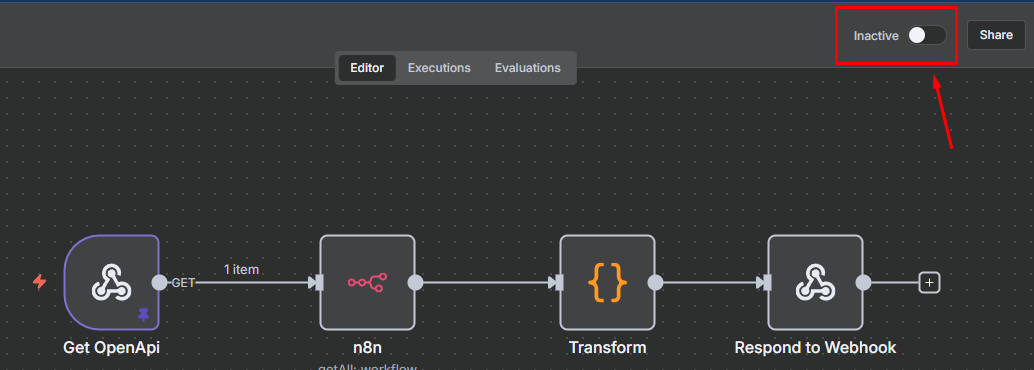
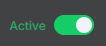
4. **Activate the Flow:** Make sure the toggle at the top of your flow is **ENABLED** so it can receive external requests.
5. Save the flow and access Power Omni.
### Part 3: Creating the Connector in Power Omni
With the N8N flow active and the production URL copied, the final step is to configure the connector in Power Omni.
#### 3.1 Creating the N8N Connector
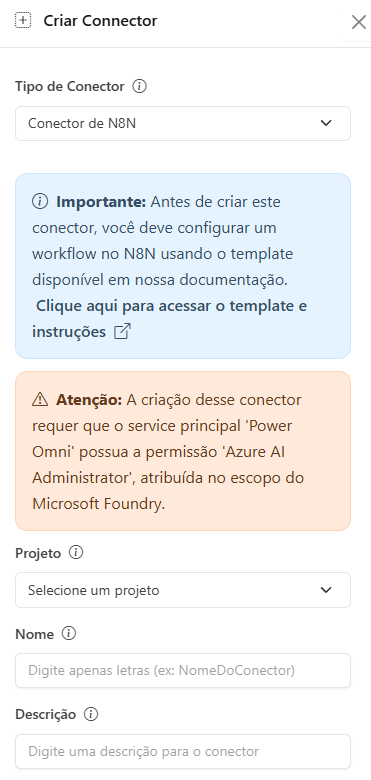
1. Access the **Power Omni Administration Portal** and navigate to **Connectors**.
2. Click **"Create"** and select the type **"N8N Connector"**.
* **Project:** Choose the project where this connector will be registered.
* **Name:** Internal identification name (Ex: "Ticket Creation Automation").
* **Description:** Describe the function of the N8N flow for the AI Agent (Ex: "Use this to send a notification via Telegram.").
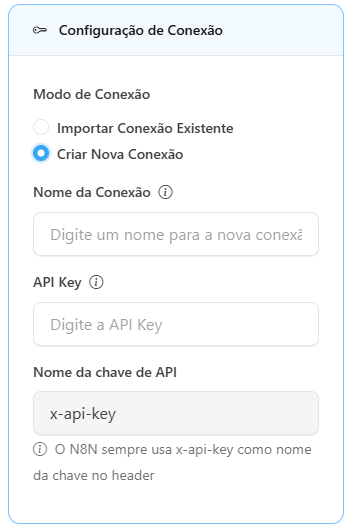
* **Import Existing Connection:** Use this option if you have previously created a connection with this flow and want to reuse it.
* **Create New Connection:** Use this if this is your first time configuring the flow. Fill in the authentication details below:
* **Connection Name:** Internal name for the connection.
* **API Key:** Enter the authentication key registered in N8N.
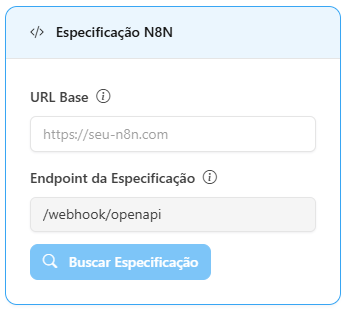
* **Base URL:** Paste the Production URL copied from the **Get OpenApi** node in N8N.
* Save the Connector after filling in all fields.
#### 3.2 Linking to the Agent
1. Go to **Artifacts > Agents** in the Administration Portal.
2. Select the AI Agent that should use the N8N automation.
3. Navigate to **Relationships > Connectors**.
4. Locate and add the newly created **N8N Connector**.
5. Click **Save**.
#### ✅ Final Result
The Agent is now ready to use the automation.
When the user makes a request that matches the **Tool Description** (e.g., “Create a new ticket for client X”), the Agent will trigger the N8N flow via Webhook, executing the desired automation.