> For the complete documentation index, see [llms.txt](https://docs.poweromni.ai/llms.txt). Markdown versions of documentation pages are available by appending `.md` to page URLs; this page is available as [Markdown](https://docs.poweromni.ai/en/administration-and-configuration/artifacts/connectors/openapi.md).
# OpenAPI
The OpenAPI Connector allows you to integrate Power Omni with any API that follows the OpenAPI standard. Through it, the AI moves beyond simply “conversing” and begins to “execute tasks” in external s
### Connector Creation and Identification
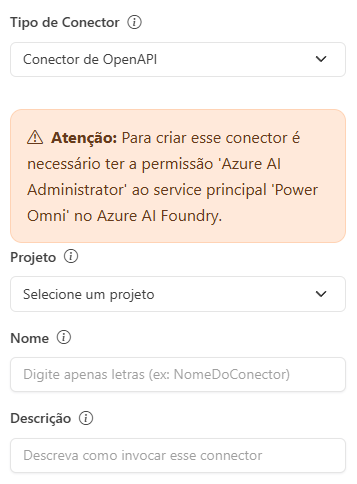
The Connector is created in the Administration Portal (**Artifacts > Connectors**).
* Click **"Create"** and select the type **"OpenAPI Connector"**.
* Select your Power Omni **Project**.
* **Name:** Internal identifier for management in the panel. Use clear names such as “Inventory Management API” or “CRM Integration”.
* **Description:** This field is read by the Artificial Intelligence. Provide a detailed description of what this connector does.
* **Tip:** The better the description, the more accurately the AI will decide to use this tool during a conversation.
***
### Authentication (Security)
For Power Omni to access external data, it must securely identify itself to the target API.
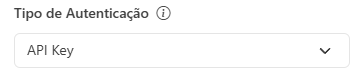
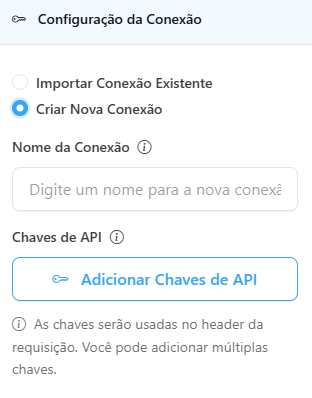
* **Authentication Type:**
* **Anonymous (No Authentication):** Used only for APIs that do not require access keys.
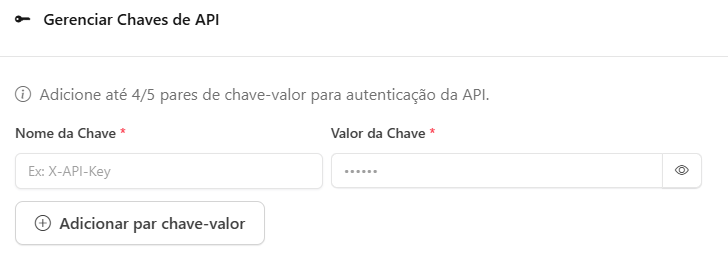
* **API Key:** You define the Header — usually `X-API-KEY` or `Authorization` — and enter the key value.
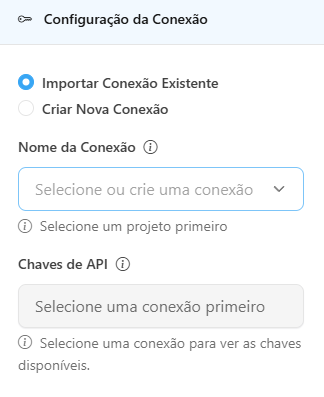
* **Import Existing Connection:** Use this option if you have previously created the connection and want to reuse it.
* **Create New Connection:** Use this if it is your first time configuring the API.
***
### Schema Definition (OpenAPI)
The Schema is the technical map of the API. It tells the AI which “doors” (endpoints) are available, what information it must send, and what it will receive in return.
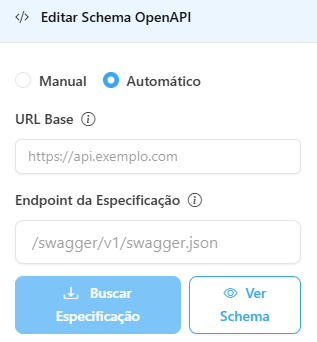
#### Automatic Import Method (Via URL)
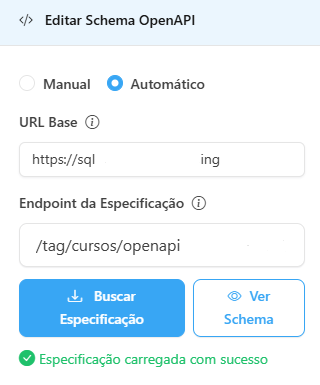
* **Specification URL:** In this field, enter the direct link to the API specification file (Ex: ).
* **Fetch Specification Button:** When clicked, Power Omni automatically retrieves the OpenAPI specification.
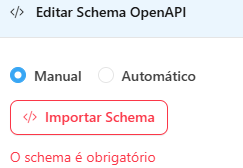
#### Manual Import Method
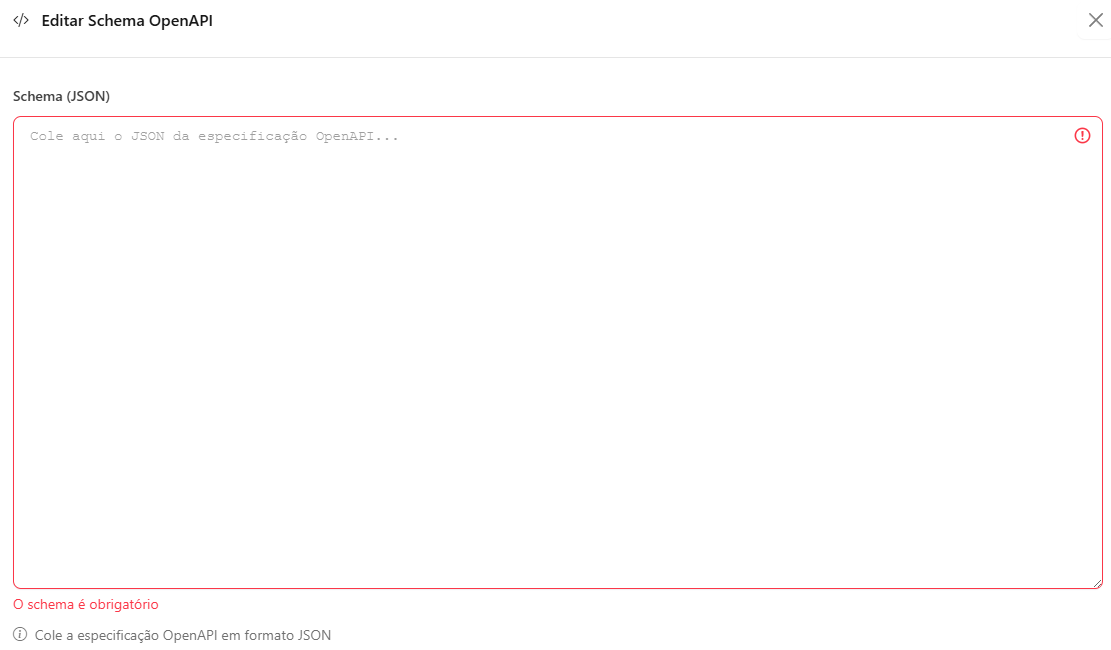
* **How to Use:** Copy the content of your OpenAPI specification and paste it directly into the editor.
* **Schema Editor (JSON):** Area to paste the OpenAPI specification code.
* **Endpoints and Methods:** The schema must detail supported methods, such as:
* `GET`: To retrieve information.
* `POST`: To create new records.
* `PUT/PATCH`: To update existing data.
* **Input Parameters:** Defines which data the AI must extract from the user’s conversation to populate the request (Ex: order\_id, customer\_cpf).
* **Validation:** The system will validate the JSON structure to ensure the format follows OpenAPI 3.0 standards.
***
### Validation
After configuring the structure and security, the connector must be registered to become available to Agents.
* The system performs a final syntax check on the Schema. If there are formatting errors in the JSON, the system will indicate the error line for correction.
* Click **Save**.
### Final Step: Linking the Connector to the Agent
The Agent will only have access to the API functions after the relationship is configured.
* Go to **Artifacts > Agents** in the Administration Portal.
* Select the AI Agent that needs to interact with the API.
* Navigate to the **Relationships > Connectors** tab or section.
* In the list of available Connectors, locate the newly created OpenAPI Connector.
* Associate the Connector with the Agent.
* Click **"Save"** to apply the changes.
***
### ✅ Best Practices and Governance
* When generating an API Key in your external system, grant permission only for the necessary methods. Example: If the AI only needs to retrieve data, do not provide a key with DELETE permissions.
* **Error Handling:** Ensure your external API returns clear error messages (Ex: “Order not found”). The AI will read this message and be able to explain to the end user what happened.
* **Updated Documentation:** Whenever your external API changes (for example, adding a new required field), remember to update the Schema on this screen to avoid integration failures.