> For the complete documentation index, see [llms.txt](https://docs.poweromni.ai/llms.txt). Markdown versions of documentation pages are available by appending `.md` to page URLs; this page is available as [Markdown](https://docs.poweromni.ai/en/administration-and-configuration/artifacts/skill.md).

# Skill

The **Skills** menu allows you to create and version reusable instructions for Power OMNI agents. Skills are stored in the project and linked to a **Toolbox**, which is then connected to the agent.

A Skill teaches the agent how to perform a task. It can define a process, internal rules, decision criteria, response format, and limits that must be followed.

{% hint style="info" %}
**Important:**

Skills and tools serve different purposes. A tool allows the agent to retrieve data or perform an action. A Skill guides how the agent should work in a specific situation.
{% endhint %}

### How it works

Using a Skill in Power OMNI follows this flow:

{% stepper %}
{% step %}
Create the Skill
{% endstep %}

{% step %}
Add it to a Toolbox
{% endstep %}

{% step %}
Connect the Toolbox to the agent
{% endstep %}

{% step %}
Use the Skill during a conversation
{% endstep %}
{% endstepper %}

This model allows you to reuse the same guidance across multiple agents without copying the content into each agent's instructions.

### Access the Skills menu

<figure><img src="https://2766970846-files.gitbook.io/~/files/v0/b/gitbook-x-prod.appspot.com/o/spaces%2FJWhplbeIb2veyNAuiGia%2Fuploads%2FD1m8AoH4pSE7x1TifOvb%2Fimage.png?alt=media&amp;token=d21cab70-4371-4d93-a9f9-636b07beef91" alt=""><figcaption></figcaption></figure>

{% stepper %}
{% step %}
Sign in to the Power OMNI Administration Portal.
{% endstep %}

{% step %}
Open Artifacts
{% endstep %}

{% step %}
Select Skills
{% endstep %}
{% endstepper %}

### Create a Skill

<figure><img src="https://2766970846-files.gitbook.io/~/files/v0/b/gitbook-x-prod.appspot.com/o/spaces%2FJWhplbeIb2veyNAuiGia%2Fuploads%2F9SAN5j2kIQZeiKJN9QmV%2Fimage.png?alt=media&amp;token=530f92d3-54b4-4048-a618-ebfbafbce73d" alt=""><figcaption></figcaption></figure>

{% stepper %}
{% step %}
Open Skills

Go to **Artifacts > Skills**.
{% endstep %}

{% step %}
Click Create

Click **Create** in the upper-right corner.
{% endstep %}

{% step %}
Complete the side panel

<table><thead><tr><th width="158">Field</th><th>Description</th></tr></thead><tbody><tr><td><strong>Project</strong></td><td>Select the Microsoft Foundry project where the Skill will be stored.</td></tr><tr><td><strong>Name</strong></td><td>Enter a unique identifier for the Skill. The name cannot be changed after the Skill is created.</td></tr><tr><td><strong>Description</strong></td><td>Explain when the agent should use the Skill. This information helps the agent decide whether it should load the instructions.</td></tr><tr><td><strong>Instructions</strong></td><td>Use Markdown to describe the process and rules the agent must follow when using the Skill.</td></tr></tbody></table>
{% endstep %}

{% step %}
Save the Skill

After completing the fields, click **Save**. Power OMNI will create the Skill in the selected project and register its first version.
{% endstep %}
{% endstepper %}

### How to define the name

Use a short, stable, and easy-to-recognize name. Prefer lowercase letters, numbers, and hyphens, without spaces or accented characters.

Examples:

* `billing-analysis`
* `product-support`
* `hr-policy-search`

Because the name is locked after creation, avoid temporary references, dates, or people's names.

### How to write the description

The description should clearly state when the Skill should be used. Avoid text such as "Customer service Skill" or "Helps the agent," as these descriptions do not explain what should trigger its use.

Unclear example:

```
Company information.
```

Recommended example:

```
Use this Skill when the user asks about the company,
its products, services, history, positioning, or team.
```

### How to write the instructions

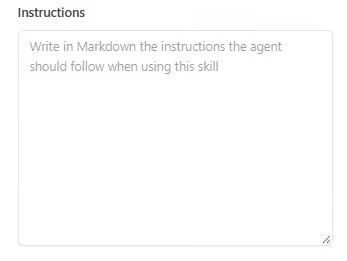
The instructions define how the agent should respond or perform the task. Organize the content in Markdown and include only rules related to the Skill's purpose.

<figure><img src="https://2766970846-files.gitbook.io/~/files/v0/b/gitbook-x-prod.appspot.com/o/spaces%2FJWhplbeIb2veyNAuiGia%2Fuploads%2FmheymvDeU1mYad2fQr6F%2Fimage.png?alt=media&amp;token=84651c20-df76-4b8a-b772-179f5cd5df3f" alt=""><figcaption></figcaption></figure>

A simple structure usually works well:

```markdown
# Institutional Skill

## When to use
Use this Skill when the user asks about the company, its products,
services, history, positioning, or team.

## Rules
- Respond only with confirmed institutional information.
- If the information is unavailable, state that it could not be confirmed.
- Do not invent dates, clients, figures, or features.

## Response format
- Use clear and direct Portuguese.
- Start with the main answer.
- Use a list only when it improves readability.
```

### Edit and version a Skill

{% stepper %}
{% step %}
Find the Skill in the list
{% endstep %}

{% step %}
Open the editor

In the **Actions** column, click the edit icon.
{% endstep %}

{% step %}
Update the content

Update the description or instructions.
{% endstep %}

{% step %}
Save your changes

The Skill name cannot be changed after creation. This rule preserves the link with Microsoft Foundry and prevents existing references from breaking.

Every saved change creates a new immutable version in Microsoft Foundry. The **Default version** section shows the active version and the date it was created.

When a Skill is linked to a Toolbox without selecting a specific version, the Toolbox follows the default version. This allows an update to be made available to connected agents without recreating the Skill.
{% endstep %}
{% endstepper %}

{% hint style="info" %}

### **Recommendation:**

Test changes before applying them to agents used in production. A new instruction can change the format, tone, or logic of the responses.
{% endhint %}

### Add the Skill to a Toolbox

A Skill is not connected directly to an agent. It must first be added to a Toolbox.

<figure><img src="https://2766970846-files.gitbook.io/~/files/v0/b/gitbook-x-prod.appspot.com/o/spaces%2FJWhplbeIb2veyNAuiGia%2Fuploads%2Ftq5wf2SSKt9sBtcR8wBr%2Fimage.png?alt=media&amp;token=d5c11400-be34-4f64-bf5d-d233f2a0bbb2" alt=""><figcaption></figcaption></figure>

{% stepper %}
{% step %}
Open Toolboxes

Go to **Artifacts > Toolboxes**.
{% endstep %}

{% step %}
Create or edit a Toolbox
{% endstep %}

{% step %}
Find Skills

In the Toolbox form, find the **Skills** section.
{% endstep %}

{% step %}
Add the Skill

Select the Skill you want to add.
{% endstep %}

{% step %}
Save your changes

A Toolbox can contain tools, connectors, and Skills. This gives the agent access to the required capabilities and usage guidance through a single connection.
{% endstep %}
{% endstepper %}

### Connect the Toolbox to the agent

After adding the Skill to the Toolbox:

<figure><img src="https://2766970846-files.gitbook.io/~/files/v0/b/gitbook-x-prod.appspot.com/o/spaces%2FJWhplbeIb2veyNAuiGia%2Fuploads%2FVMR3gUNCvZGEaYiB5k1G%2Fimage.png?alt=media&amp;token=78be5bef-7fde-4ce9-aa89-5da301095ab2" alt=""><figcaption></figcaption></figure>

{% stepper %}
{% step %}
Go to **Artifacts > Agents**.
{% endstep %}

{% step %}
Create or edit an agent
{% endstep %}

{% step %}
Open the agent's relationships.
{% endstep %}

{% step %}
Find Toolboxes
{% endstep %}

{% step %}
Select the Toolbox that contains the Skill.
{% endstep %}

{% step %}
Save your changes
{% endstep %}
{% endstepper %}

The agent can use the Skill in conversations where its description matches the user's request.

## Test the Skill

After completing the connections, open the chat and select the configured agent. Ask a question that matches the Skill's description.

Example:

> **What services does Power Tuning offer, and how does the company position itself in the market?**

Check whether the response:

* follows the rules defined in the instructions;
* uses the requested format;
* avoids information outside the defined scope;
* uses the correct tools when the Skill requires a query or action.

If necessary, update the description or instructions, save a new version, and test again.

### What is the difference between a Skill, a Toolbox, and a tool?

<table data-header-hidden><thead><tr><th width="187"></th><th></th><th></th></tr></thead><tbody><tr><td><strong>Resource</strong></td><td><strong>Purpose</strong></td><td><strong>Example</strong></td></tr><tr><td><strong>Skill</strong></td><td>Teaches the agent how to perform a task.</td><td>Defines the workflow for a billing analysis.</td></tr><tr><td><strong>Toolbox</strong></td><td>Groups the Skills and tools that will be made available to the agent.</td><td>Combines an analysis Skill, the Fabric connector, and Web Search.</td></tr><tr><td><strong>Tool or connector</strong></td><td>Retrieves data or performs an action.</td><td>Searches documents, queries Fabric, or calls an API.</td></tr><tr><td><strong>Agent instructions</strong></td><td>Define the agent's overall behavior.</td><td>Set the assistant's role, tone, and permanent rules.</td></tr></tbody></table>

Use the agent instructions for rules that apply to every conversation. Use Skills for specialized processes that can be reused across multiple agents.

### Delete a Skill

To delete a Skill, find it in the list and click the trash icon in the **Actions** column.

Before deleting it, remove the Skill from any Toolboxes that still use it. Deleting a Skill can affect every agent connected to those Toolboxes.

If you only need to change the instructions, edit the Skill and create a new version. You do not need to delete it.

### Troubleshooting

<details>

<summary>The agent does not use the Skill</summary>

Check the following:

* the Skill was added to the Toolbox;
* the Toolbox was connected to the agent;
* the changes were saved;
* the description clearly explains when the Skill should be used;
* the test question matches the defined scope.

</details>

<details>

<summary>The agent loads the Skill at the wrong time</summary>

Make the description more specific. State the topic, the type of request, and, when necessary, the situations in which the Skill should not be used.

</details>

<details>

<summary>The responses do not follow the expected process</summary>

Rewrite the instructions using numbered steps, clear rules, and a defined output format. Remove conflicting guidance or instructions that are already included in the agent's general instructions.

</details>

<details>

<summary>The name cannot be edited</summary>

This behavior is expected. The name is used as the Skill identifier in Microsoft Foundry and is locked after creation.

</details>

{% hint style="info" %}

## Need help?

If you have any questions about configuring Skills, contact Power OMNI Support.
{% endhint %}