> For the complete documentation index, see [llms.txt](https://docs.poweromni.ai/llms.txt). Markdown versions of documentation pages are available by appending `.md` to page URLs; this page is available as [Markdown](https://docs.poweromni.ai/en/administration-and-configuration/billing/invoices.md).
# Invoices
The Invoices screen provides a complete and transparent view of resource consumption, support plans, and the financial history of your Power Omni account.
### Current Invoice
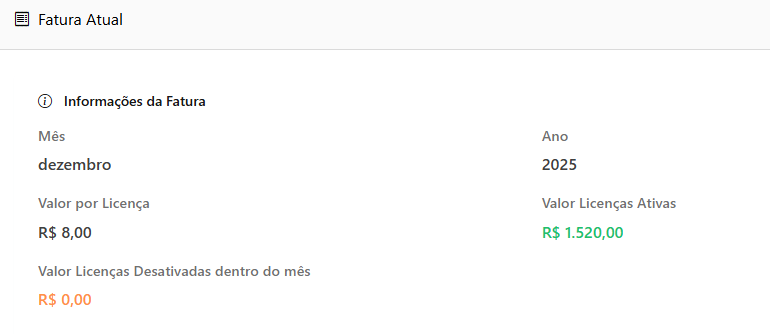
In this section, you will find a real-time breakdown of the accumulated costs for the open billing cycle.
* **Month and Year:** Indicates the current month related to the active invoice.
* **Price per License:** Displays the unit price of each contracted Power Omni license.
* **Value of Licenses Deactivated During the Month:** Refers to licenses that were used for part of the month and later deactivated.
* **Note:** These licenses are billed in the current month and will be automatically removed from billing in the next cycle.
* **Total Value (Licenses):** The consolidated amount related to license usage during the period.
### Support Information
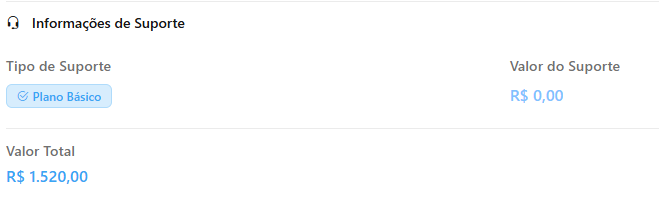
Details the additional costs related to the contracted service and support level.
* **Support Type:** Identifies the active plan (Basic or Enterprise).
* **Support Value:** If the selected plan is Enterprise, this field details the fixed amount related to the exclusive benefits of this level.
* **Total Value (Overall):** Sum of the value of all licenses (active and deactivated during the month) plus the support plan value.
### Licenses
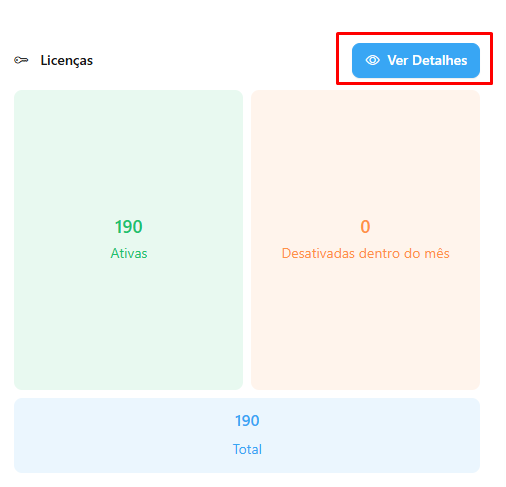
Visual panel for quick control of user volume on the platform.
* **Active Licenses:** Number of users who currently have active access.
* **Deactivated During the Month:** Number of licenses that were removed during the current cycle.
* **Total Quantity:** Sum of all licenses that generated cost during the current month.
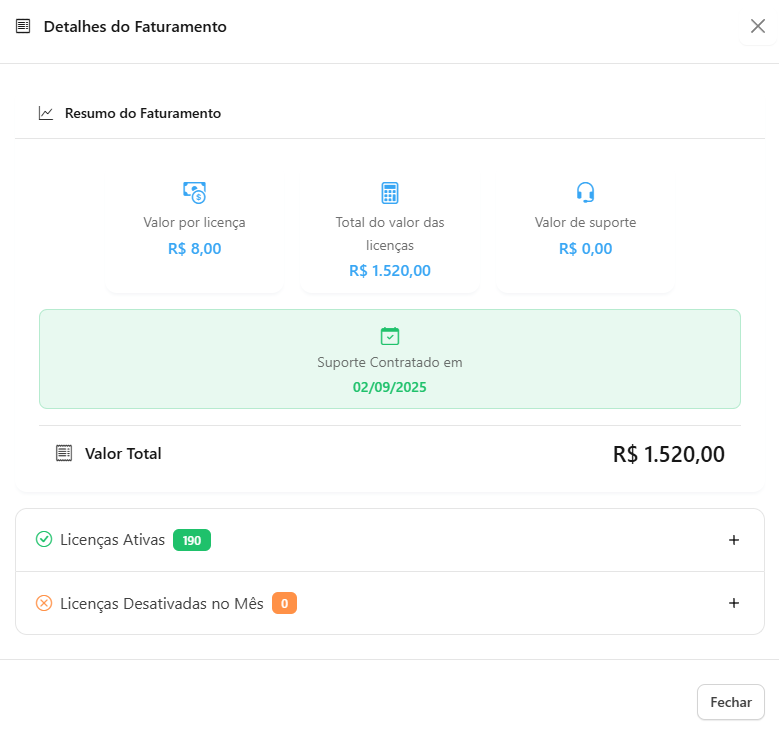
* **View Details:** Button that redirects to the detailed billing summary, where it is possible to validate calculations and applied amounts.
***
### Past Invoices
Complete history of previous billing cycles for auditing and accounting control.
* **License Summary:** Number of licenses (Active, Deactivated, and Total) for the respective month.
* **Support Type:** Level of support contracted during the corresponding period.
* **Status:** Visual indicator of the billing situation:
* 🟢 **Paid:** Payment confirmed.
* 🟡 **Pending:** Awaiting processing or bank clearance.
* 🔴 **Overdue:** Due date expired without payment confirmation..
#### 🛠️ Available Actions
Next to each invoice, you have access to management tools:
* **View Invoice:** Direct access to the auxiliary Service Invoice (NFS-e) document.
* **View Link:** Generates the direct link to the invoice payment page.
* **View Details:** Opens the detailed summary of the selected invoice for item verification.
***
### ✅ Importance of Invoice Management
Regular monitoring of this screen ensures the operational health of your project:
* **Prevention of Interruptions:** Identifying pending invoices prevents automatic suspension of your AI Agents.
* **Accounting Organization:** Facilitates immediate access to invoices and receipts without the need to contact support.
* **Transparency:** Allows auditing of charged amounts in each monthly cycle clearly.
***
{% hint style="info" %}
#### 💡 Note
Remember that invoices are automatically sent to the Billing Email configured in the Tax Information screen, but they are always available here for consultation and duplicate copies.
{% endhint %}