> For the complete documentation index, see [llms.txt](https://docs.poweromni.ai/llms.txt). Markdown versions of documentation pages are available by appending `.md` to page URLs; this page is available as [Markdown](https://docs.poweromni.ai/en/administration-and-configuration/billing/tax-information.md).
# Tax Information
The Tax Information screen centralizes the company’s legal details to ensure tax compliance and the automation of invoices and Service Invoices (NFS-e).
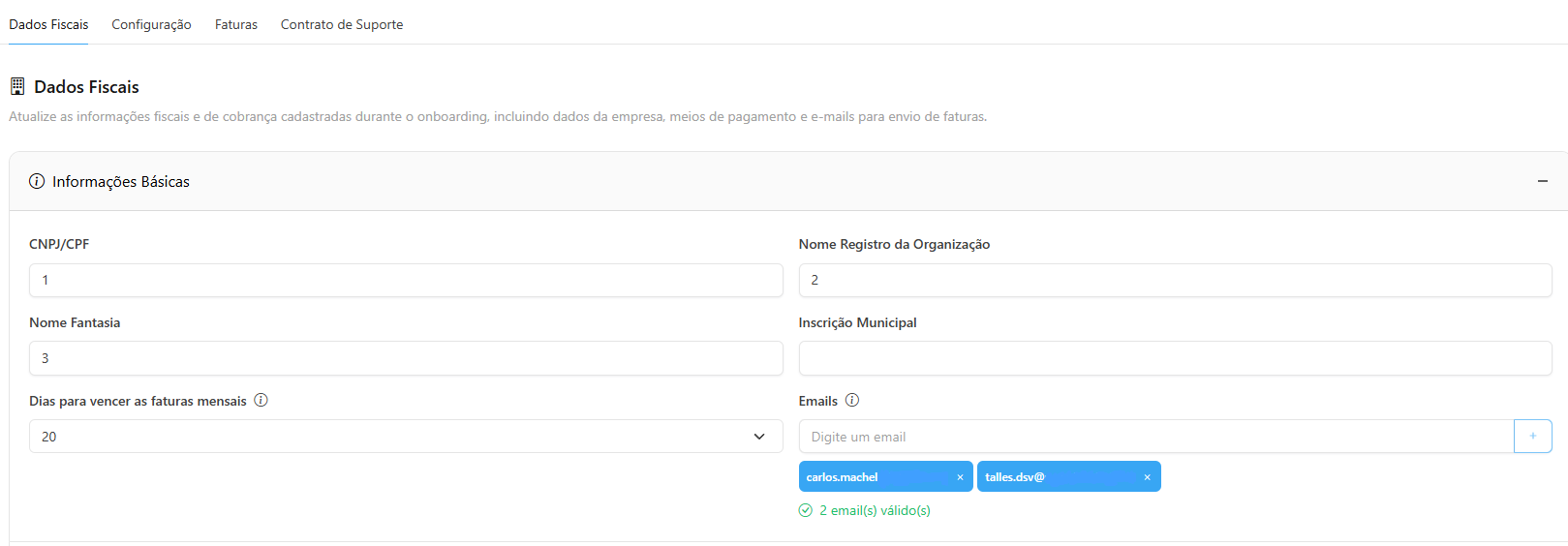
### Company Identification (Registration Details)
In this section, you enter the information that identifies your company.
* **CNPJ:** National Registry of Legal Entities.
* **Organization Registered Name:** Must be filled with the company’s full legal name (Corporate Name).
* **Trade Name:** In this field, you may use the company’s trade name.
* **Municipal Registration:** Taxpayer identification number in the Municipal Tax Registry.
* **Days Until Monthly Invoice Due Date:** Defines the due date for your monthly invoice (The monthly invoice due date will be calculated based on the invoice creation date + the value selected in this field).
* **Emails:** Email addresses for billing and invoicing communication. Enter each email and press Enter or click the + button to add multiple recipients.
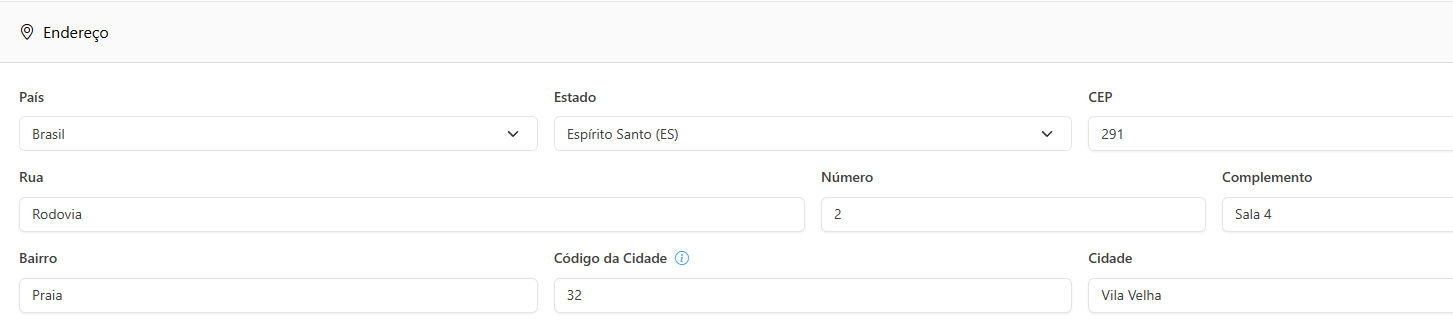
### Full Address
The address entered here must be the registered CNPJ address, as it will appear on the Service Invoices.
* **Country:** Country where the company is legally registered.
* **State (UF):** State where the company is located.
* **ZIP Code (CEP):** When entering the ZIP Code, the system will automatically retrieve the address details.
* **Street:** Company’s street address (Street, Avenue, Square, etc.).
* **Number:** Specific building number. If the location does not have a number, use the abbreviation “S/N”.
* **Complement:** Field for additional details, such as: “5th Floor, Room 502”, “Block B”, or “Commercial Unit”.
* **Neighborhood:** Name of the district where the company is located.
* **City Code:** Code associated with the municipality where the company is located. If unknown, access the link > [City Codes](https://www.ibge.gov.br/explica/codigos-dos-municipios.php).
* **City:** Name of the municipality corresponding to the tax address.
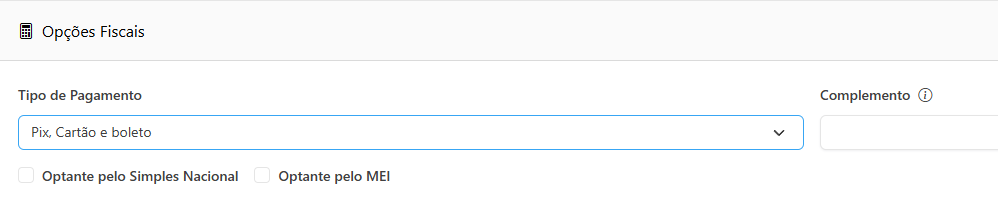
### 4. Tax Options
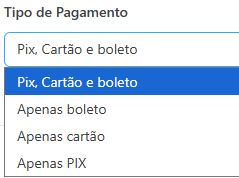
* **Payment Method:** Select the preferred method for paying Power Omni monthly invoices (e.g., Bank Slip, Credit Card).
* **Complement (Optional):** Field to include additional information that should appear in the invoice description.
* Example: Include a specific Purchase Order (PO) number.
* **Simples Nacional or MEI:** Selection of the company’s tax classification.
### Acceptance Term
* **Terms of Use:** By clicking on “Terms of Use,” the document containing the commercial terms and conditions for using Power Omni will be available for reading. Selecting the “I have read and accept” checkbox is mandatory to proceed.
After filling in all fields, locate the **Save** button at the bottom of the page.
{% hint style="danger" %}
### ⚠️ **Important Note**:
Any future changes to this information will only apply to invoices generated after the modification. If you need to correct an invoice that has already been issued, you must contact support directly after updating the data on this screen.
{% endhint %}
***
#### ✅ Why Keep This Information Updated?
* **Service Continuity:** Incorrect tax information may prevent payment processing, leading to automatic suspension of AI Agents.
* **Compliance:** Ensures your accounting department receives the correct documents for tax deductions and reporting.
* **Transparency:** Facilitates communication between Power Omni support and your finance department.