Azure App Service
Describes how to deploy the SQL Server integration API using App Service
Azure App Service is an Azure service where you can easily deploy web applications using docker images. This is the fastest way to deploy the integration API if your SQL instance can be available to the Azure IP Range.
Prerequisites
Request the Registry Password in your Power Omni support channel. You will need to provide it
Prepare the connection string for your SQL Instance
Server=address,port;Database=DatabaseName;User Id=LoginName;Password=ReplaceWithAStrongPasswordStep by Step
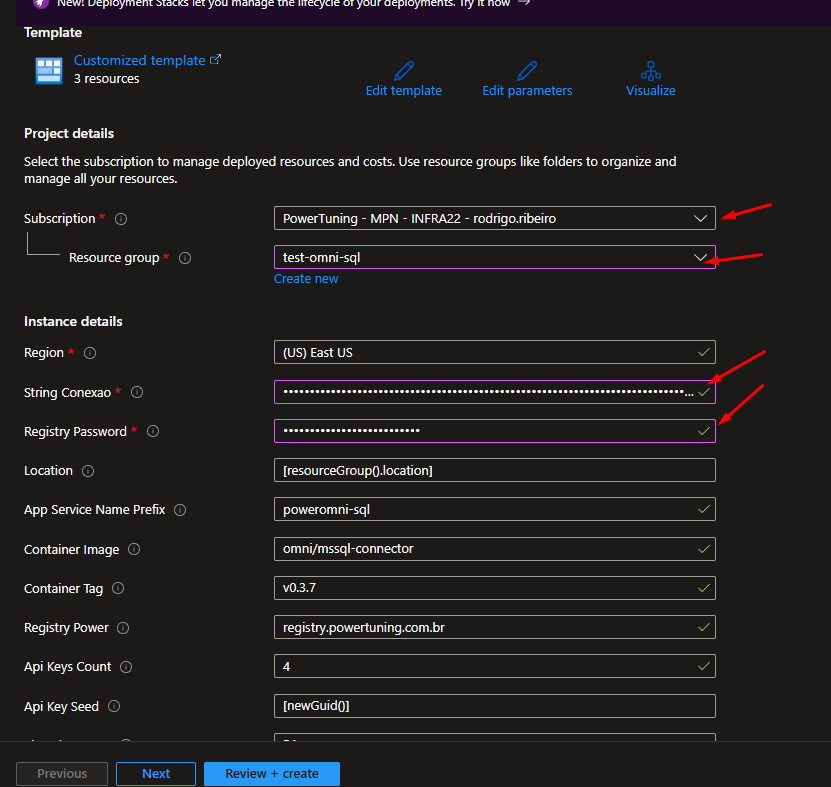
To start the process, click this link, which will open a form in your Azure portal.
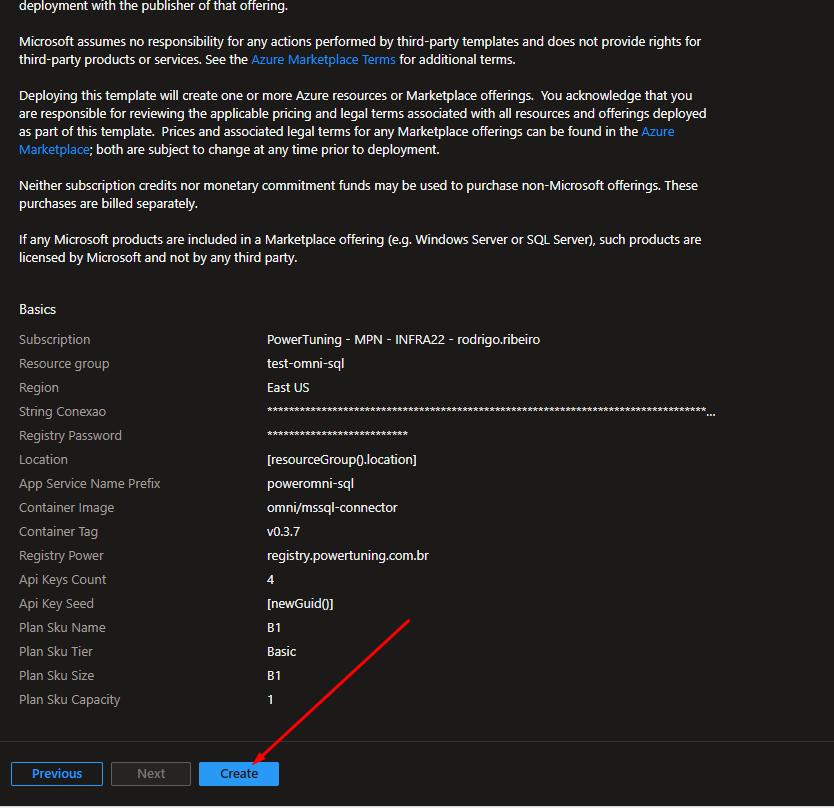
Fill in the fields: Subscription, Resource Group, Connection String and Registry Password with the information you prepared in the prerequisite.

Subscription
Choose the subscription where you will create the resource
Resource Group
Choose in which resource group you will create the App Service. You can choose the same one where you installed Power Omni (usually contains poweromni in the name)
Connection String
Enter the Connection String as prepared in the prerequisites. You can change it later if needed. If the instance is not ready yet, there is no problem.
You can fill the connection string with the values you plan to create in SQL or leave them blank to change later
Registry Password
This is a token so that you can download the image created by Power Tuning. Request it in your support channel
The other fields can be left as they are. Change them only if you understand what you are doing or under guidance from the Power Omni team.
Then click Review + Create, and then click the Create button.
By default, the cheapest Azure plan is used. Check prices here: https://azure.microsoft.com/en-us/pricing/details/app-service/linux/

Azure will perform some validations when you click this button. If any error is returned, you should contact the administrator of your Azure account or your partner to help resolve it.
Azure Brasil provides exclusive services that can help you configure and solve problems in your Azure account, in addition to obtaining special pricing on subscriptions.
If you need support with your Azure, contact the omni support channel and we can connect you with the Azure Brasil team.
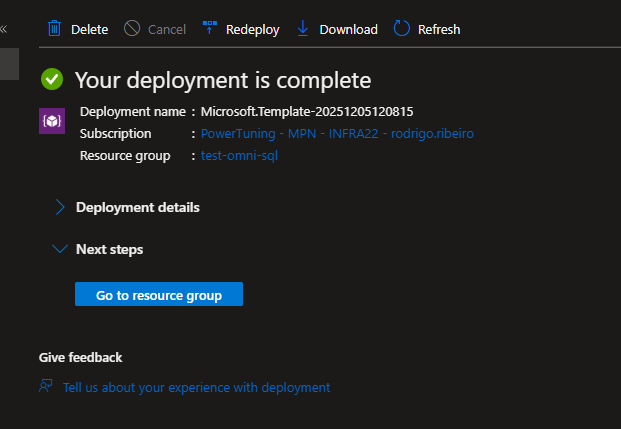
If there were no validation errors, the process will continue and should be completed in a few minutes. Just wait.
When it is completed, you will see a screen similar to this:

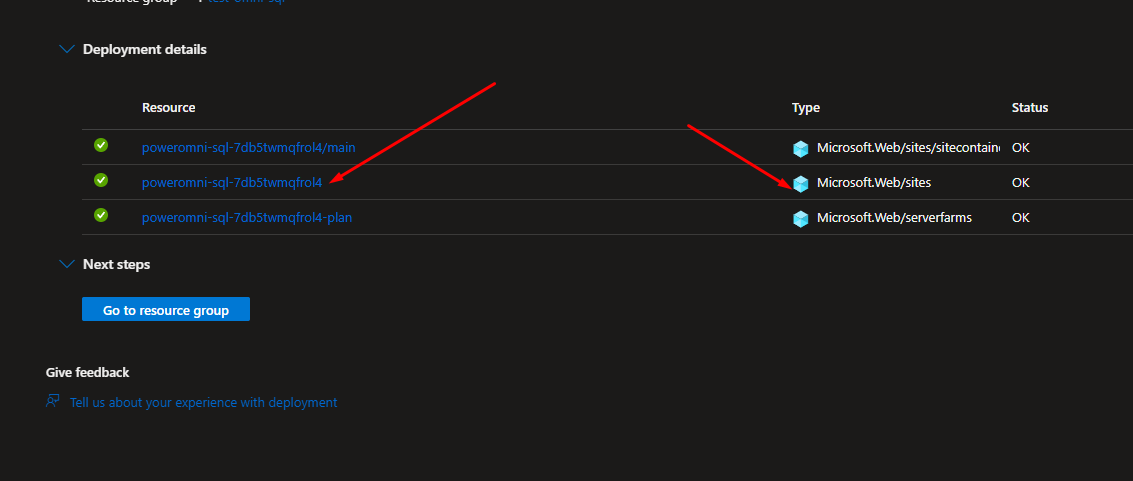
Click on "Deployment Details", and click on the link referring to the resource of type Microsoft.Web/sites:

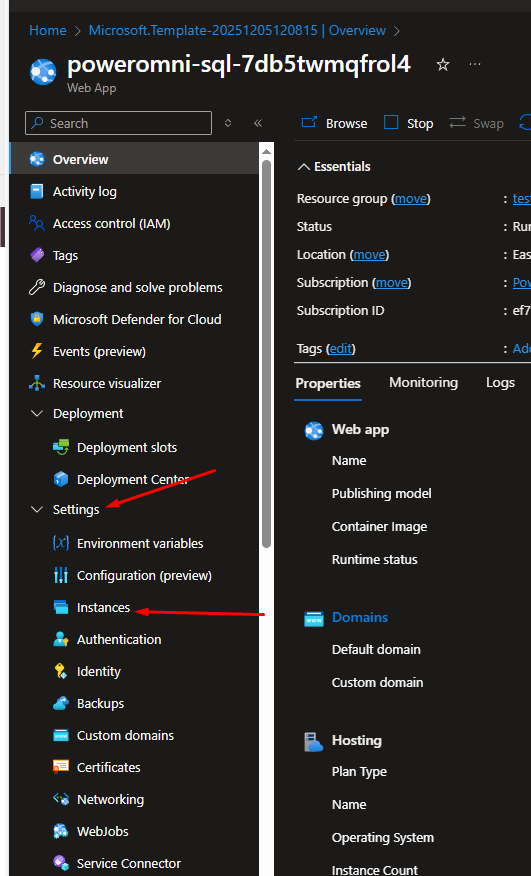
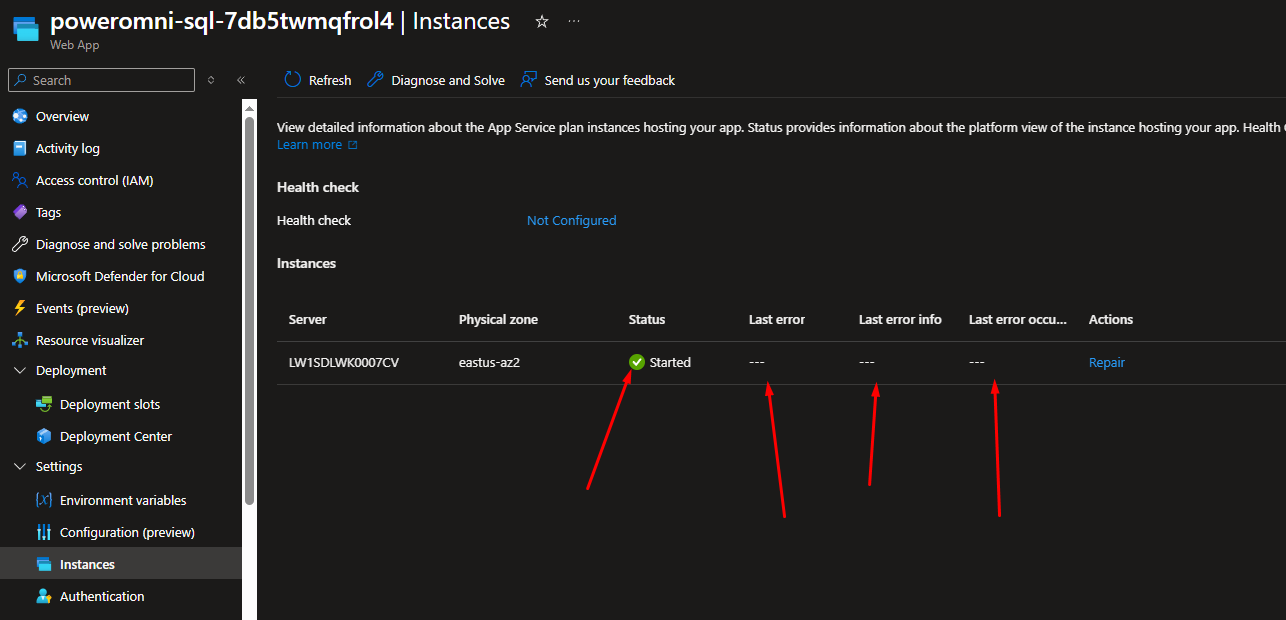
This will take you to the main page of your App Service. At this moment, it should be trying to download the docker image from the Power Tuning registry. To check the progress, go to the side menu, Settings -> Instances:

If everything went well, you will see a screen similar to this:

If errors occurred, you will see them in the status columns. The most likely error is that the token you provided may be incorrect (expired, pasted with extra characters such as a space or line break, etc.). If you have problems here, contact Power Omni support.
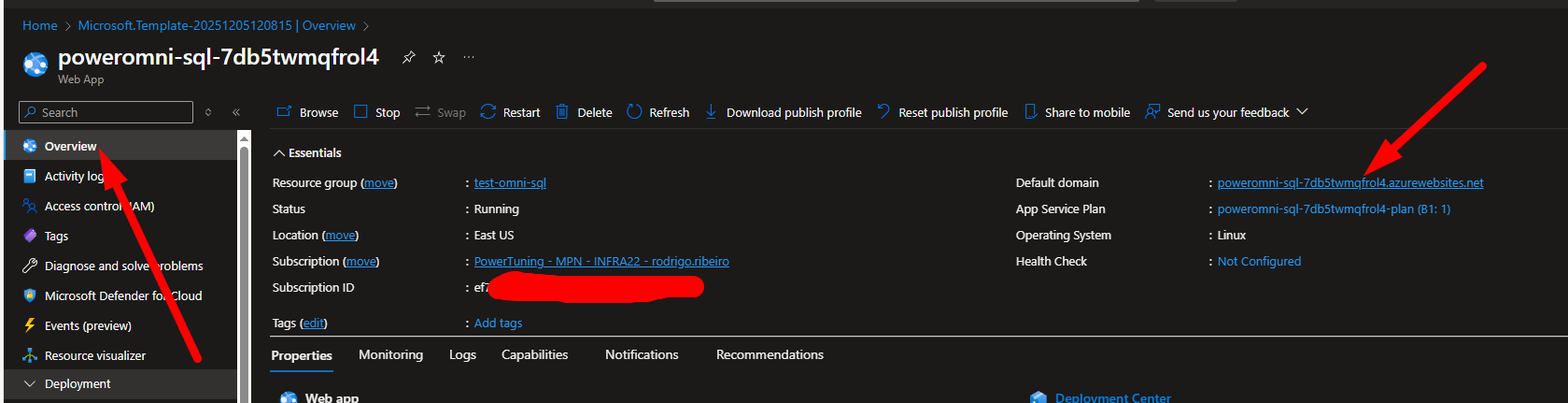
Accessing the overview screen, you will be able to obtain the URL of your API. Click on it to check if the deployment has already been completed:

In the example above, the url is: https://poweromni-sql-7db5twmqfrol4.azurewebsites.net/
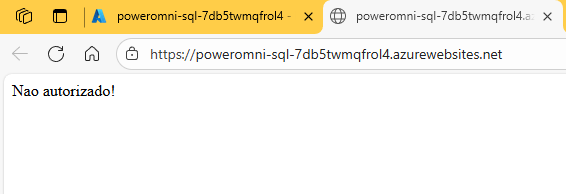
Just click on it, and a new browser window should open with the message "Unauthorized!"

This indicates that the installation was successful, and you are receiving this message because you did not provide any API KEY.
If "Unauthorized" appears, it means the deployment was successful. If it takes too long to load or another error appears other than the authorization message, it may still be deploying or an error may have occurred. You can try debugging through the App Service logs or request support from Power Omni.
Settings
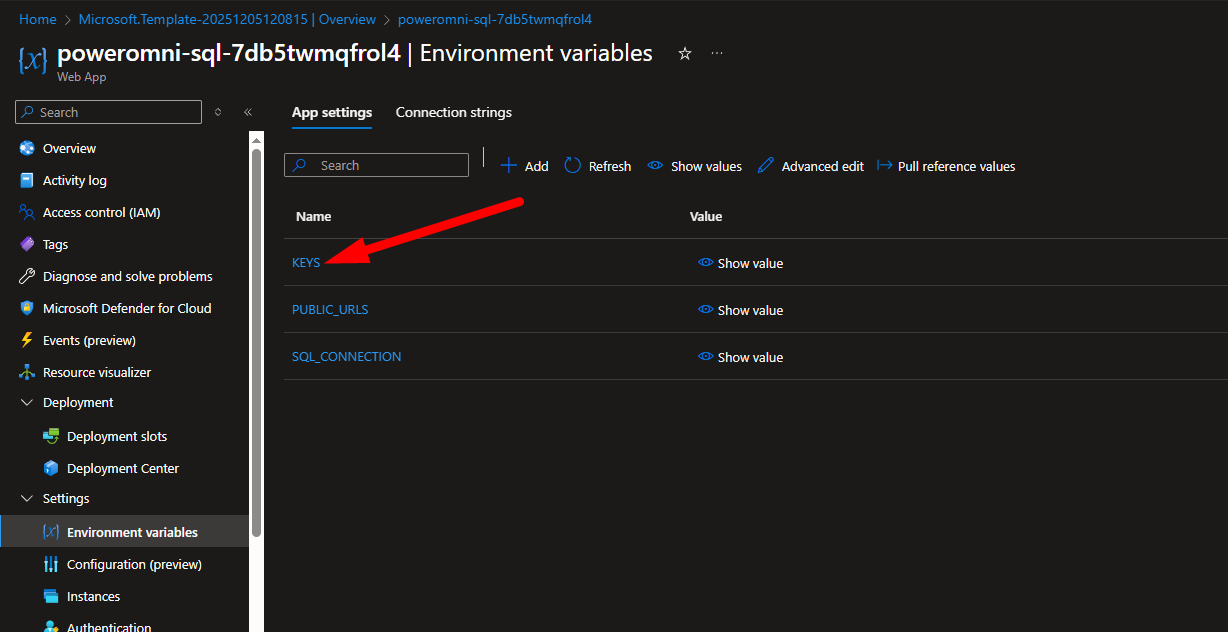
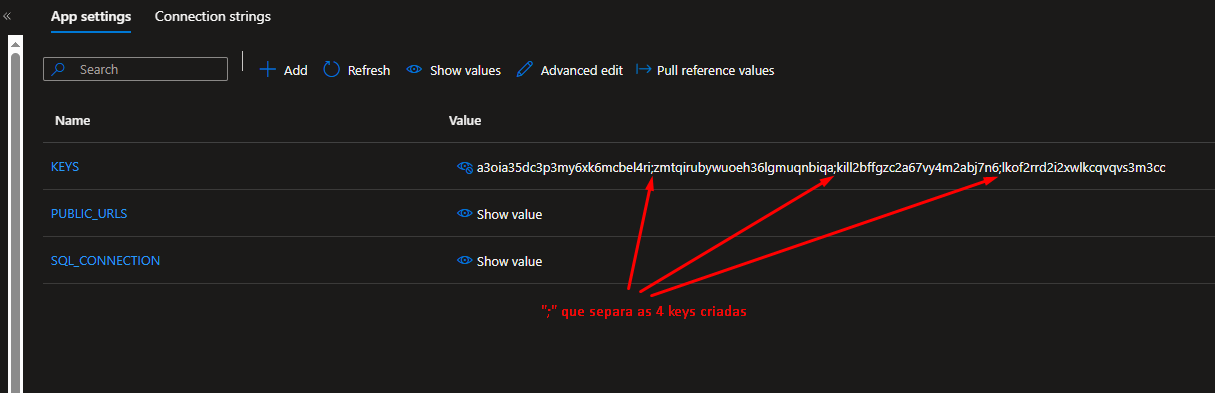
If you received the unauthorized message, it means the service started and you need to provide the ApiKeys. They were randomly generated during deployment, and you will find them by going to your App Service -> Settings -> Environment Variables.

This is where your App Service settings are located.
The env KEYS contains the list of generated keys. By default, 4 keys are generated, each separated by a semicolon. Choose one of them to use as a test, and access the url passing https:/../apikey=ChosenApiKey.

Example of randomly created keys If you passed the correct api key, the unauthorized error message will change, and a text "working" with a version number will be returned.

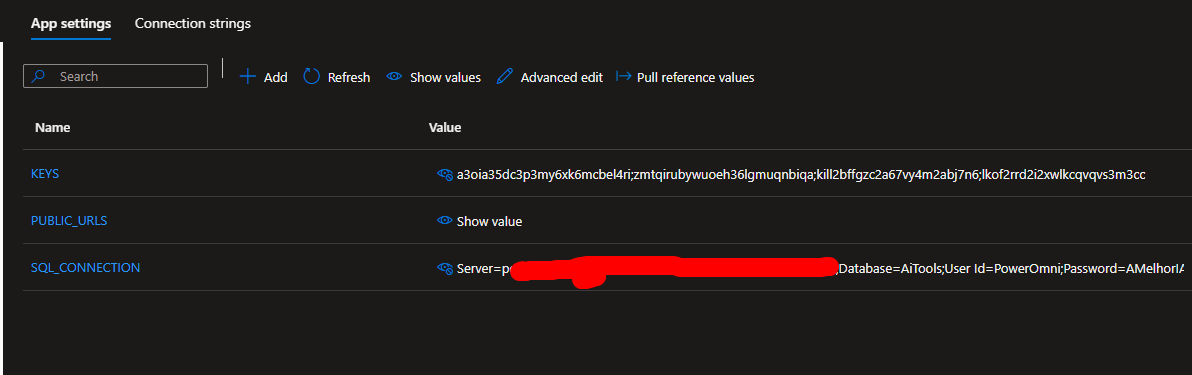
The env SQL_CONNECTION contains the connection string to your SQL Server. If you need to change anything, just adjust it here.

IMPORTANT: NEVER SHARE THESE SETTINGS
These data that you provided or that were generated are sensitive. They are data that only your application or PowerOmni should have access to (you configure the apikey when configuring the connector in PowerOmni).
So never share as shown in the screenshots above.
For this guide, the sharing was done, but that app service created was for testing and no longer exists. In your case, since it will be used in production, you must never do something similar.
You can change any of these variables at any time (this will cause a restart of your web app, and may cause occasional errors in omni if it tries to invoke while it is restarting).
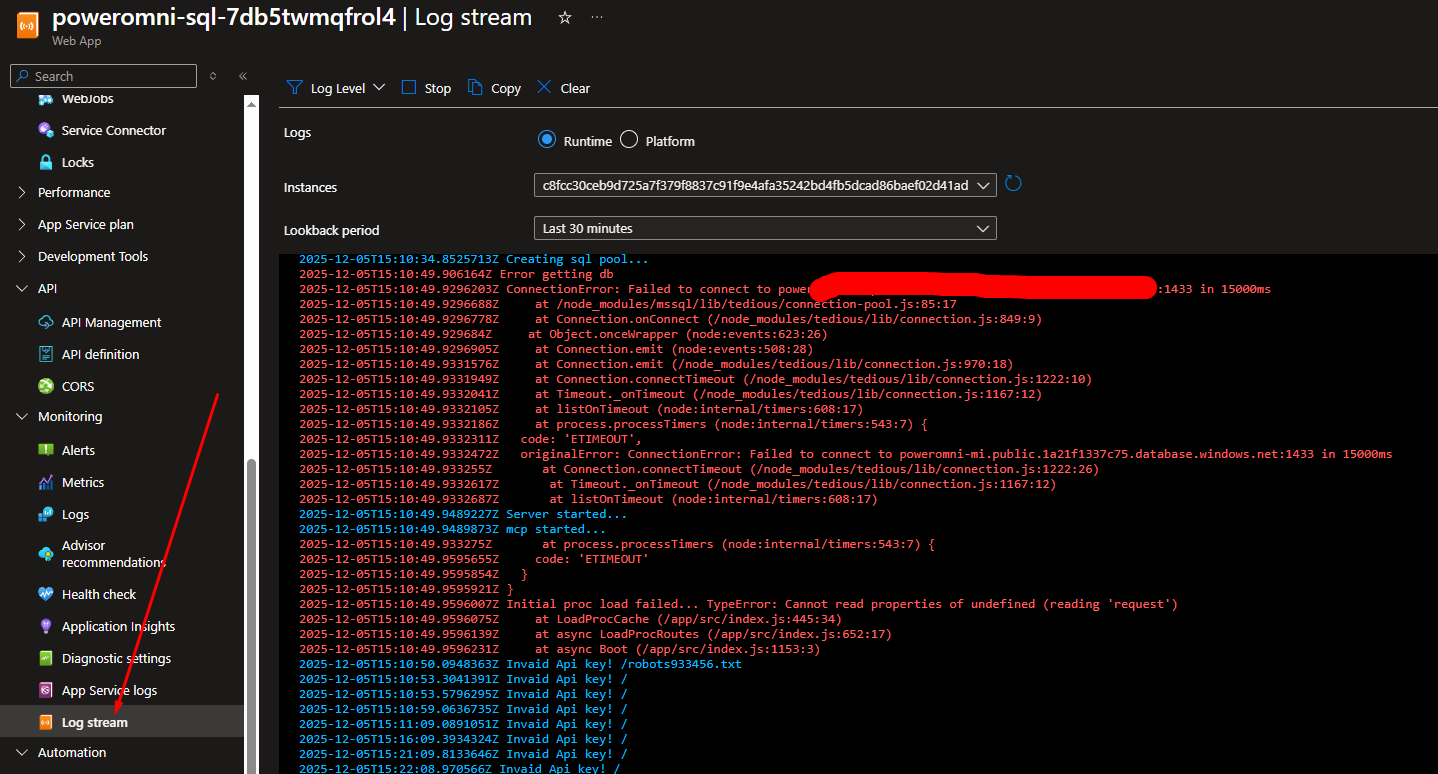
To view the logs of your app, go to Log Stream:

In this log you can access all logs that this integration API generates, including errors. If any user is having problems with responses, such as errors occurring in the database or connecting to it, this log can be very helpful!
In any case, if you have difficulties, contact Power Omni support!
Firewall Rules with SQL Server
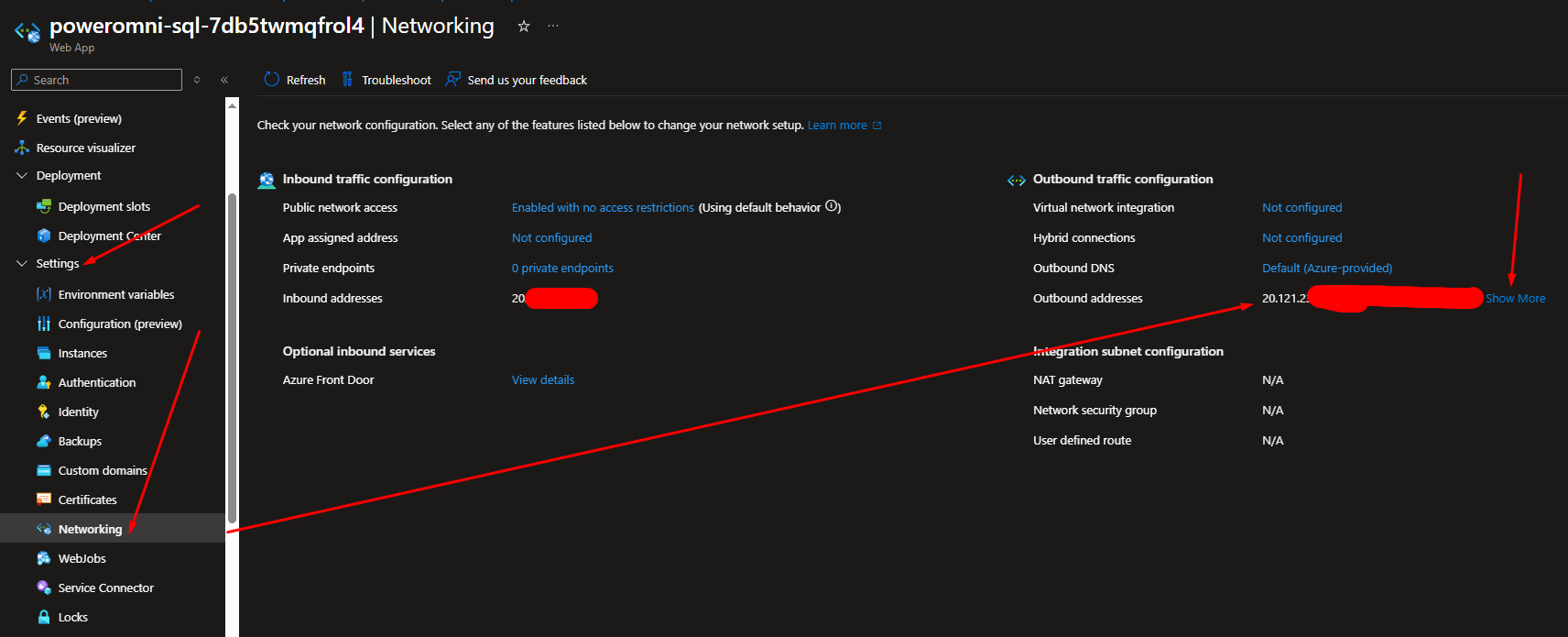
It is common that you need to limit the connection to your SQL Server through firewall rules. If you need to allow an IP range, you can obtain the list of IPs from which your App Service exits using the menu Settings -> Networking

On the right side of this screen, you will have the list of addresses that need to be allowed, because the connection with your SQL instance can exit through any of them. Click on "Show more" to see the complete list.
If you need to further isolate IP numbers, you will need to make more advanced network configurations with your App Service. Contact your Azure security team to help you. If you do not have one, you can request consulting from the Azure Brasil team, which is a partner of Power Tuning. Just request it in your support group and we will connect you.
Next steps
Now that you already know how to obtain the URL of your API and the APIKEY, you can proceed with the configuration in Power Omni!
Last updated