
Power Omni Installation
This guide presents, in a simple and objective way, the entire process to perform the automatic installation of Power Omni.
Attention:
Before starting, it is mandatory to access and follow the pre-installation steps (link below) to enable the required access permissions in your Azure environment.
Step 1: Start and Login

Go to the main website: poweromni.ai.
Click the “Teste agora” button.
You will be redirected to the login page. Sign in using your Microsoft Account tied to the Azure environment where Power Omni will be installed.
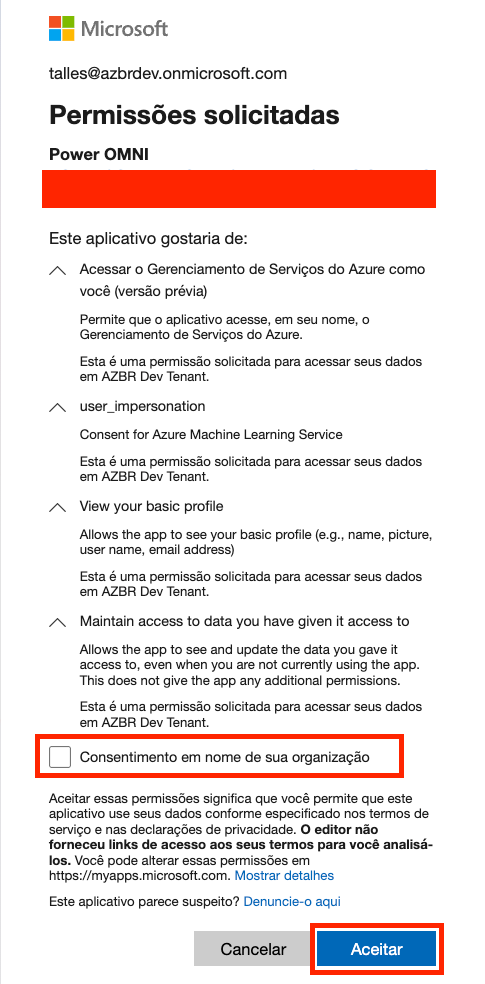
Immediately after logging in, a pop-up will appear asking for consent to use Power Omni on behalf of your organization.
You must grant this consent so Power Omni can obtain the required permissions and proceed with installation.
Step 2: Company Registration and Terms of Use
After logging in, fill in your company registration details:
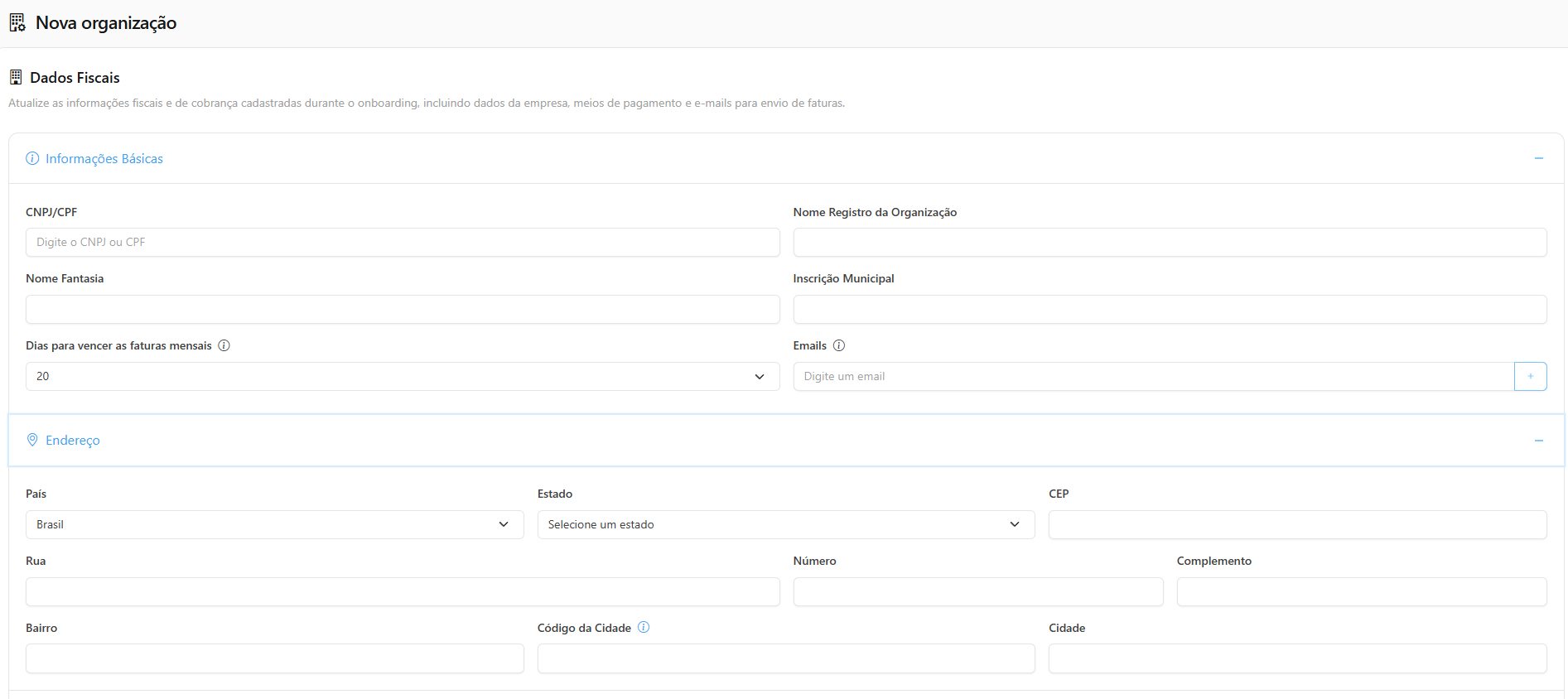
When entering the CNPJ or CPF, the data should load automatically. However, if this does not happen, you will need to manually fill in the information.
Fill in the required information: CNPJ, Company Name, Full Address, etc.
Municipal Code (Important): In the address field, enter the city code according to the IBGE table.

💡 Tip: Click the information icon next to the field to be redirected to the IBGE website and check the correct municipal code.
Read and accept the platform’s Terms of Use.
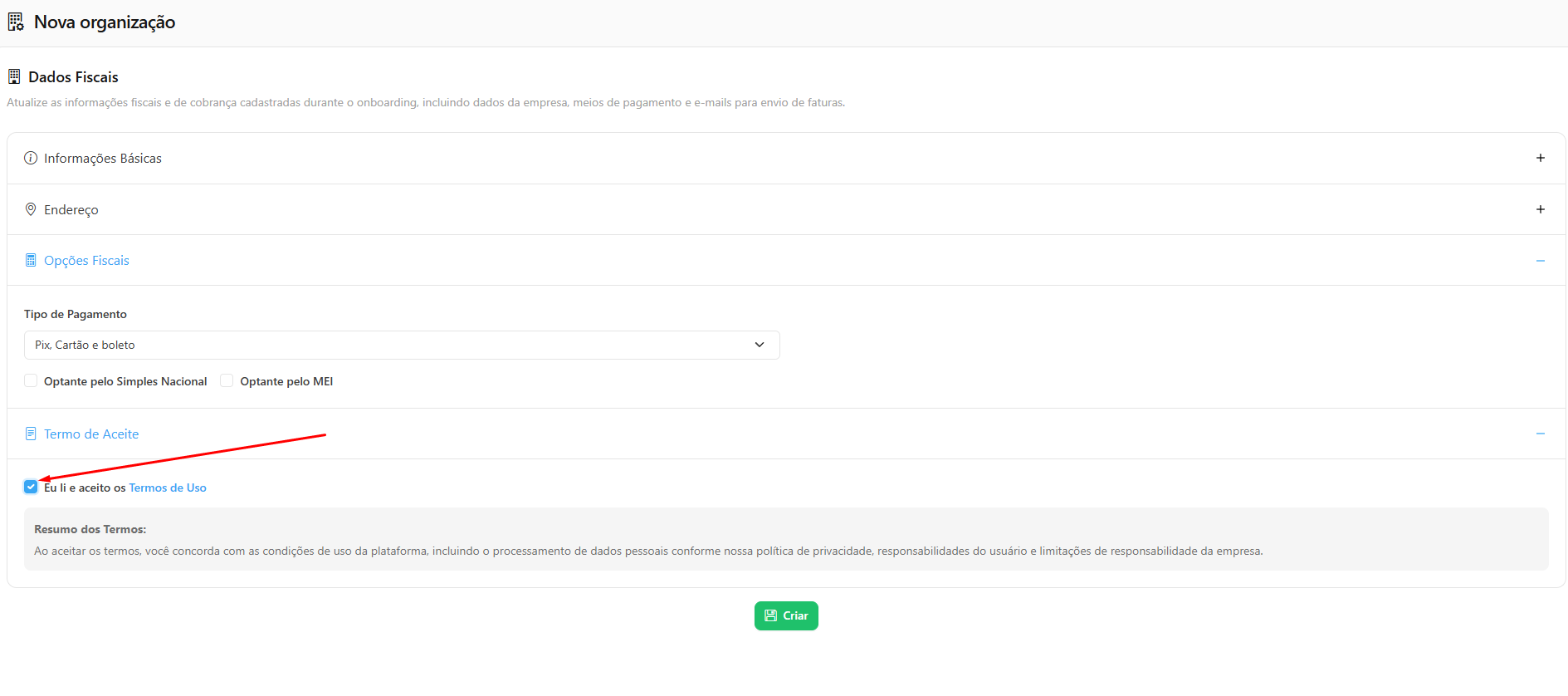
To access the full document, click Terms of Use. The file will open, allowing you to read, download, or print it.
Step 3: Choose the Installation Method
On the installation screen:
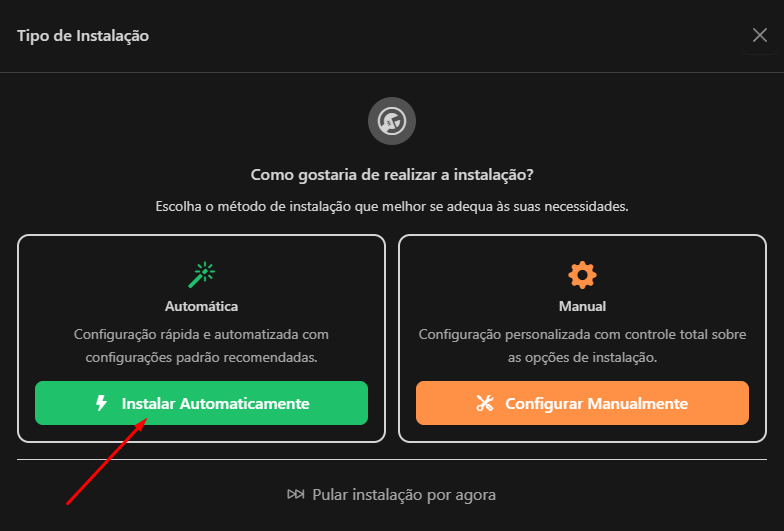
Method Selection: Choose the Automatic Installation option (best option).
Azure Subscription: In the appropriate field, select the Azure Subscription where Power Omni resources will be provisioned.
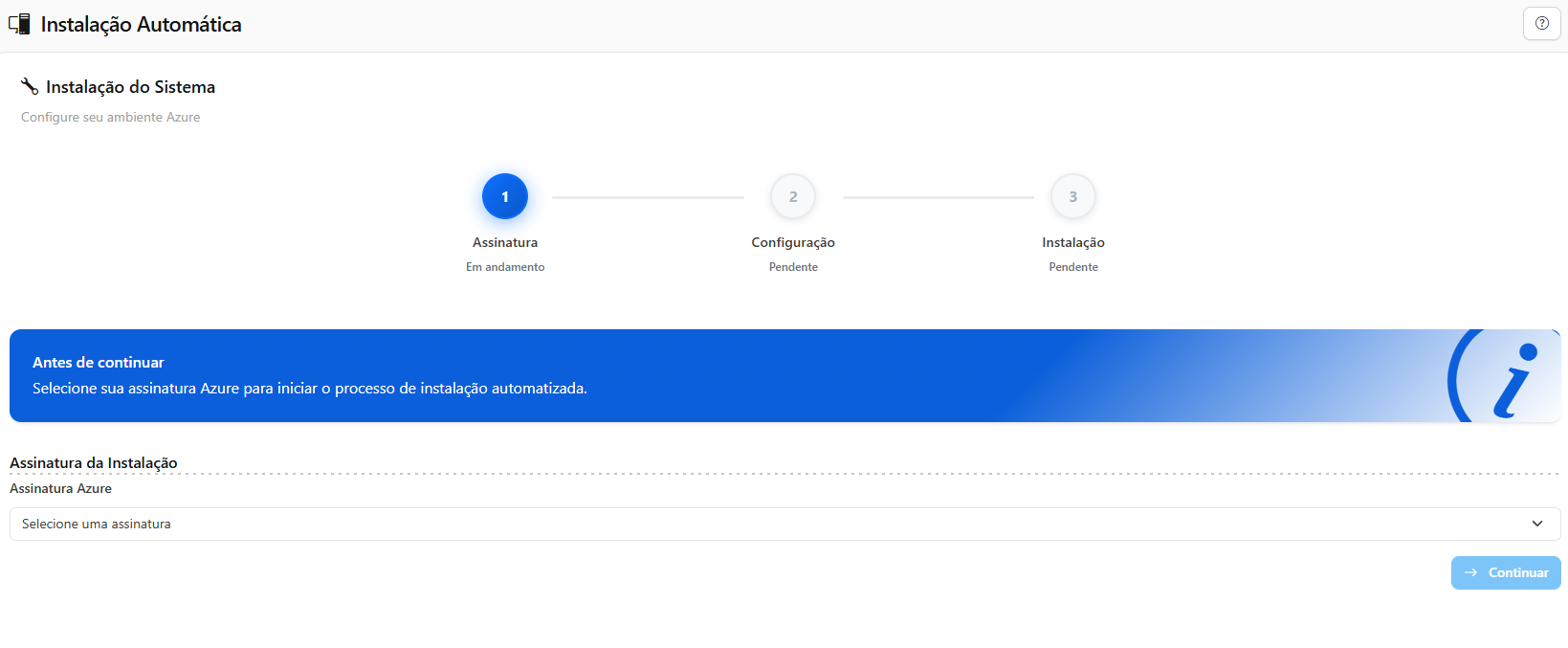
Step 4: Resource Configuration
On the Automatic Installation page, you will see the Azure resources that will be provisioned.
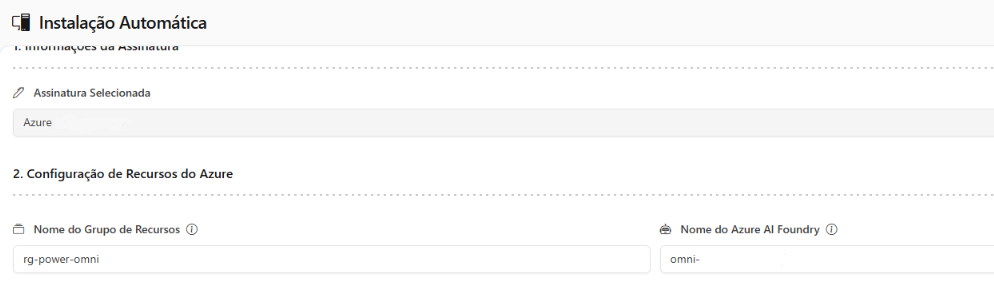
Resource Group and Azure AI Foundry
No need to change. You can keep the default name.
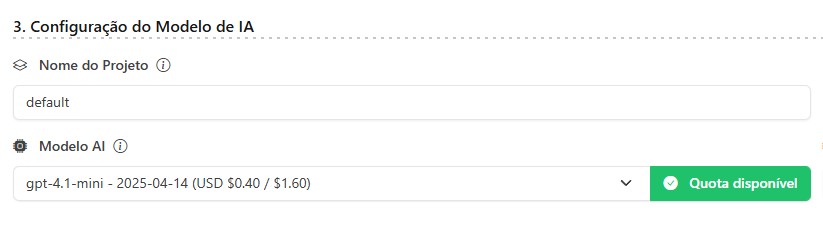
Project Name and Region (Field 3)
You may change the Project name if desired. For Region, we recommend keeping eastus or eastus2.
AI Model
You may change the model that will be used as the base. We recommend starting with the default (e.g., gpt-4.1 mini).
Quota Validation
AFTER selecting the model, click "Validate Quota". This step checks whether your Azure subscription has the required capacity (Quota) to provision AI services.

First AI Agent Configuration
You may change the name and initial instructions of your Default Agent on this screen.
If preferred, you can edit this Agent later after installation in the Administration Portal.
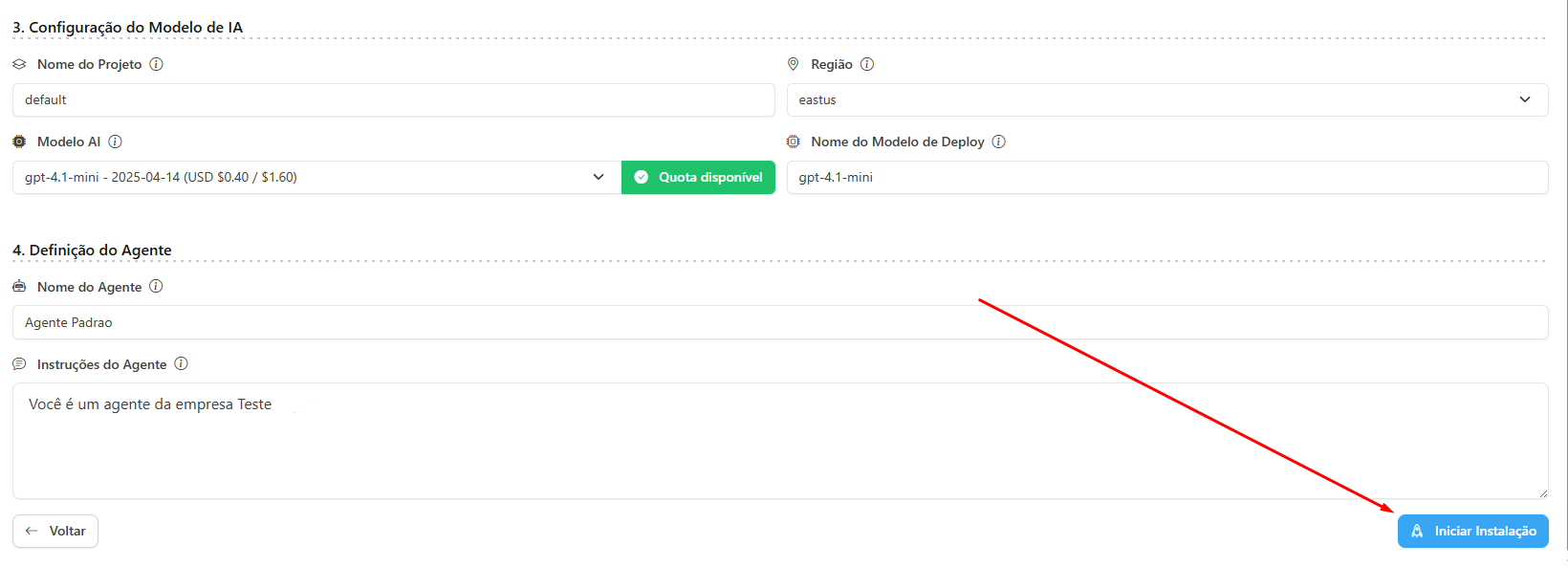
After filling in and validating all information, click the "Start Installation" button.
Step 5: Provisioning Completion
Wait for the system to complete provisioning the resources in your Azure tenant. The waiting time may vary.
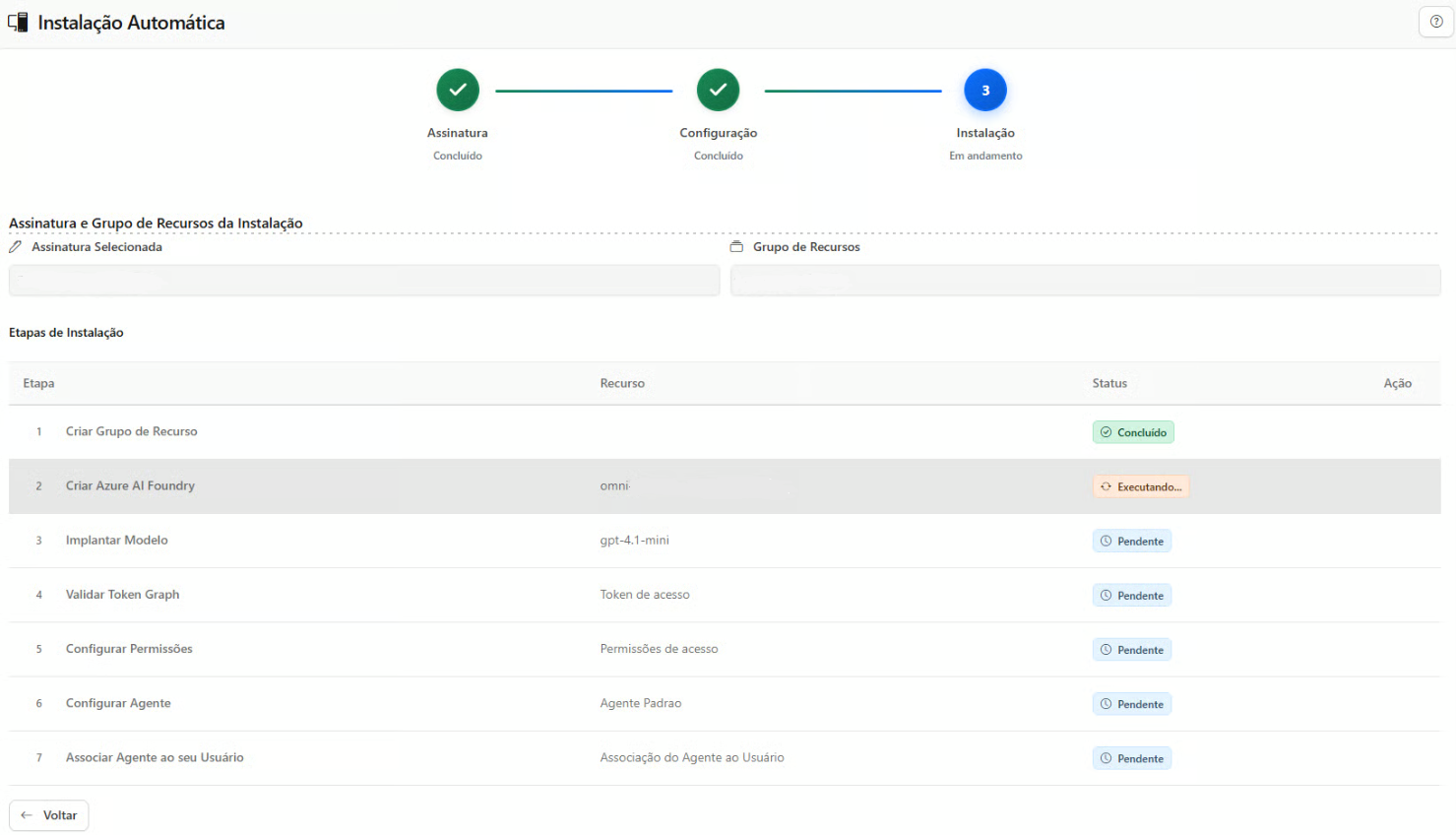
⚠️ Common Error Solution: Pop-up Blocked
If an error occurs or the process does not proceed after clicking, check whether your browser blocked a new window (pop-up).
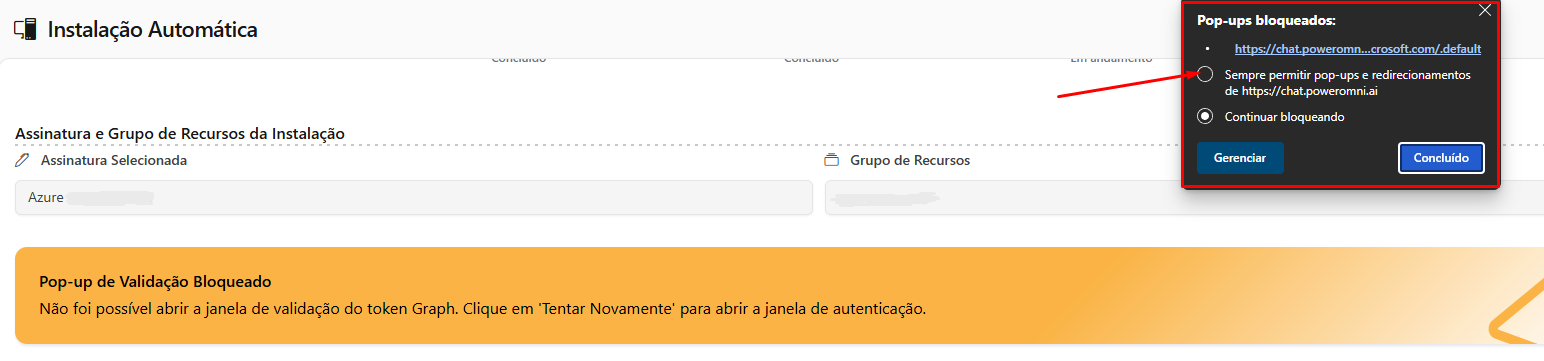
Allow: Locate the pop-up block icon (usually in the browser address bar).
Click the icon and select the option to allow pop-ups.

Try Again: After allowing the pop-up, try starting the installation again.
Step 6: Finalization and Access
After provisioning is successfully completed, you will be notified.
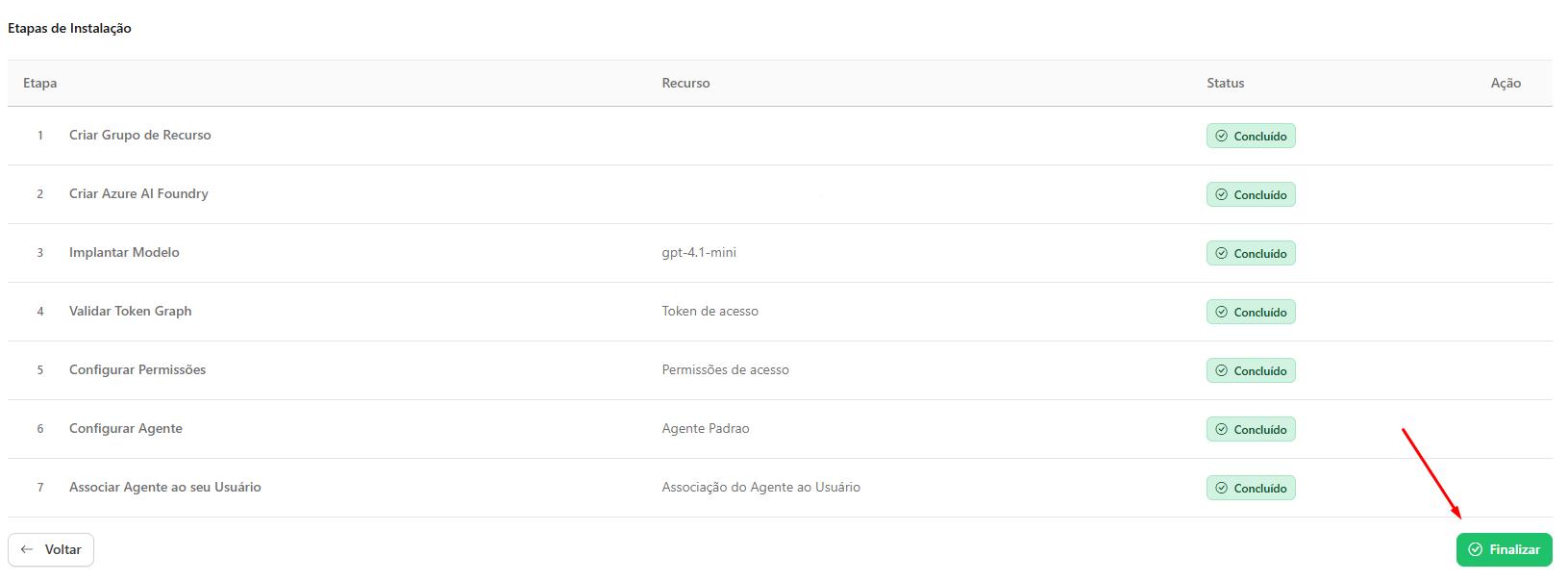
Click "Finish" to complete the installation process.
Done! You will now have access to the platform, your default agent, and can start using Power Omni.
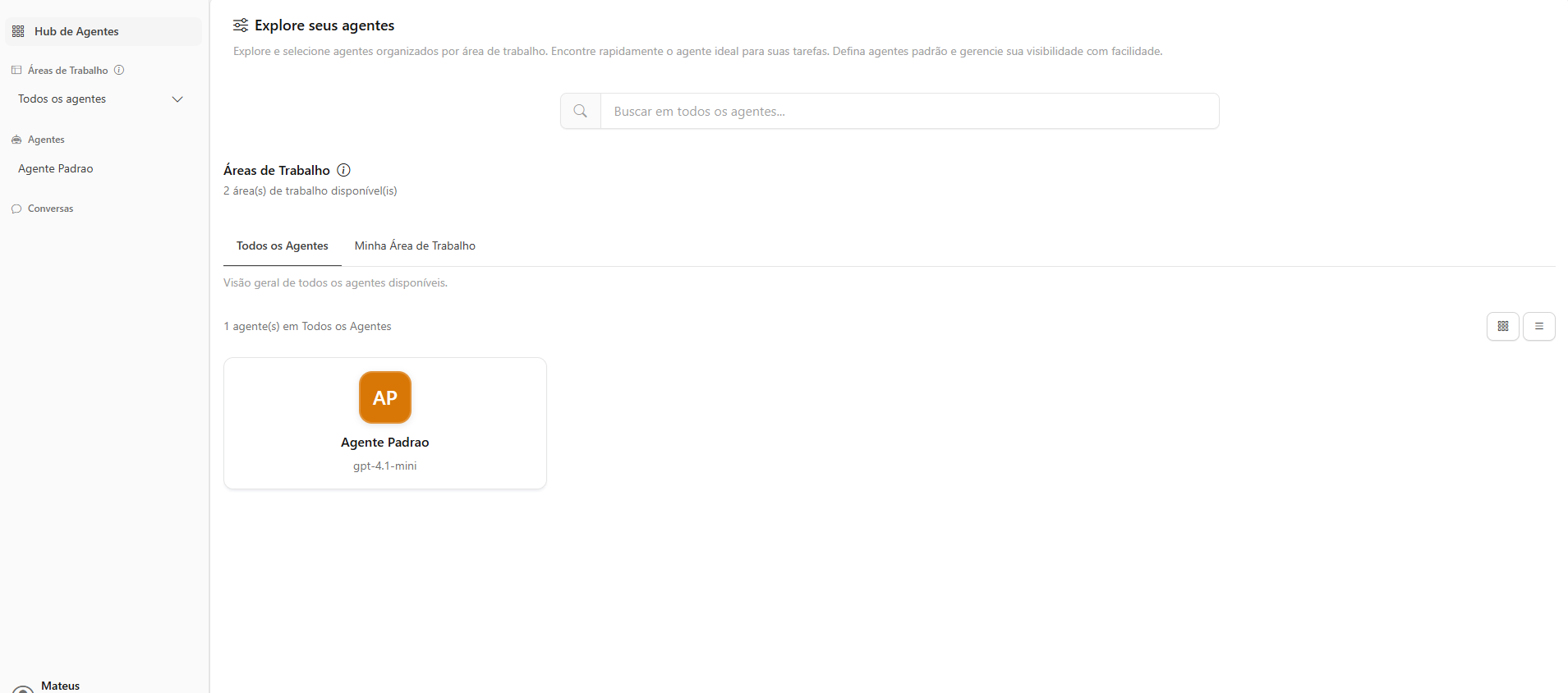
Simply click on the Default Agent card (or the name you assigned to your agent), and the chat screen will open so you can start using Power Omni.
🛠 Enterprise Support During the Trial Period
During the trial period, you have access to Enterprise Support directly via a WhatsApp group to assist you with the Power Omni implementation process in your company.
Simply send an email to: [email protected] requesting the creation of the group and informing your WhatsApp contact number.
Last updated