

The Workspace Owner is a regular user to whom the Administrator delegates the management of one or more Workspaces. They take care of the files, agents, connectors, toolboxes and skills of their own workspace, without needing Administrator or Contributor access and without seeing what belongs to other workspaces.
It is the way to decentralize operations: the HR team maintains the HR agent, Finance maintains the Finance documents, and IT keeps handling the organization's governance.
Workspace Owner is not a new role. The user keeps the User role. What changes is the designation as owner of a workspace, which unlocks a limited set of screens under Settings, always restricted to the workspace(s) they administer.
Who can be an owner
- Only users with the User role (Administrators and Contributors already see the whole organization).
- Each Workspace accepts up to 5 owners.
- A user can be the owner of more than one workspace.
- Once designated, the owner automatically becomes a member of the Workspace and cannot be removed from the member list while they are an owner.
How to designate a Workspace Owner
This action is performed by an Administrator or Contributor.
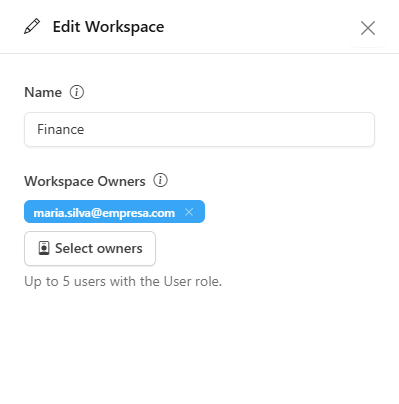
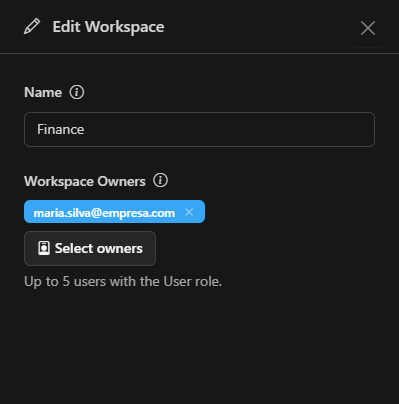
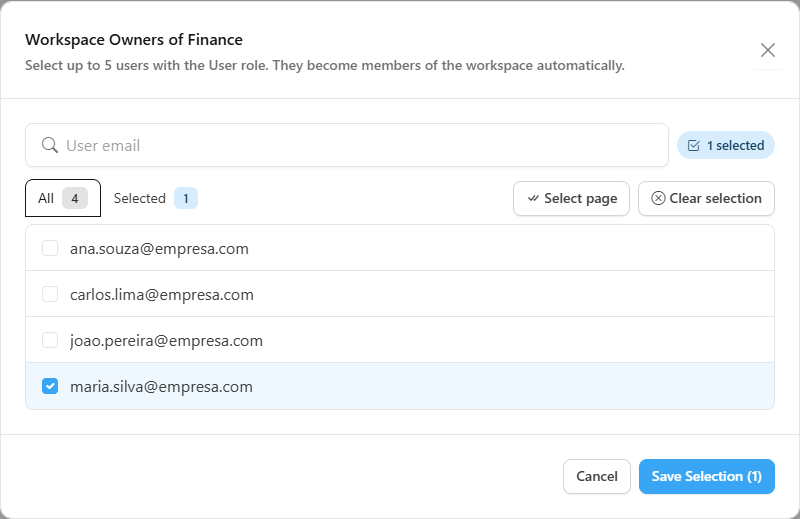
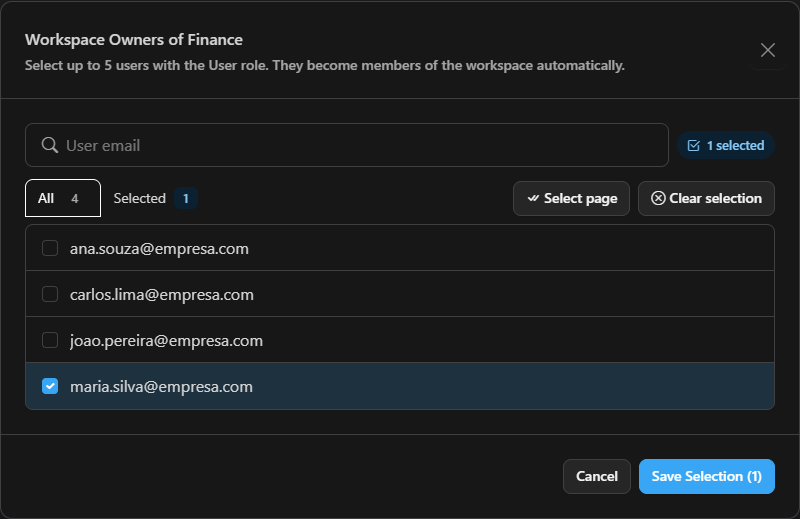
To remove the designation, repeat the process and remove the user from Workspace Owners. They remain a member of the Workspace.
What the owner sees
When opening Settings, the owner sees only the items below. The others (Projects, Models, Guardrails, Users, Groups, Budgets, Audits, Licenses, Billing, etc.) are hidden and remain exclusive to Administrators and Contributors.
| Menu | What the owner does |
|---|---|
| Monitoring | Tracks consumption and cost for their own Workspaces only. |
| Agents | Creates and edits agents of their workspace, uses the Catalog and suspends agents. |
| Files | Organizes the folders and files of their workspace. |
| Connectors | Creates File Readers and views the other connectors of the workspace. |
| Toolboxes | Creates, edits, shares and suspends the toolboxes of their workspace. |
| Skills | Creates, edits, shares and suspends the skills of their workspace. |
| Workspaces | Views the workspace (read-only) and manages its members. |
Outside their scope, the owner sees nothing: an item from another workspace behaves as if it did not exist. This applies to screens, lists and selectors.
Concepts: Management and sharing
To understand what the owner can change, it helps to separate two relationships between a resource (agent, connector, toolbox, skill) and a workspace.
| Concept | Meaning |
|---|---|
| Management | Who is responsible for the resource and can edit it. Every agent, connector, toolbox and skill is managed by the Organization or by a single workspace. Management belongs to the workspace, not to the person: if the owner changes, the item stays under the same workspace's management. |
| Sharing | Lets other workspaces use the resource without being able to change it. Whoever manages the item chooses which workspaces to share it with. |
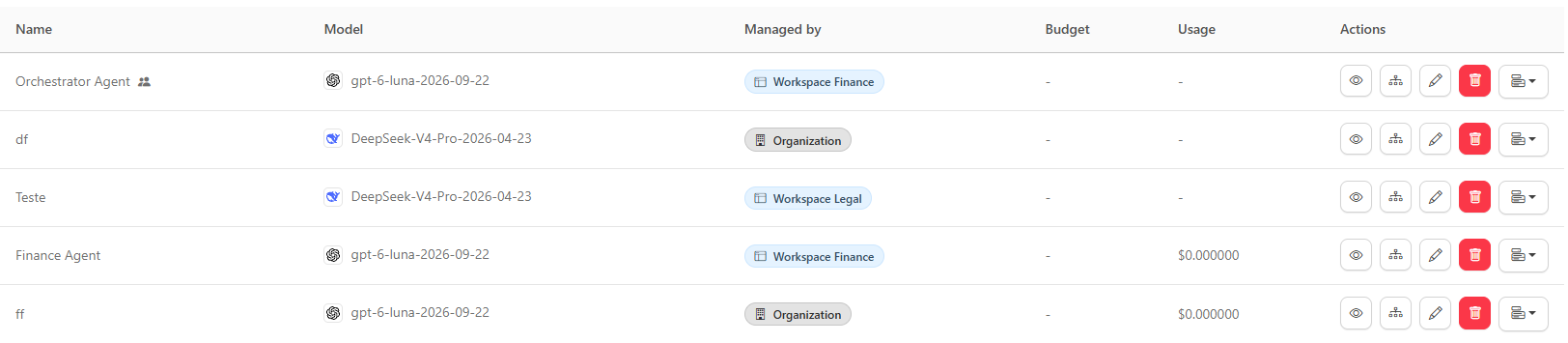
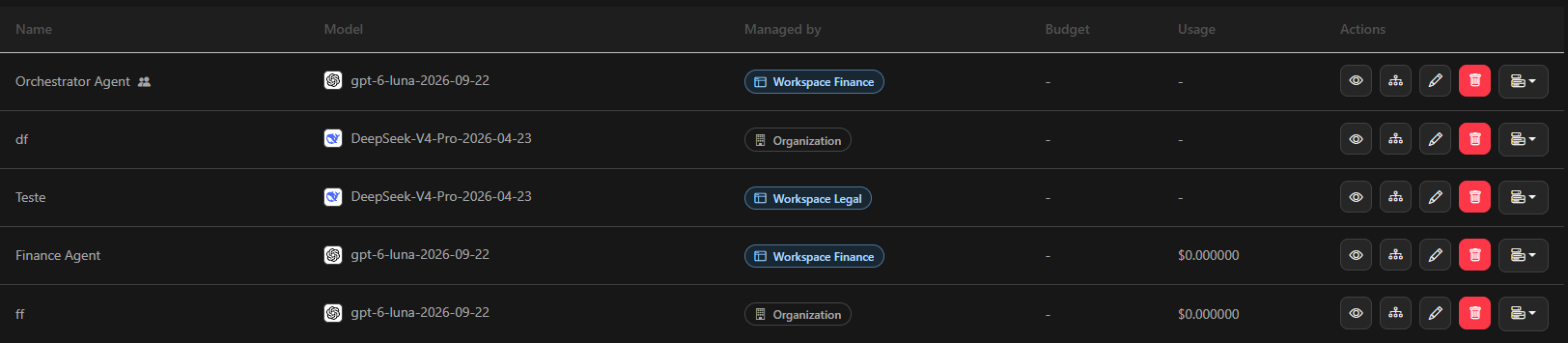
In the lists, each item shows the Managed by: Organization or Managed by: Workspace NAME badge. An item that the owner can see but does not manage (shared by another workspace, owned by the Organization or added from the Catalog) appears as read-only: they can view and use it, but not change it.
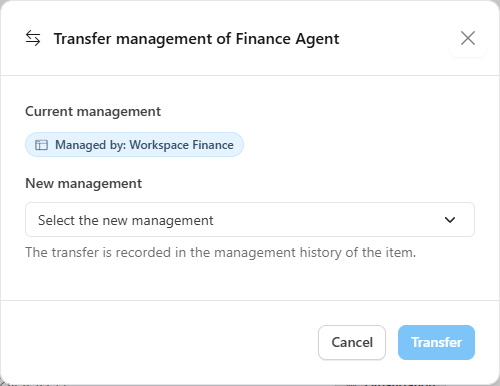
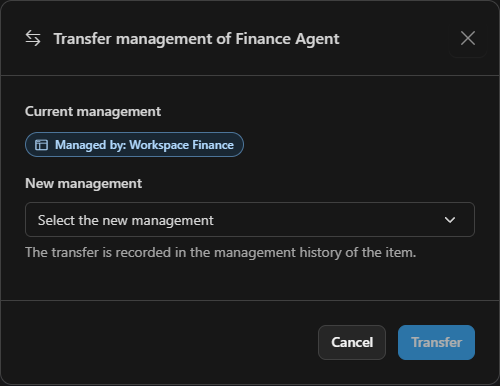
Administrators and Contributors can also Transfer management from the item's ... menu, choosing the new Management (another workspace or the Organization). The transfer is recorded in the item's Management history.
When creating an agent, connector, toolbox or skill, the owner must choose, in the Management field, which of their workspaces will manage the item.
What the owner can do on each screen
Workspaces
The owner sees only the workspaces they administer, in read-only mode: they cannot create, rename or delete them, nor change the budget. They can:
- view the Workspace details (linked agents and members);
- add or remove users as members.
The listed owners are locked in the member list.
Files


- The root of Files shows a read-only Workspaces folder and, inside it, the folders of the owner's workspaces.
- Inside their workspace folders, the owner can upload, create folders, rename, move, download and delete.
- Items cannot be uploaded or created at the root or in the Workspaces folder.
- Moving is only allowed within the same workspace tree. Moving to another workspace or to the Organization requires an Administrator or Contributor, and the transfer is recorded in the Management history.
- Folders and files are never shared between workspaces. What reaches another workspace is only what the File Reader (connector) delivers to the agents.
Agents
- Lists the visible agents: those the workspace manages, those shared with it and those added from the Catalog.
- Creates agents: the creation wizard links the agent to the managing workspace and also lets the owner link other workspaces they administer.
- Edits and deletes only the agents managed by their workspaces. Before deleting, the deletion impact shows what will be removed (links, conversations, agent teams that use it) and blocks the action while something still depends on the agent.
- Shares the agent with other workspaces and can Remove from my workspace a shared agent.
- Suspends and reactivates agents the workspace manages.
- An orchestrator agent (one that has an Agent Team) cannot be sent to the Catalog.
Connectors
- The owner creates, edits and deletes File Readers (Document Connector). The connector is tied to one workspace and only accepts files from that workspace's folders.
- The other types (OpenAPI, Fabric, Logic Apps, N8N, SharePoint, MCP, Fabric IQ) are view-only: the owner sees those that their workspace manages or receives through sharing, but the configuration is changed by an Administrator or Contributor.
- A File Reader that the owner does not manage shows the file names marked available through this connector, with no link and no download.
- A connector that is still used by agents or toolboxes cannot be deleted.
Toolboxes and Skills
The owner creates, edits, versions, promotes versions, shares and suspends the toolboxes and skills managed by their workspace. A composite item (such as a toolbox with skills) can only use components available in every workspace it reaches; when something is missing, the system offers Share together, saving everything in the same operation or nothing.
Monitoring
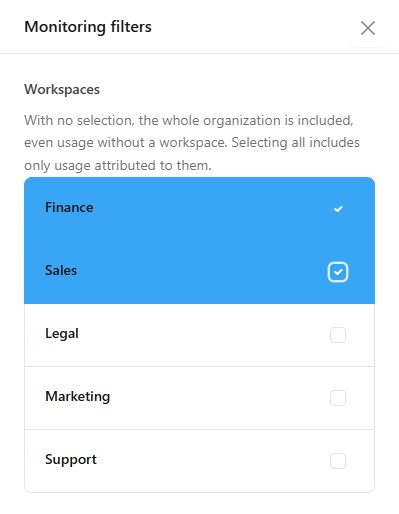
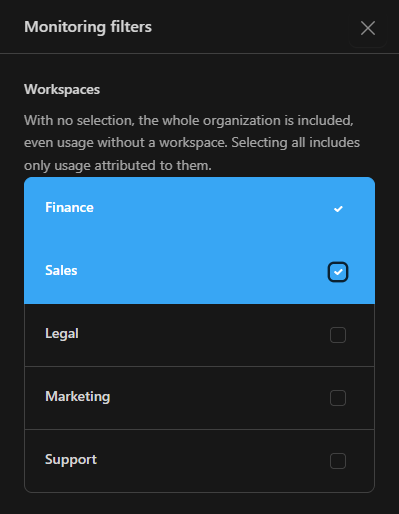
The owner uses the same dashboard as the administrator, but with data limited to their workspaces:
- the Workspaces filter accepts multiple selection; with no selection, it includes all of their workspaces;
- the Cost by workspace card shows the cost of each one. A usage record may belong to more than one workspace and, in that case, counts in each, so the sum may be higher than the total cost;
- per-workspace data is recorded from the date shown on the screen.
Sharing a resource
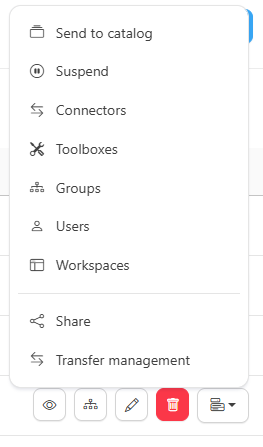
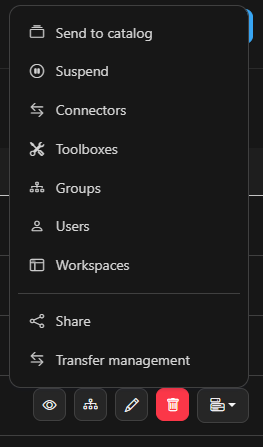
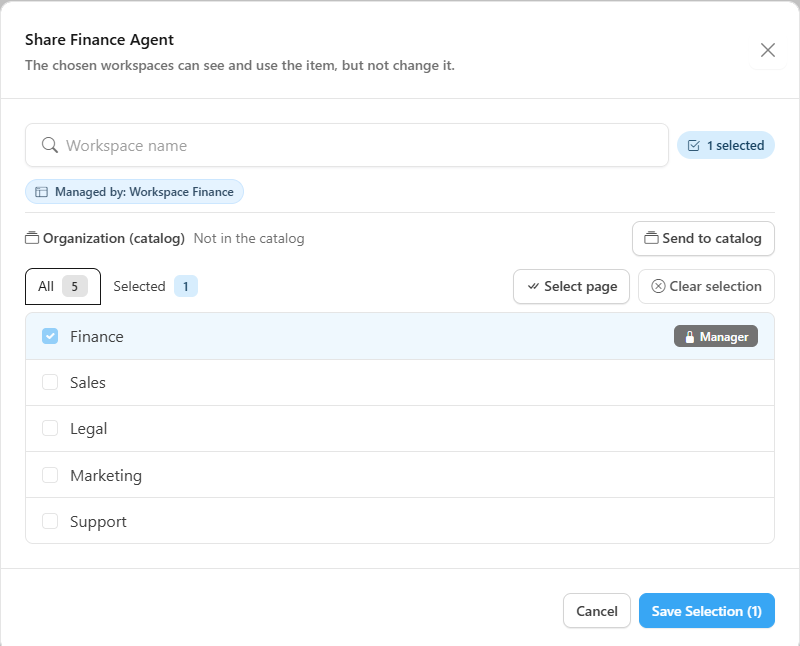
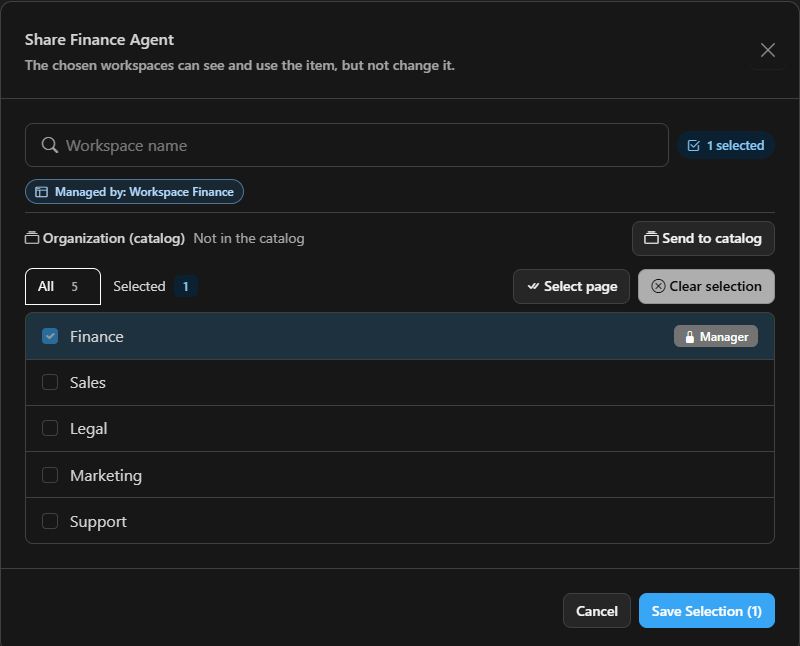
To leave a shared item, the owner of the destination workspace uses Remove from my workspace: that workspace's members stop using the item. The manager can see which workspaces the item is shared with; workspaces they do not administer appear only as a count.
Organization Catalog
The Catalog is the showcase of resources approved by the organization, available for any workspace to adopt.
| Status | Meaning |
|---|---|
| Awaiting approval | The owner submitted the item with Send to catalog and an Admin or Contributor has yet to decide. |
| In the catalog | Approved and available for workspaces to add. |
| Rejected | The item returns to the workspace with the reason for the rejection; it can be fixed and resent. |
| Withdrawn from the catalog | It no longer accepts new adoptions. Those already using it keep using it; use Suspend to cut usage immediately. |
What the owner does:
- Send to catalog agents, connectors, toolboxes and skills that the workspace manages. Components the item depends on that are not yet in the catalog can go along.
- Cancel request while it is awaiting approval, and Withdraw from catalog once approved.
- In the Catalog tab of Agents, Add to my workspace an approved agent, choosing the workspaces. It appears with the Catalog badge and read-only, and can be removed with Remove from my workspace.
Approval, rejection and the Pending list stay with Administrators and Contributors.


Suspend and reactivate
Suspend cuts the use of an agent, connector, toolbox or skill without deleting anything: the affected agents run without the item and use it again when it is reactivated. Before confirming, the dialog shows the affected agents.
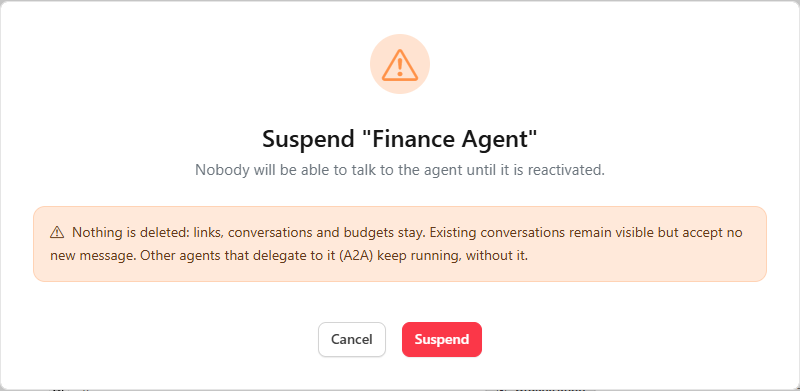
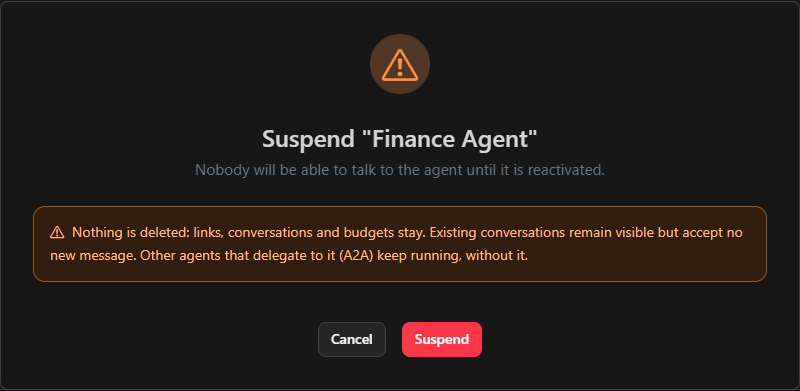
For an agent, suspension prevents new conversations until it is reactivated (existing conversations stay visible and nothing is deleted). Other agents that delegate to it through A2A keep running, without it.
- Only whoever manages the item can suspend or reactivate it.
- A suspension made by the Organization can only be undone by an Administrator or Contributor.
- If the update of the agents in Foundry fails, the item shows Republishing pending and the system retries automatically. You can also use Try again in the row menu.
Best practices
- Designate two owners per workspace to avoid depending on a single person.
- Prefer sharing over duplicating: an agent maintained by a single workspace and shared with the others avoids diverging versions.
- Use the Catalog for what is useful to the whole company, keeping approval as a control point.
- Track cost in Monitoring filtered by Workspace.
The Workspace Owner has no access to Users, Groups, Budgets, Licenses, Billing, Projects, Models, Guardrails and Audits. Budget and usage limits remain under the Administrator's control.