

Some Power Omni agents talk by voice, in real time. You speak into the microphone and the agent answers out loud, like a phone call. These agents are marked with a microphone icon, and voice conversations are listed under Recent conversations.
Before you start
- Use an up-to-date browser, with the page opened over HTTPS.
- Allow microphone access when the browser asks.
- Prefer a quiet place or headphones, so the agent does not hear its own voice.
Starting a conversation
During the conversation
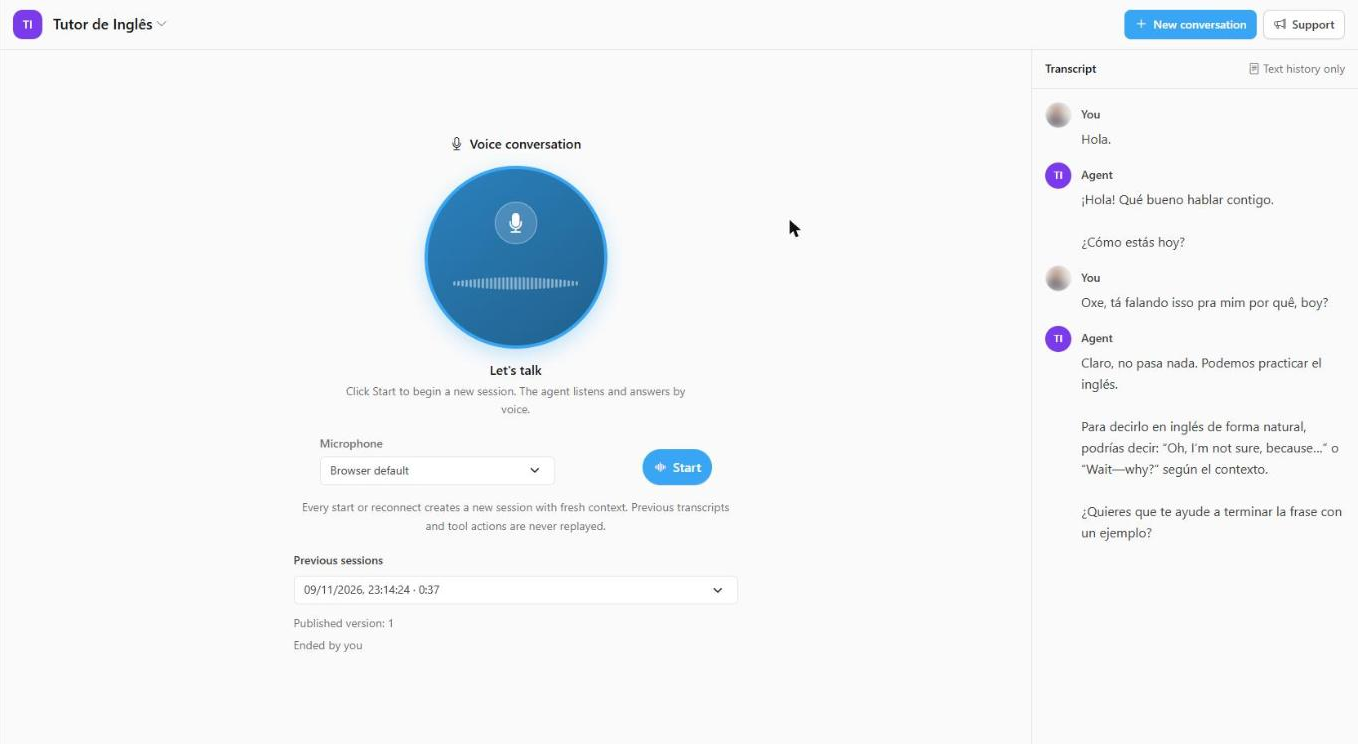
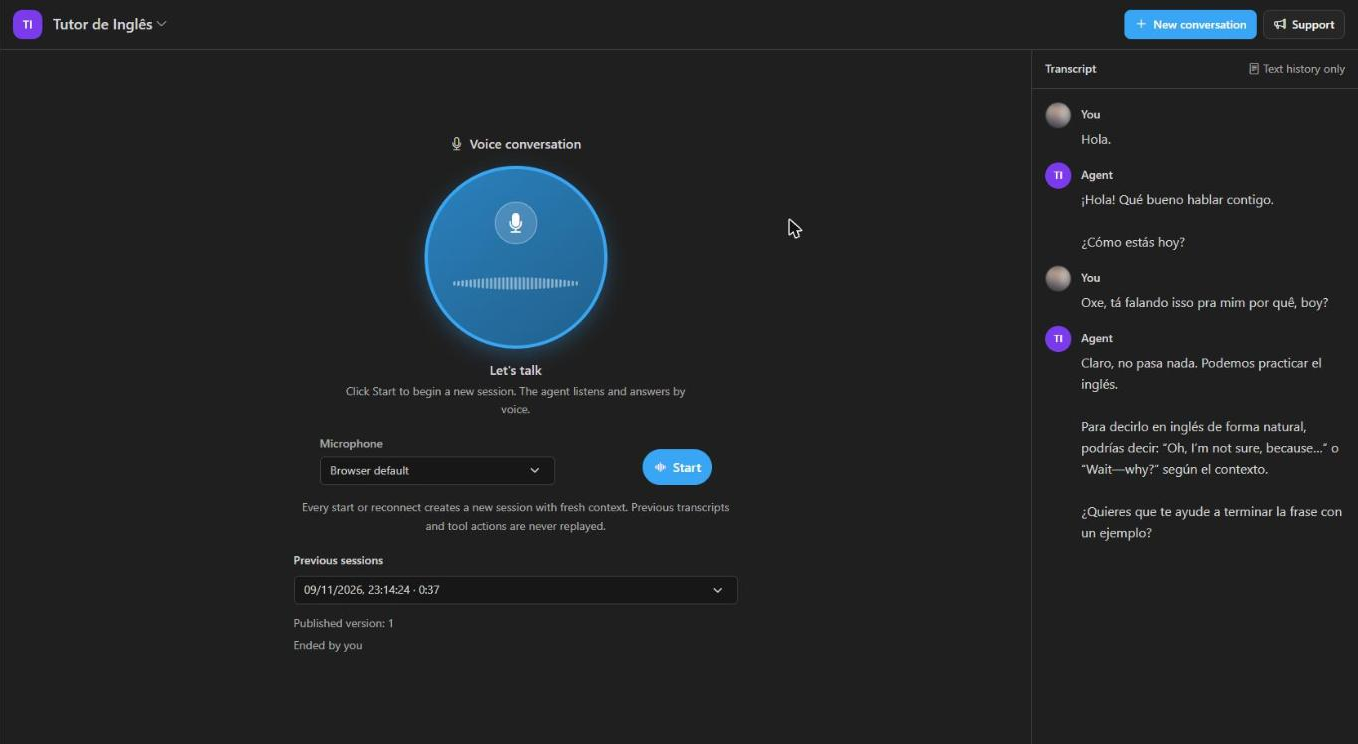
The panel shows the session state and a waveform that reacts to your voice and the agent's. The transcript appears live in the right-hand panel, separating what you said from what the agent answered, with the Text history only notice.
| State | What it means |
|---|---|
| Listening | The agent is listening. Speak naturally. |
| Agent speaking | The agent is answering. You can interrupt it by speaking. |
| Executing tool | The agent is querying a system. Please wait. |
| Waiting for your approval | The agent wants to run an action that needs your authorization. |
| Ending session… | The session is being closed safely. |
Available controls:
- Mute / Unmute: the agent stops hearing you, but the session and its limits stay active.
- End session: ends the conversation.
- Time remaining: shows how long is left until the duration limit set by the administrator.
If you stay silent for too long, the panel warns that the session will end due to inactivity.
Approving agent actions
When the agent needs to run an action in a system, the Action requires your approval card appears, with the action parameters and the time left to decide.
- Review the parameters and use the buttons to approve or reject.
- Saying “yes” out loud does not authorize the action: approval is always done with the button.
- If you do not decide within 60 seconds, the approval expires and the action is rejected.
Session history
Conversations are saved as text only; audio is not recorded. Only you can see your conversations.
- Under Previous sessions, pick a session to see its date, duration, the agent's published version and the reason it ended (for example, Ended by you).
- Use Load more sessions and Load more transcript to see what did not fit on the first page.
- When you start again from the history, the new session begins with fresh context: the agent does not remember what was said before, and earlier actions are not repeated.
- A transcript may show as incomplete if the connection ended before all events arrived.
When the session ends
A session can end by your choice or because of a limit. The panel tells you the reason:
- Ended by you.
- Maximum duration reached or Ended due to inactivity: limits set by the administrator.
- Ended because the available budget was exhausted.
- Ended because access was revoked, or because the agent or one of its items was suspended.
- Connection interrupted: the text already received stays in the history. Click Reconnect to start a new session; the previous one is not resumed.
Important rules
- You can have one active voice session at a time in the organization. If you try to open another, Power Omni asks whether you want to replace the active session; when you confirm, the other one ends.
- Leaving the voice panel ends the session. When you navigate to another screen, the system asks for confirmation. Switching browser tabs or minimizing the window does not end the session.
- Closing the tab, losing the connection or signing out also ends the session.
Common problems
| Message | What to do |
|---|---|
| Microphone access was denied | Allow the microphone in the browser settings and try again. |
| The microphone is unavailable or in use by another application | Close the other application using the microphone or choose another device. |
| The microphone was disconnected | Select an available device and start a new session. |
| Voice requires HTTPS and a browser supporting microphone access | Open Power Omni over HTTPS in an up-to-date browser. |
| The network cannot keep up with live audio | Check your connection. The microphone was stopped; start a new session. |
| The agent could not complete the voice response | Speak again to retry. |
To create and configure voice agents, see Voice Agents.