

Prefer to watch? See in the video how to create a voice agent (in Portuguese).
The Voice Agent talks to the user by voice, in real time, right in the browser. The user speaks into the microphone, the agent answers out loud, and the conversation works like a phone call: no typing, no waiting for a full written answer. You can interrupt the agent by speaking over it, and the transcript appears on screen as you talk.
It is different from the voice dictation of the text chat, which only turns your speech into text for you to review and send. With a voice agent, the whole conversation is spoken.
Example uses: customer service, virtual reception, technical support, interview practice and language practice.
What is stored. Power Omni keeps the text transcript and the session data (duration, reason it ended). Audio is neither recorded nor replayed. Each conversation is visible only to the user who held it.
Before you start
To create voice agents, check the requirements:
- New Foundry project. Voice is not available in projects of the old model.
- Voice model registered in Artifacts > Models (see Voice models and rates).
- Compatible region. The availability of the model and voice in your project is confirmed when you save the agent.
- Browser with HTTPS and microphone access. Whoever uses the agent must allow the microphone when the browser asks.
- Permission to create. Administrators, Contributors and Workspace Owners can create and edit voice agents.
Automatic installation. When you install Power Omni through Billing > Settings, there is an optional Enable voice conversations step that already registers a voice model. If the region does not offer voice, the option comes unchecked and the agent is created without voice; an administrator can register the model later, in Models.
How to create a voice agent
-
Choose the type: Text or Voice
In the Create an agent window, choose Voice (real-time spoken conversation, with a choice of voice and language) and click Next. If you prefer to start from an example, choose New agent > From an agent template to open the template gallery.
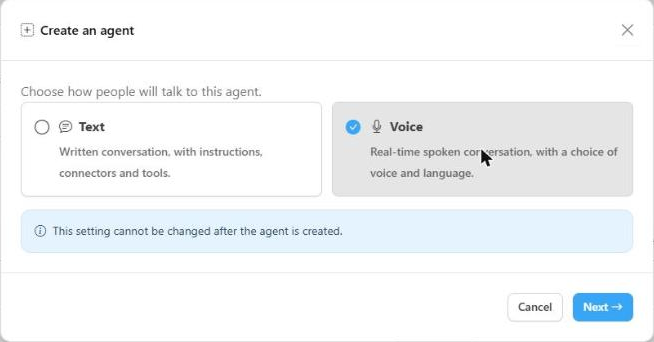
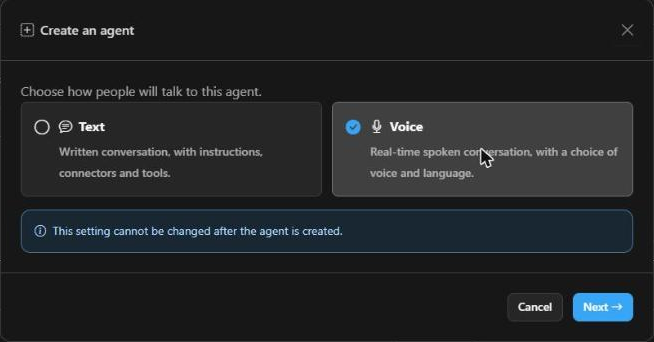
The type cannot be changed later. An agent created as Voice stays a voice agent (and a Text agent stays a text agent). To have both, create two agents.
-
Choose a starting template (optional)
The gallery lists the agent templates, with search and an All / Text / Voice filter. When you pick a template, its instructions and settings are copied to your agent, which stays independent: changing the template later does not change your agent.
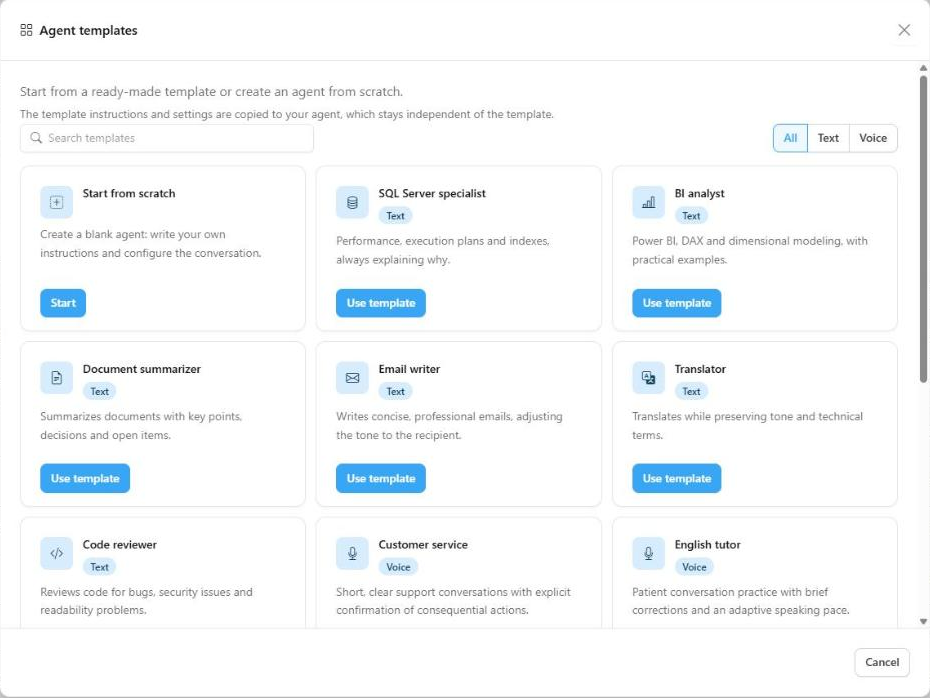
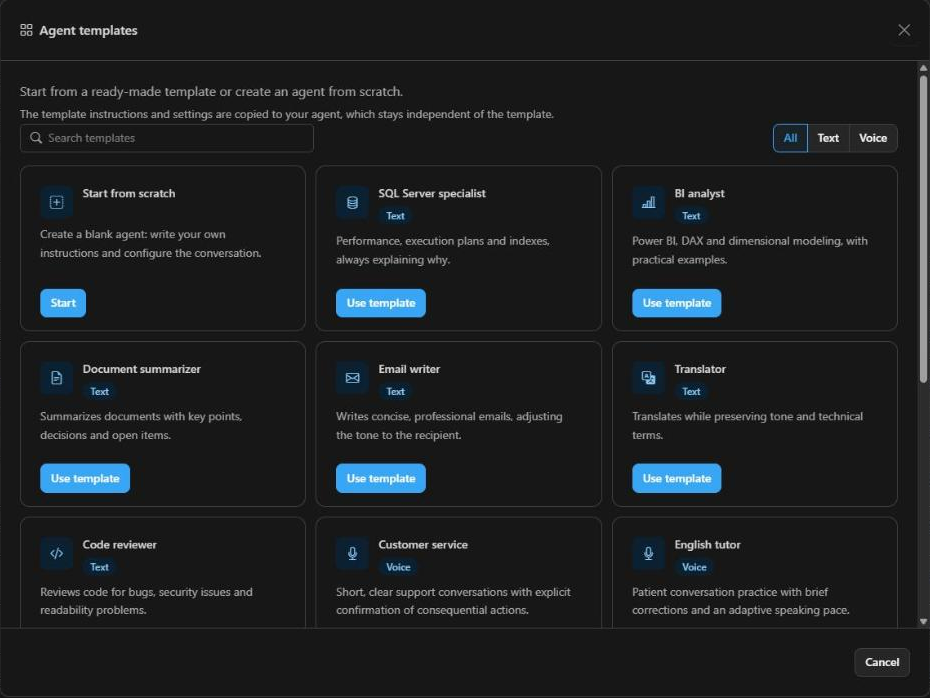
Voice template What it is for Customer service Short, clear support conversations with explicit confirmation of consequential actions. Virtual receptionist Answers calls, triages, collects name and reason, and routes them. Technical support Step-by-step diagnosis, confirming understanding at each stage. Sales assistant Understands the customer's interest and qualifies the lead without overpromising. English tutor Patient conversation practice with brief corrections and an adaptive speaking pace. Interview coach Simulates an interview and gives short feedback after each answer. General assistant A helpful conversational starting point in the user's language. Start from scratch A blank agent: you write the instructions and configure the conversation.
Step 1: Agent and model
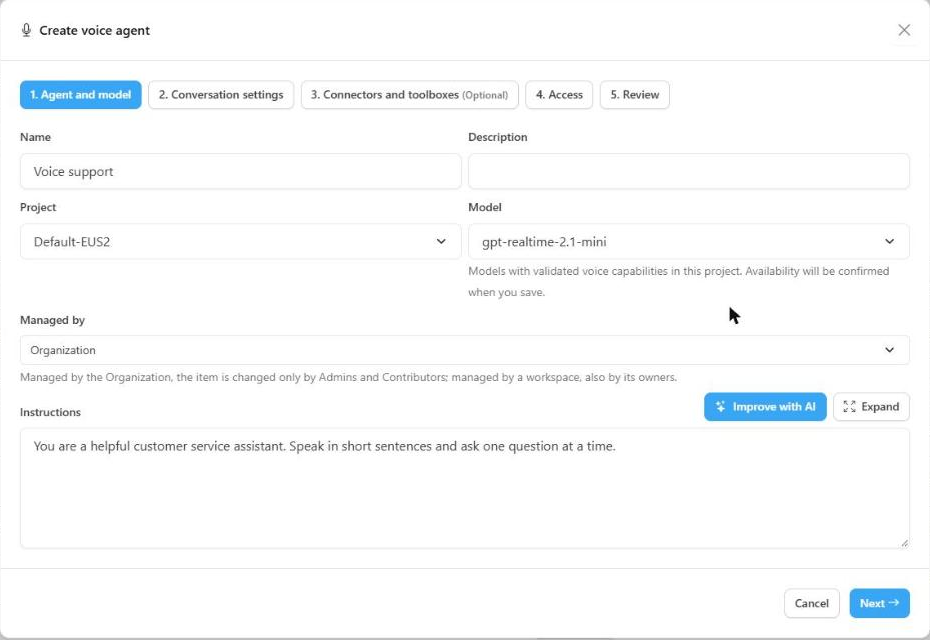
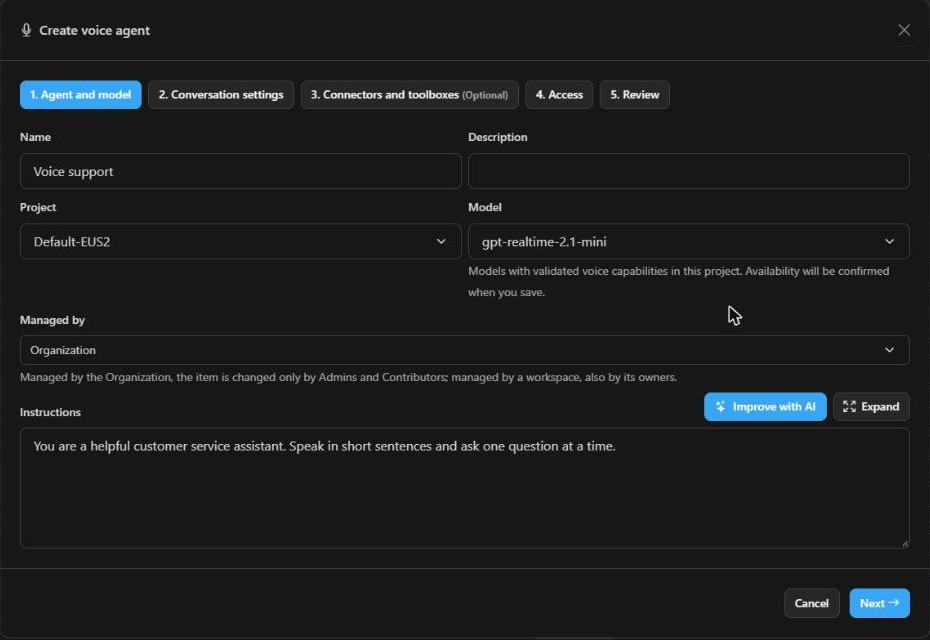
| Field | Description |
|---|---|
| Name | How the agent appears to users. |
| Description | Optional but recommended: helps users understand what the agent is for. |
| Project | Foundry project where the agent will be created (creation only). Choose a New Foundry project. |
| Model | Compatible real-time voice model. Models without validated voice in this project are listed as unavailable, with the reason. |
| Managed by | Who manages the agent: the Organization (only Admins and Contributors can change it) or a workspace (its owners too). See Workspace Owner. |
| Instructions | The agent's behavior. For voice, prefer short sentences, one question at a time, and avoid asking the agent to read links, tables or code out loud. |
The Improve with AI button rewrites the instructions with spoken conversation in mind (to use it, choose a project first). Review the text before moving on.
Step 2: Conversation settings
Here you define how the agent sounds and how the conversation behaves.
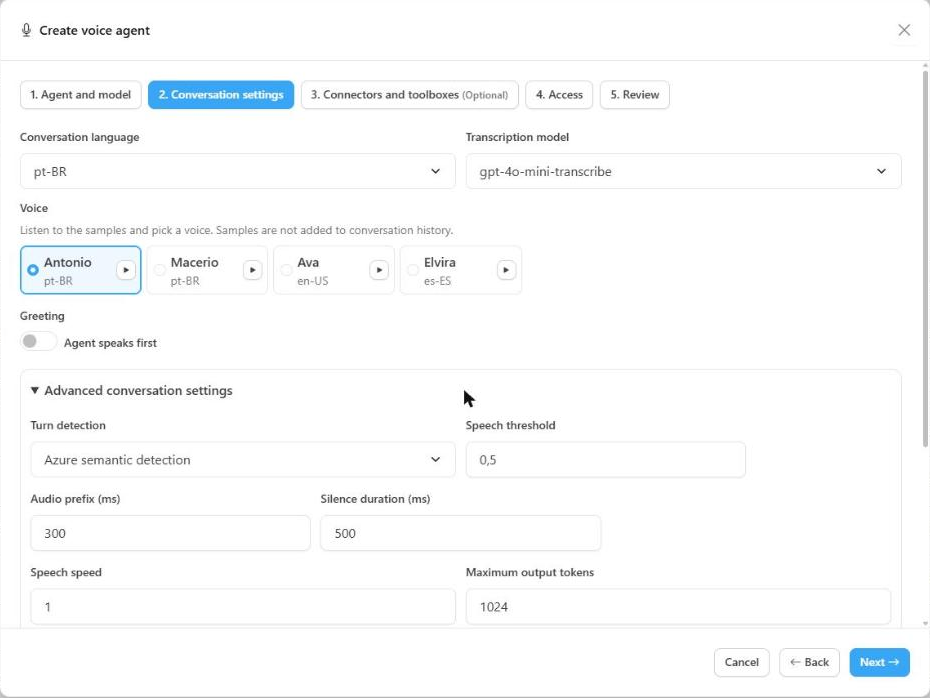
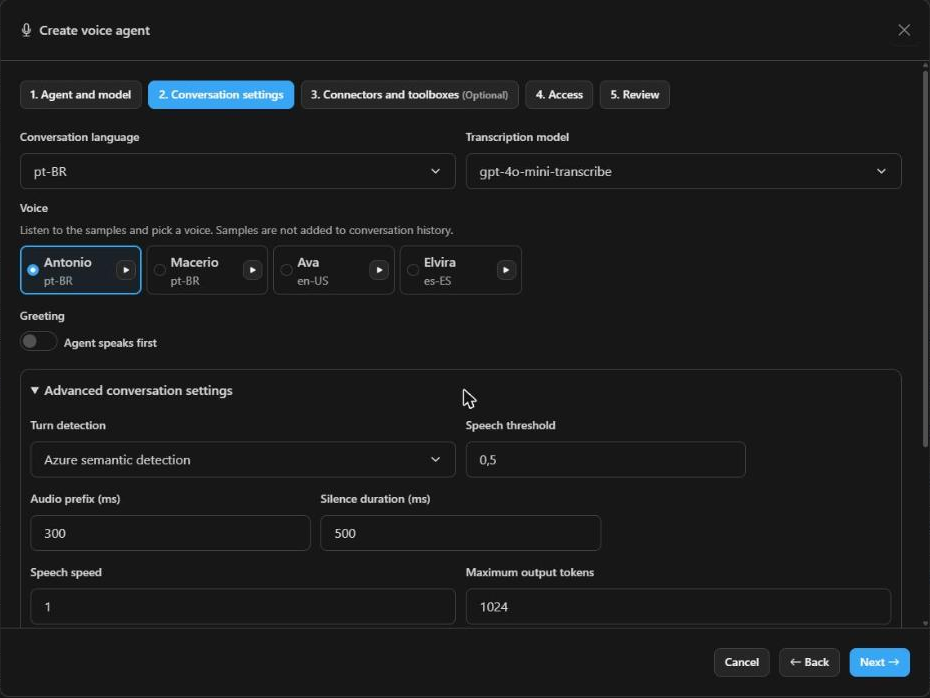
- Voice: choose among the voices validated for the model. Click Play a sample to compare. Samples are pre-recorded audio: they do not open a session, do not use the microphone and do not appear in the history.
- Conversation language: the language the user speaks. Some models offer Automatic language detection.
- Transcription model: model that transcribes the user's speech for the history.
- Greeting: check Agent speaks first so the agent talks first. You can have it speak an exact text or generate the greeting from the instructions. Some voices cannot speak an exact text; in that case, use the generated greeting or turn the greeting off.
Advanced conversation settings
The defaults suit most cases. Adjust only if needed:
| Option | What it does |
|---|---|
| Turn detection | How the agent notices the user has finished speaking: server voice activity detection, Azure semantic detection or OpenAI semantic detection. |
| Speech threshold, audio prefix and silence duration | Sensitivity for detecting the start and end of speech. |
| Speech speed | Pace of the agent's voice. |
| Maximum output tokens | Limit on the length of each answer. |
| Recognition hints | Terms the agent should recognize better (product names, acronyms), one per line. |
| Noise suppression and echo cancellation | Improve capture in noisy environments. |
| Allow interruption by speaking | When on, the user can interrupt the agent by speaking. |
| Interim messages | Short phrases the agent says while waiting for a tool to respond. |
| Voice temperature | Variation in intonation, in the models that offer the option. |
Step 3: Connectors and toolboxes
Give the agent tools so it can query systems during the conversation. There are two modes, mutually exclusive:
- Individual tools: MCP connectors, up to 20 per agent.
- One toolbox: a project toolbox. This is the way to use web search, code interpreter, OpenAPI, Logic Apps and skills in a voice agent.
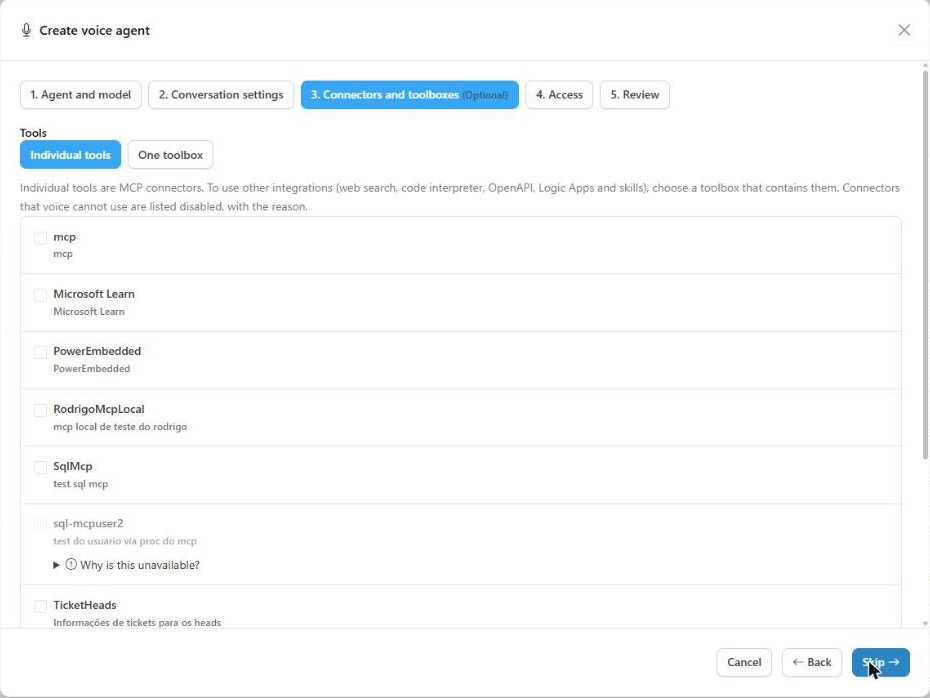
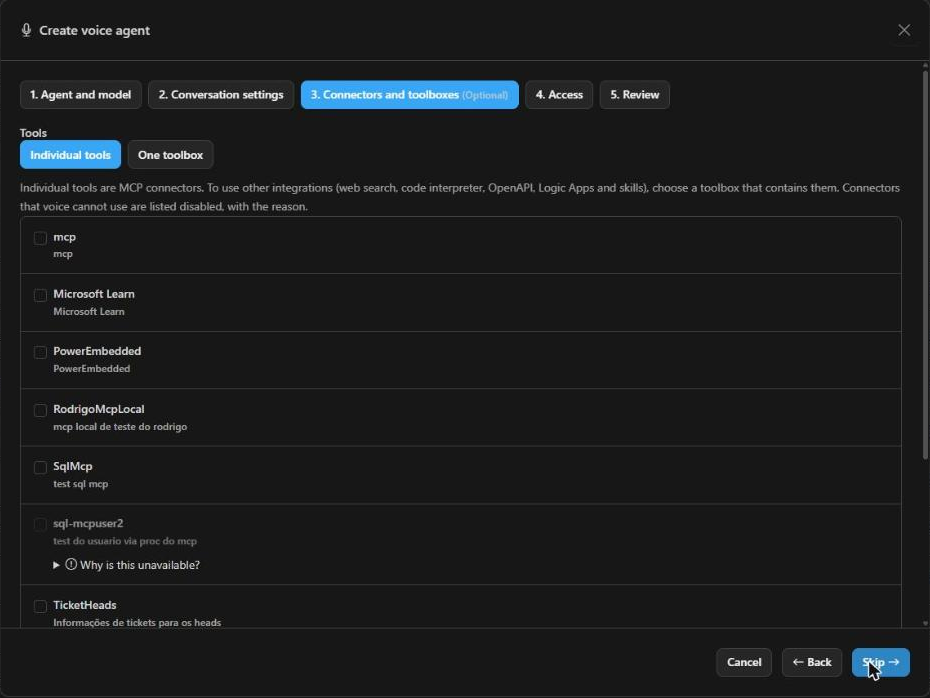
Switching mode removes the current selection. If you do not want tools, click Skip. Items that voice cannot use are shown disabled, with the reason. The main rules:
- Connectors that require user consent or that send the user's email do not work with voice.
- The MCP connector must have an HTTPS URL. Legacy connectors that only have a connection name are not accepted.
- The toolbox must be published and contain at least one tool or skill. MCP tools inside the toolbox must not require approval.
- Items suspended by management cannot be attached.
Pinned version. The voice agent keeps a copy of the connectors and toolboxes in the version it was published with. For this reason, while a voice agent uses a connector or toolbox, it cannot be edited and its tools cannot be changed. To change it, edit the voice agent or remove the link.
Step 4: Access
Choose who can use the agent: users, groups and Workspaces. You can skip this step and share later through the sharing actions on the agents list. Workspace Owners share only within their own workspaces (see Workspace Owner).
Step 5: Review
Check the name, model, voice, language, instructions and access. Use Edit on any block to go back to the corresponding step, then click Save.
Editing and versions
Each time you save, Power Omni publishes a new version of the voice agent in Foundry.
- New sessions use the latest published version.
- Sessions in progress keep the settings they started with, even if you edit the agent.
- If someone changed the agent directly in the Foundry portal, Power Omni warns that there is a newer version in Foundry. Review it and click Adopt Foundry version to bring it in; this replaces the settings shown, including unsaved changes.
Voice agents can be suspended and reactivated by management, like other agents. A session in progress ends when the agent, or one of its items, is suspended.
Voice models and rates
Voice agents use real-time voice models (the gpt-realtime family, such as gpt-realtime-2.1 and gpt-realtime-2.1-mini, and azure-realtime). They are registered in Artifacts > Models, like the other models.
- They are managed service models: there is no deployment or quota in Azure. Billing is by audio usage.
- If the voice model does not appear in the Agent and model step, an administrator must register it in Models.
- In the automatic installation, the Enable voice conversations step already registers the model.
Costs
Since voice is billed by Azure, the cost depends on the speaking time and the chosen model, and is accounted per agent response.
| What drives the cost | Detail |
|---|---|
| Audio | User speech (input) and agent speech (output), in audio tokens. This is the largest component. |
| Text | Instructions, context and tools also consume text tokens. |
| Cached context | Has a reduced rate, when applicable. |
| Transcription | Transcribing the user's speech for the history has its own rate, depending on the chosen transcription model. |
Reference values (public Azure pricing, per 1 million tokens, in USD):
| Model | Audio input | Audio output | Text input | Text output |
|---|---|---|---|---|
gpt-realtime-2.1 |
32 | 31 | 4 | 24 |
gpt-realtime-2.1-mini |
11 | 26 | 0.66 | 2.64 |
As a reference, an audio-only estimate (300 input tokens and 600 output tokens per minute of conversation) is around US$ 0.03 per minute with gpt-realtime-2.1 and US$ 0.02 per minute with gpt-realtime-2.1-mini.
These are estimates. The values above follow Microsoft's public price table and do not replace the Azure invoice. The actual cost varies with the size of the instructions, tool usage and the pace of the conversation. To track real spending, use Monitoring and set a Budget.
Tips to control cost:
- Prefer the mini model for simple, high-volume support.
- Keep instructions short and connect only the necessary tools.
- Reduce the maximum duration and inactivity timeout of sessions (see the next section).
- Set budgets per agent, group or organization.
Voice session limits
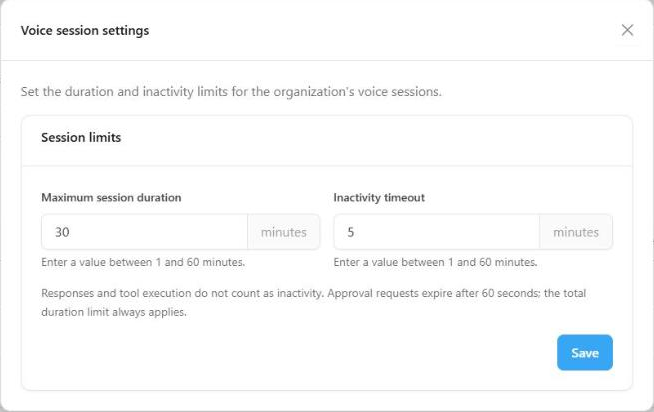
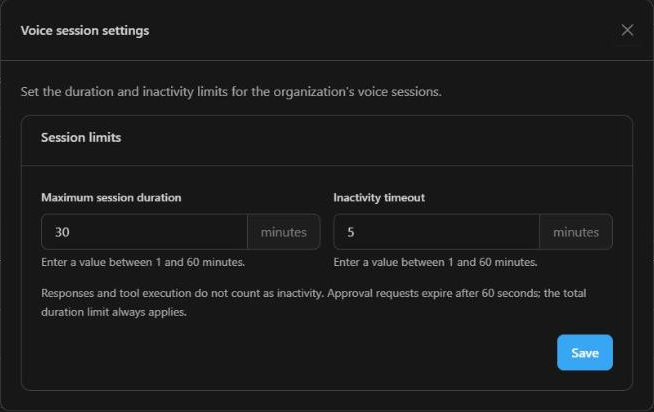
In Artifacts > Agents, the Voice sessions button opens the Voice session settings, where the administrator sets the session limits for the whole organization. Enter a value between 1 and 60 minutes.
| Limit | Default | Description |
|---|---|---|
| Maximum session duration | 30 minutes | The session ends when this time is reached. |
| Inactivity timeout | 5 minutes | The session ends if nobody speaks. Time spent with the agent answering or running a tool does not count as inactivity. |
Inactivity cannot be greater than the maximum duration. Besides these limits, the session also ends when:
- the available budget is exhausted;
- the user's access to the agent is revoked, or the license is no longer valid;
- the agent or one of its items is suspended, or a component of the version is removed;
- the user ends it, leaves the voice panel or the connection is interrupted.
Monitoring and budget
In Monitoring, voice cost and requests appear separately from text:
- Total Questions: shows the count of text questions and, below it, + N voice responses.
- Average Cost / Question: considers text conversations only.
- Total Cost: breaks down Text and Voice (for example, "Text $12.21 · Voice $0.01").
- In the usage tables, rows for agents, users and models that had voice carry an extra Voice line with the matching amount.
Voice consumption also counts toward Budgets, which are checked during the conversation.


Unreconciled consumption. Until Microsoft confirms that the audio usage report is complete, the session accrues the components the service reported and marks the consumption as unreconciled. Nothing is estimated or recorded as zero. In case of a discrepancy, the Azure invoice is the reference.
Best practices
- Write instructions for spoken conversation: short sentences, one question at a time, confirmation of names and numbers.
- Ask the agent to confirm before consequential actions and never to say it finished something before the tool responds.
- Choose the voice by listening to the samples and the language your users really speak.
- Test the agent with the microphone and browser users will use.
- Enable only the necessary connectors and prefer toolboxes for integrations such as web search.
- Set session limits and a budget before releasing to many users.
Limitations
- There is no audio recording or replay; the history is text only.
- Each user can have one active voice session at a time in the organization.
- An interrupted connection is not resumed: the user starts a new session, with fresh context.
- Voice requires HTTPS and a browser with microphone and AudioWorklet support.
- Connectors that depend on the user's identity (consent, sending email) do not work with voice.
To see how end users talk to the agent, see Voice Conversations.
Need help?
If you have questions about voice agents, models, cost or session limits, contact Power Omni support.